Create Salesforce Flows and Outbound Messages to automatically send work order data to Field Nation.
Complete these before starting. Each card links to where you get or confirm the requirement.
Field Nation configured
The connector is installed, credentials saved, and connection test passed.
Trigger URL in hand
Copied from Configure Field Nation Step 5 and stored securely.
Salesforce admin access
System Administrator profile — needed to create Flows and Outbound Messages in Setup.
Trigger field ready
A checkbox or status field on your object that signals when to dispatch to Field Nation.
The Salesforce workflow consists of two components:
Flow: Monitors records and evaluates conditions Outbound Message: Sends record ID to Field Nation Field Nation: Fetches full record data and creates work order
Outbound Messages send record IDs to Field Nation's trigger URL.
Salesforce Setup → Quick Find → "Outbound Messages"
Click "New Outbound Message"
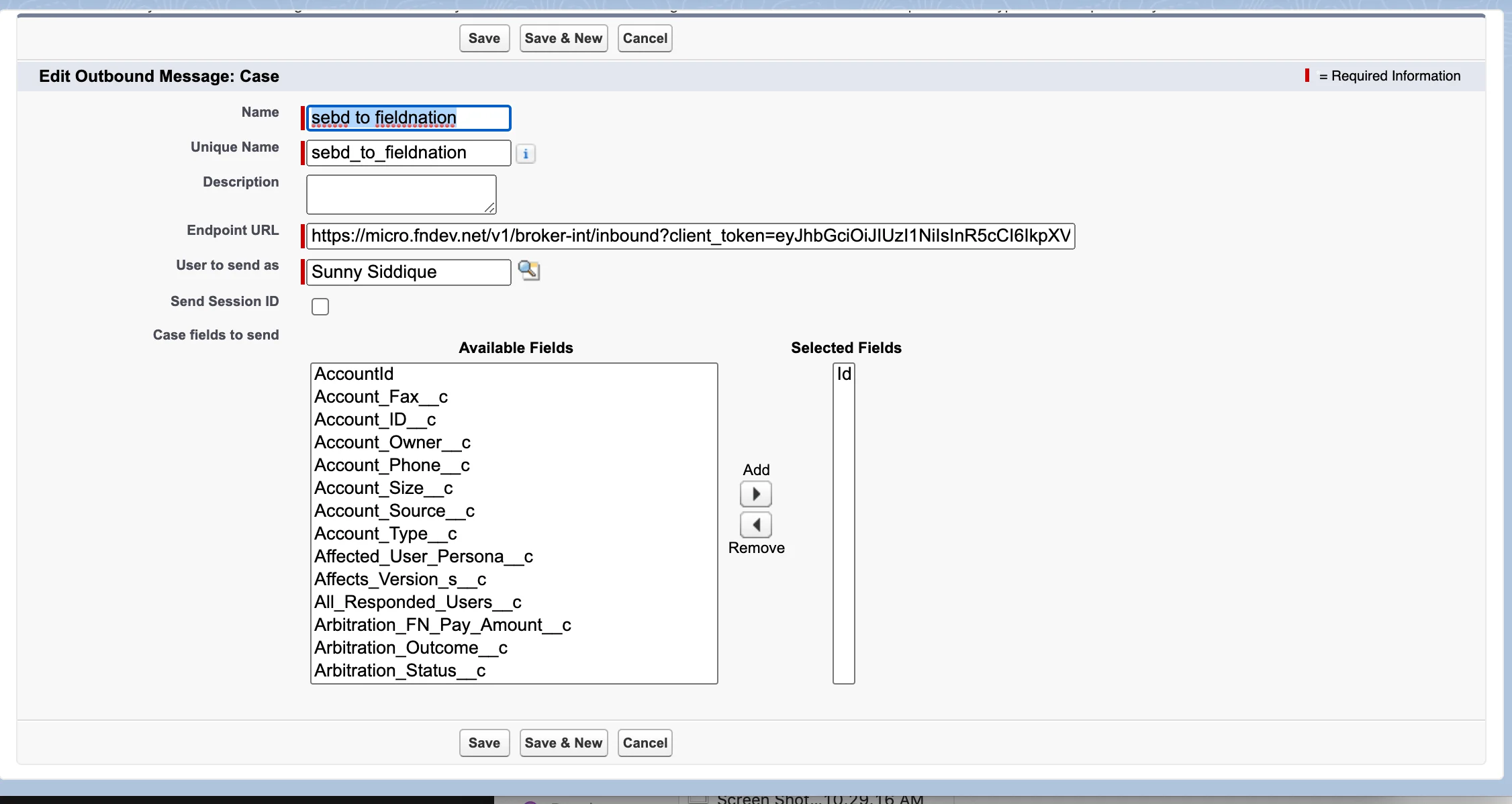
Choose the same object you configured in Field Nation (e.g., Case)
Name: Descriptive name (e.g., "Send to Field Nation") Unique Name: Auto-populated (can customize) Endpoint URL: Paste Field Nation trigger URL
https://api.fieldnation.com/integrations/trigger/{YOUR_CLIENT_TOKEN}Important: Only select the ID field
Field Nation retrieves all other fields via API using the ID.
Why only ID?
Click "Save" - Salesforce generates WSDL and endpoint configuration
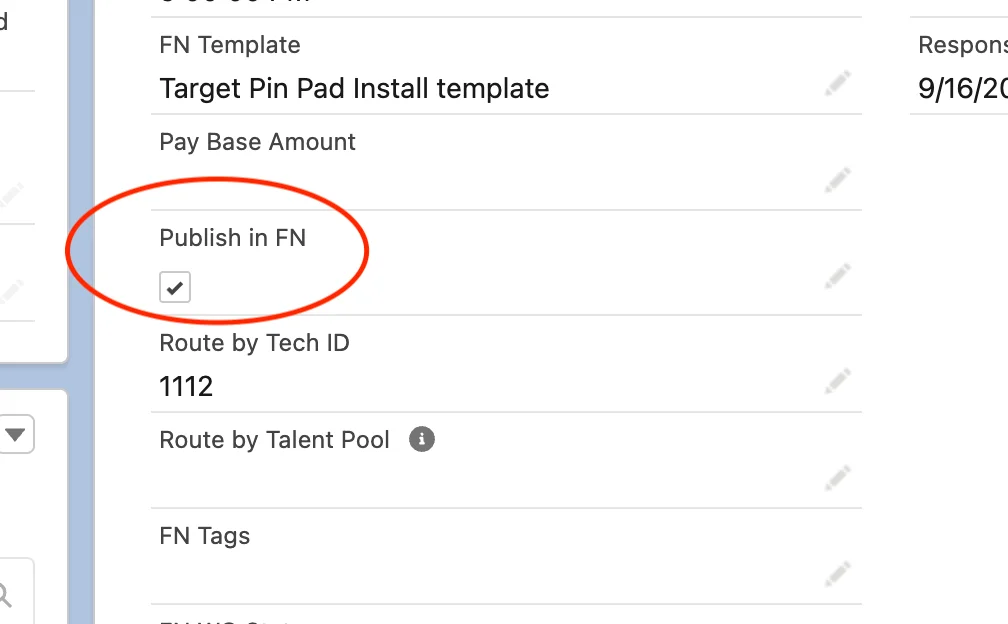
Create or identify the field that will trigger work order creation.
Most common approach - gives users explicit control.
Setup → Object Manager → Your Object (e.g., Case)
Click "Fields & Relationships" → "New"
Field Type: Checkbox
Field Label: "Send to Field Nation"
Field Name: Auto-populated (e.g., Send_to_Field_Nation__c)
Default Value: Unchecked
Description: "Check to create Field Nation work order"
Grant access to appropriate profiles
Add field to relevant page layouts so users can see/modify it
Alternative approach - trigger based on status change.
Example Configurations:
Best Practice: Checkbox provides better control and prevents accidental triggers. Status-based triggering requires careful condition design to prevent unwanted work order creation.
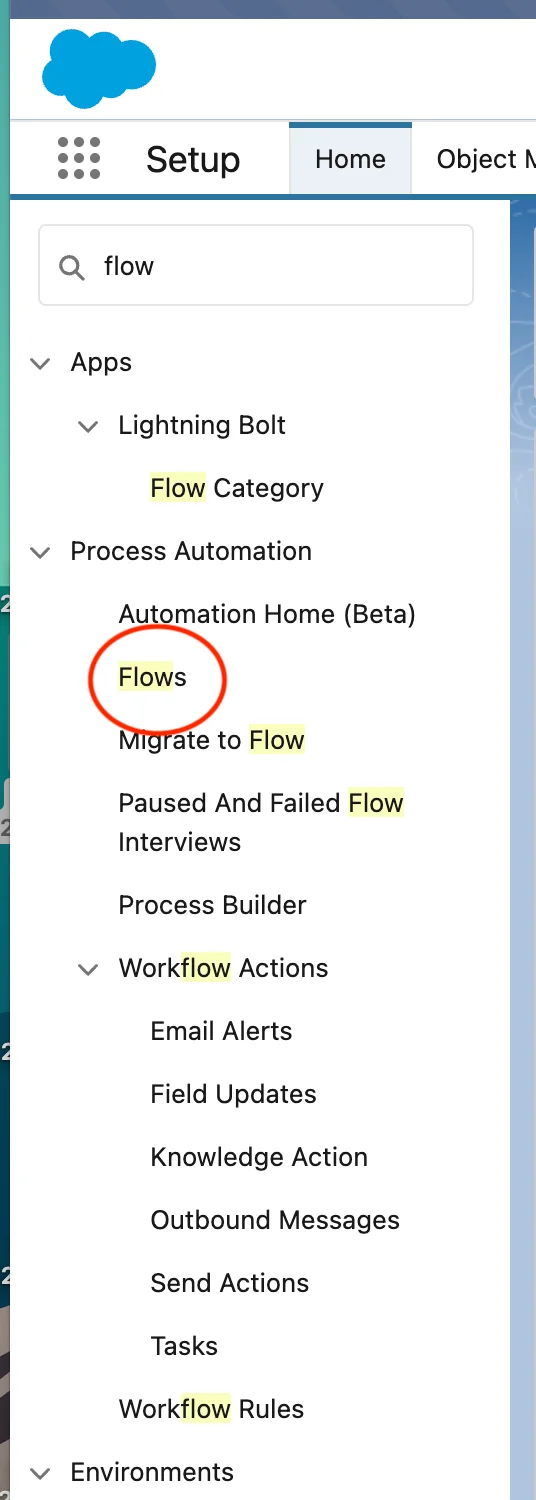
Flows provide the automation logic to trigger outbound messages.
Setup → Quick Find → "Flows" → "New Flow"
Choose "Record-Triggered Flow"
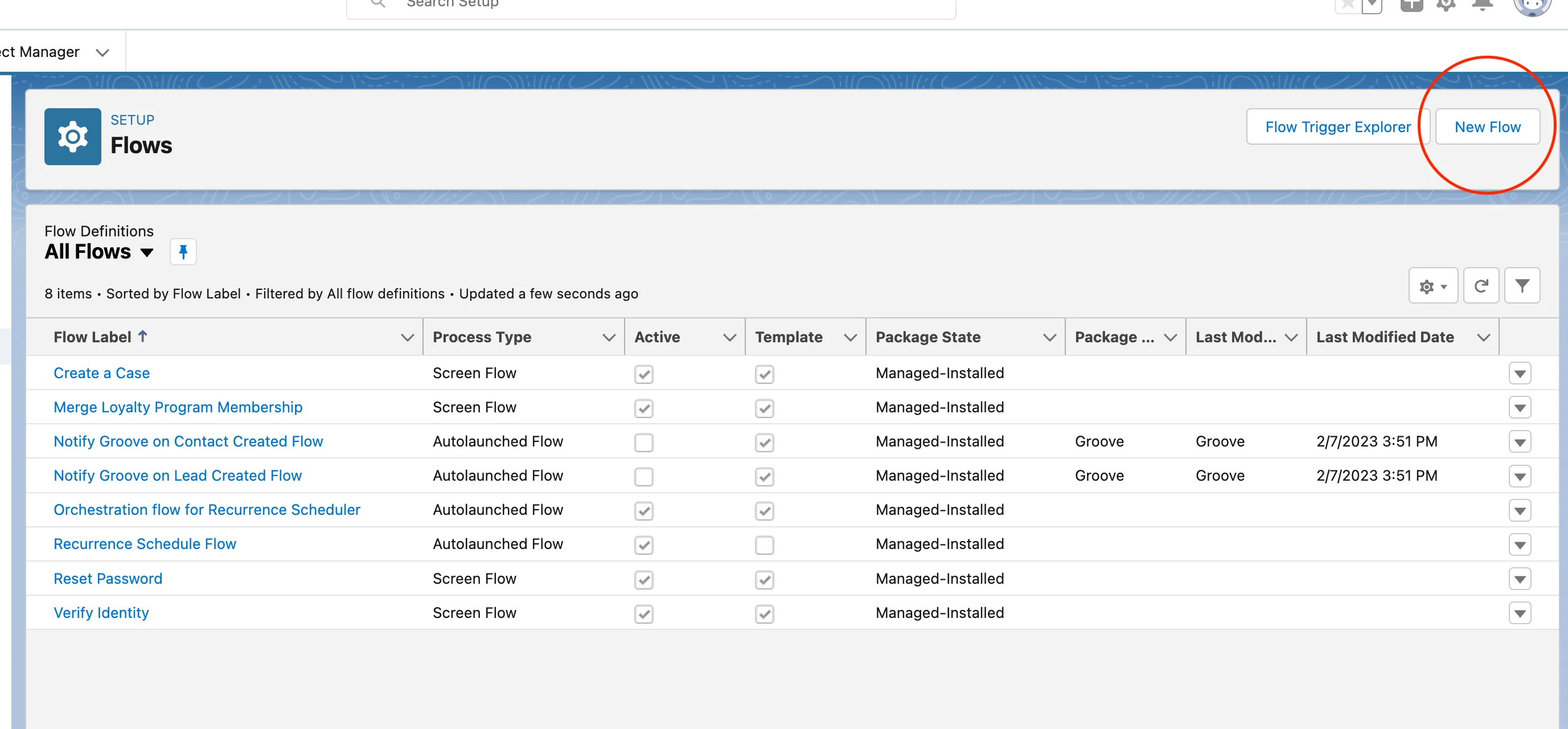
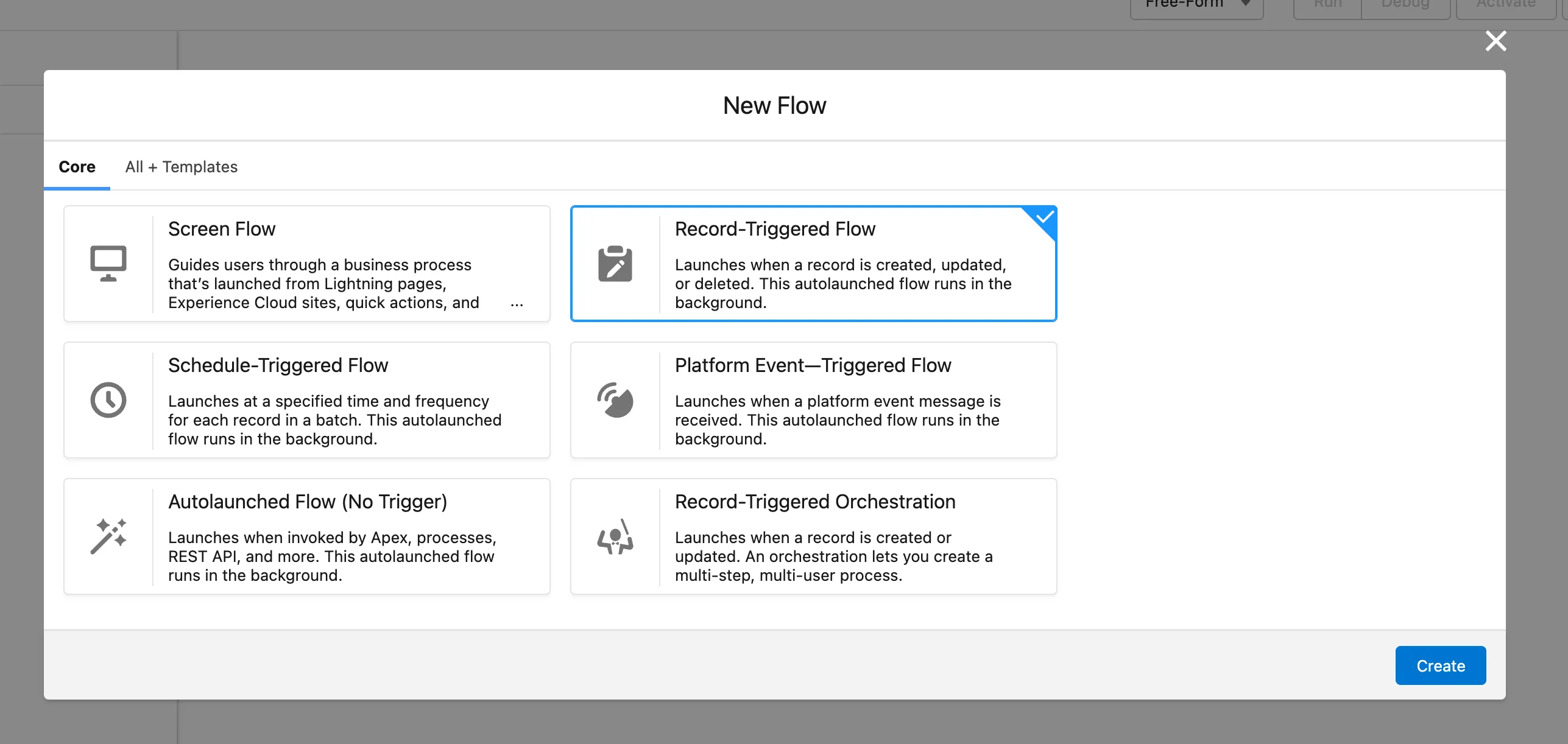
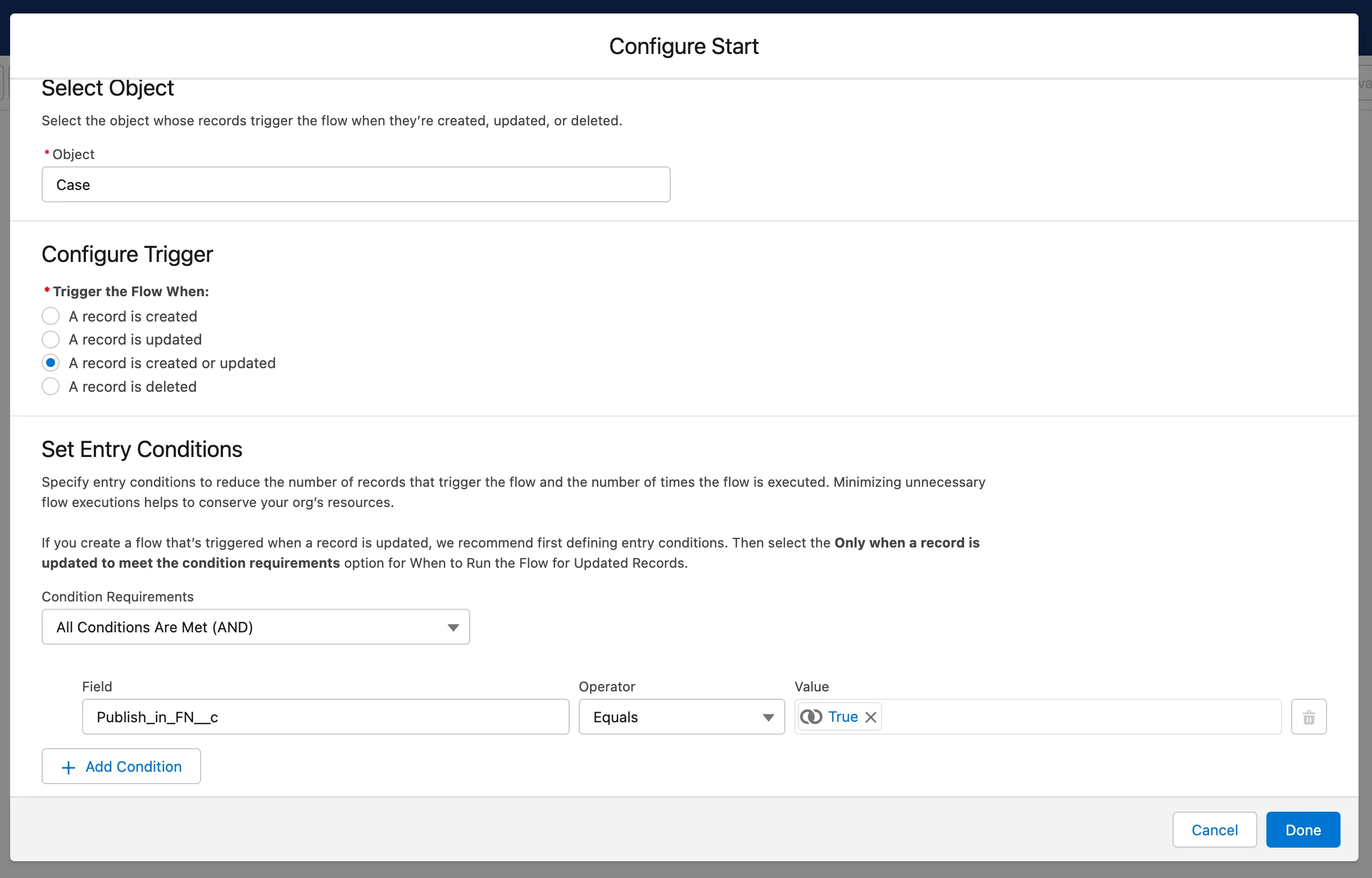
Select the Salesforce object (must match Field Nation configuration and Outbound Message)
Example: Case
Choose when the Flow should run:
A record is created or updated (Most common)
A record is created (Initial dispatch only)
A record is updated (Updates only)
A record is deleted (Rare)
Define exactly when the Flow should run.
Option 1: Simple Condition (AND logic)
Select "All Conditions Are Met (AND)"
Add condition:
Send to Field Nation (your trigger checkbox)EqualsTrueOption 2: Complex Conditions (Custom logic)
Select "Custom Condition Logic (Advanced)"
Examples:
1. Send_to_Field_Nation__c = TRUE AND Status = "Approved"

2. (Status = "Dispatch Required" OR Priority = "High")
   AND RecordType.Name = "Field Service"

3. Send_to_Field_Nation__c = TRUE
   AND Account.Type = "Customer"
AND NOT(ISBLANK(Description))Add filters to control when work orders are created:
By Status:
Status = "Approved"
Status != "Cancelled"
Status IN ("New", "Assigned", "In Progress")
By Record Type:
RecordType.Name = "Field Service"
RecordType.DeveloperName = "On_Site_Service"
By Owner/Assignment:
Owner.Department = "Field Operations"
Owner.UserRole.Name CONTAINS "Service"
By Field Validation:
NOT(ISBLANK(Account.Name))
NOT(ISBLANK(Priority))
Amount > 0Select "Actions and Related Records"
This enables:
Save the trigger configuration
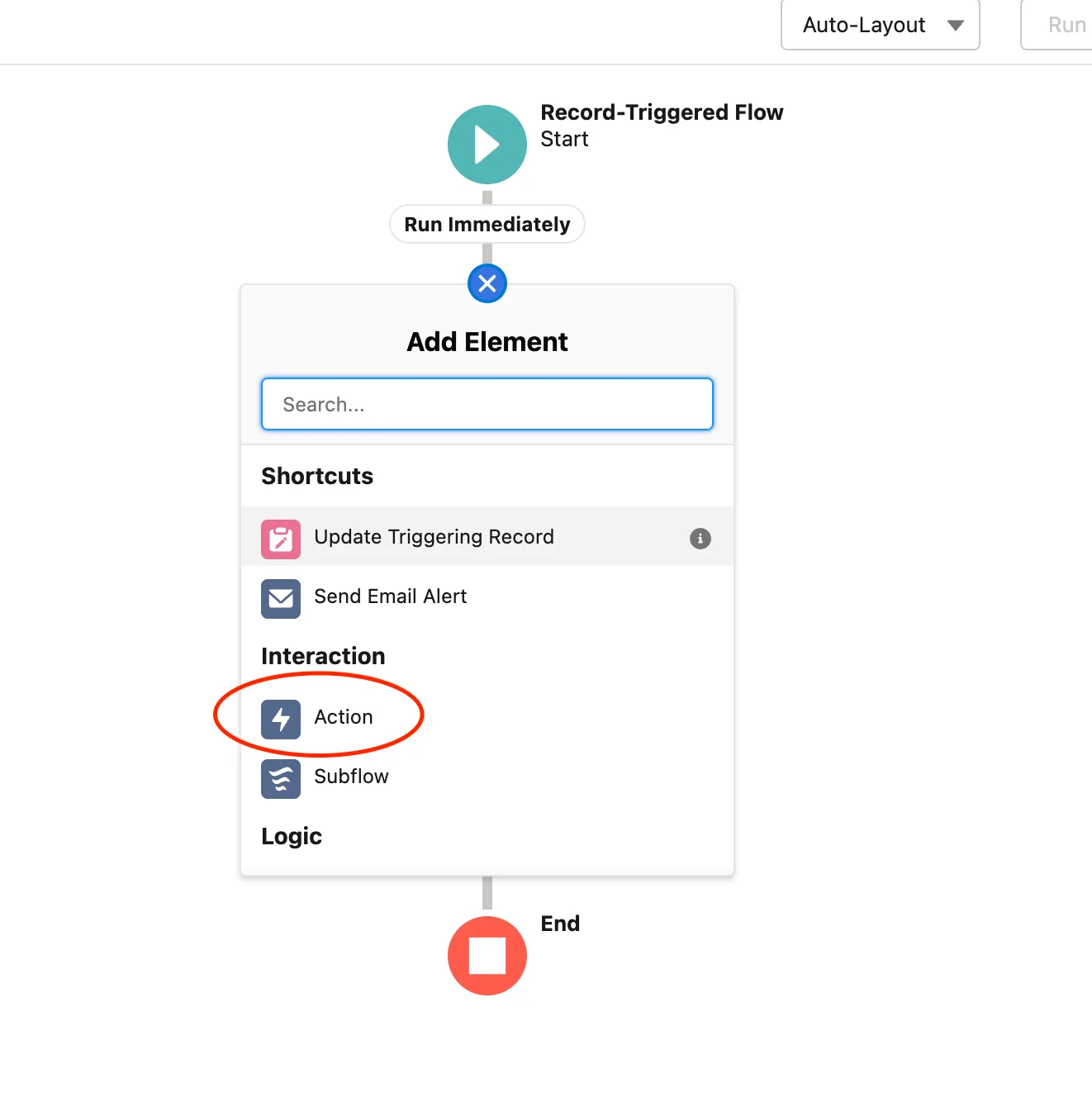
Click the + icon after the Start element → Select "Action"
In the left panel, scroll to "Outbound Message" category → Expand it
Choose the Outbound Message you created earlier
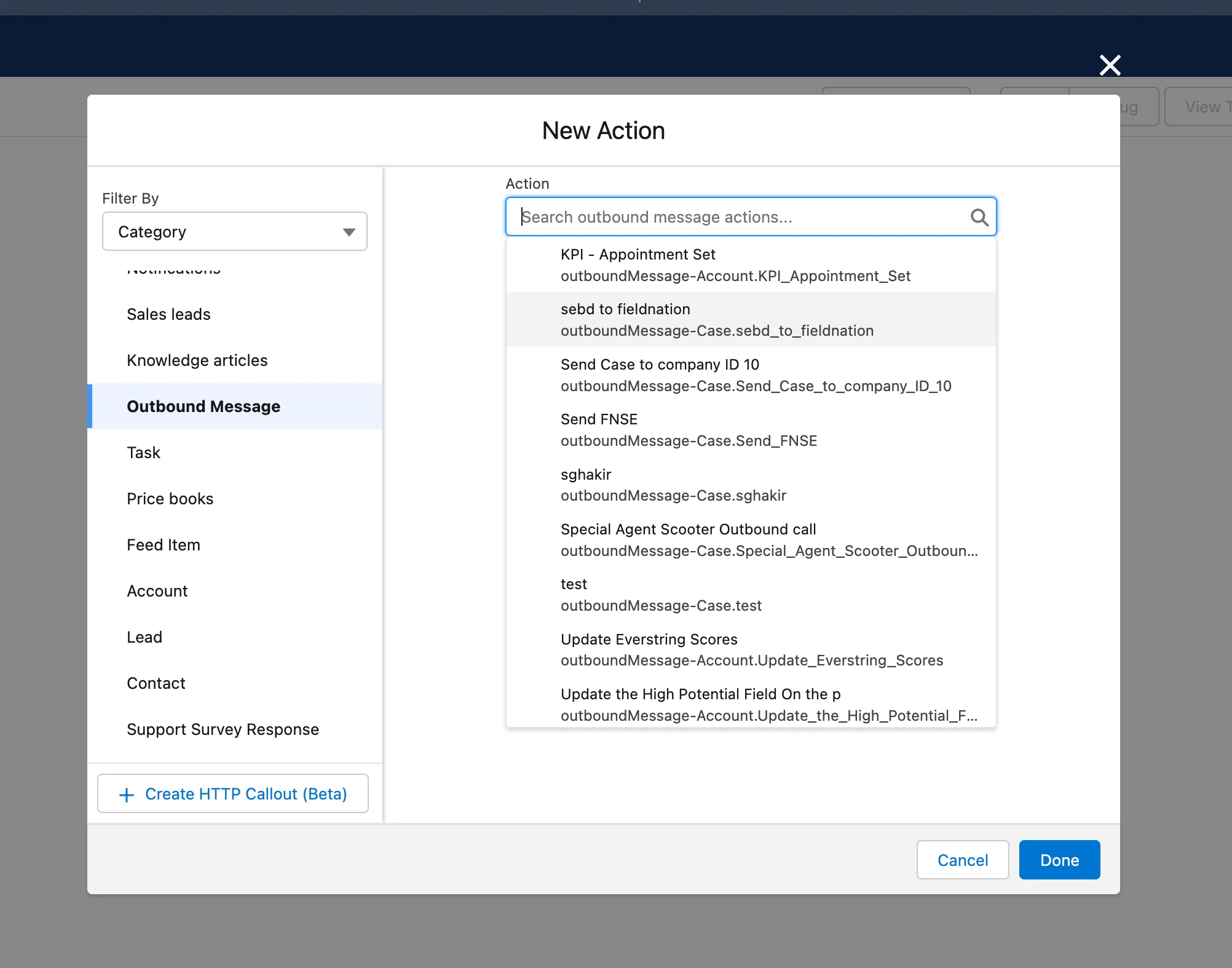
Label: Descriptive name (e.g., "Send to Field Nation") API Name: Auto-populated Description: Optional description
No configuration needed - Outbound Message automatically uses the triggering record
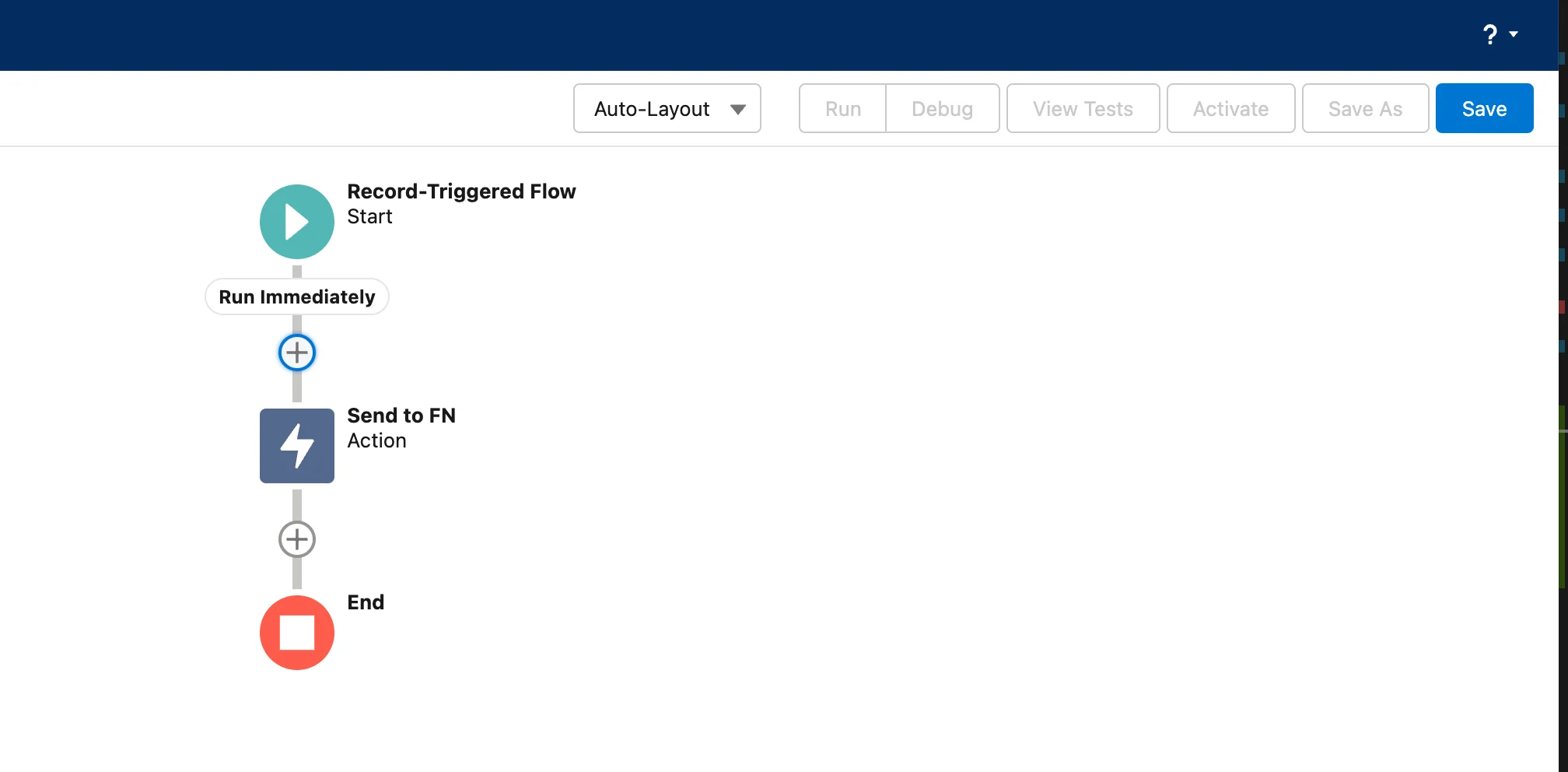
The action is added to your Flow
Your Flow should now look like this:
Click "Save" button in toolbar
Flow Label: Descriptive name (e.g., "Create Field Nation Work Order") Flow API Name: Auto-populated Description: Purpose of the Flow (e.g., "Sends Cases to Field Nation when Send to FN checkbox is checked")
Click "Activate" button
Before Activation:
After Activation:
Return to Flows page → Verify status shows "Active"
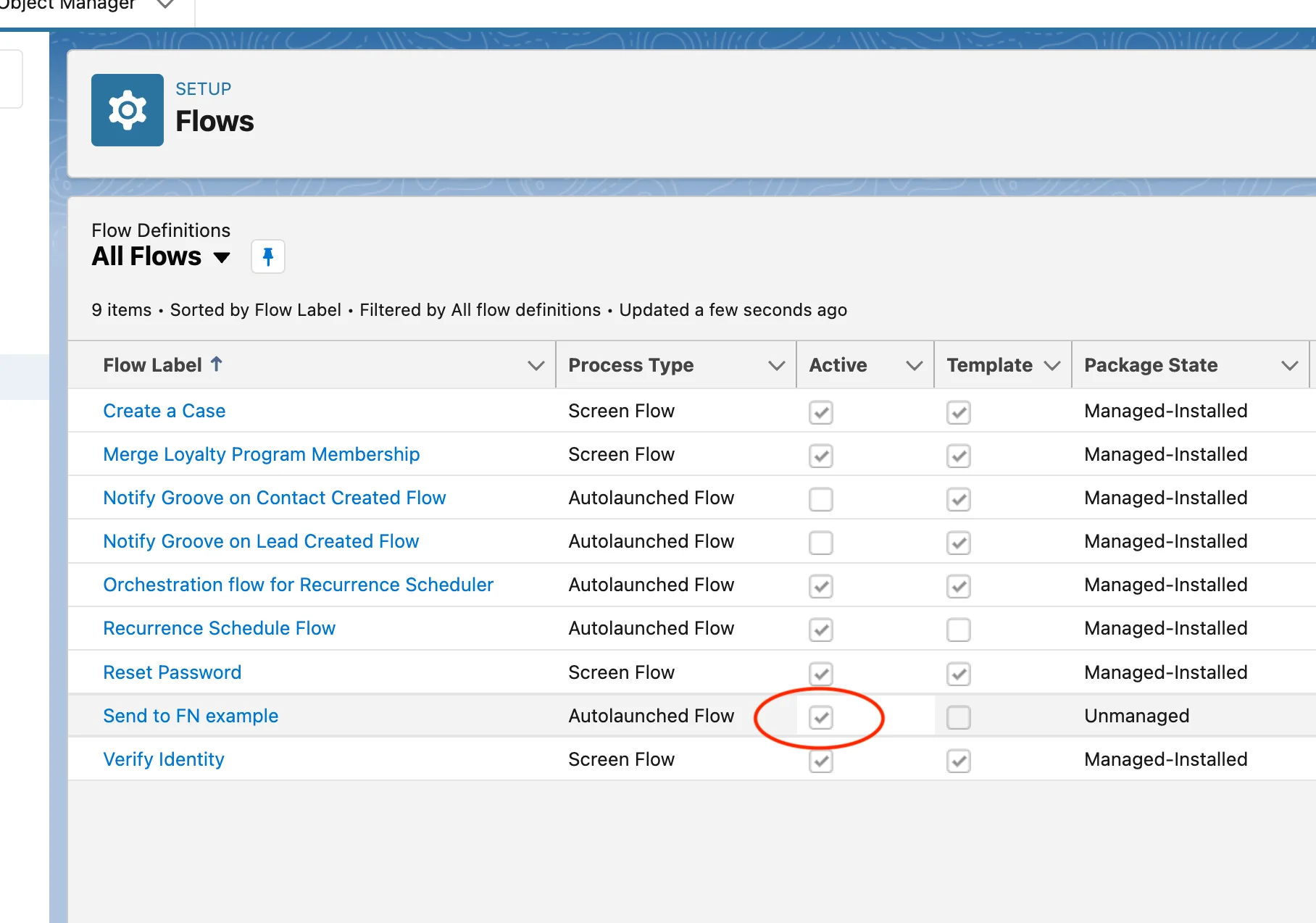
Important: Flow must be Active to process records. Saved but inactive Flows won't trigger.
Thoroughly test before production use.
Go to Cases (or your configured object)
Click "New" → Fill in required fields
Test Data:
✅ Check "Send to Field Nation" (or set status to trigger value)
Click "Save"
Flow triggers immediately on save
Access your Field Nation account (Sandbox or Production - match your configuration)
Dashboard → Work Orders → All Work Orders
Look for recently created work order with title from Salesforce
Check that data populated correctly:
Work order should have reference to Salesforce record ID (for bidirectional sync)
Progress is saved in your browser. Run this checklist once per environment (sandbox then production).
"INVALID_SESSION_ID"
"INSUFFICIENT_ACCESS"
"REQUIRED_FIELD_MISSING"
Outbound Message Timeout
Create separate Flows for different scenarios:
Example:
Benefits:
Add logic to prevent re-triggering:
After Start → Add Decision element before Outbound Message
Decision Criteria:
FN_Sync_Status__c = null OR "Not Sent"Add another action after Outbound Message:
FN_Sync_Status__c = "Sent"Use Scheduled Flow instead of Record-Triggered for batch processing:
When to Use:
Configuration:
Send_to_FN__c = TRUE AND FN_Sync_Status__c = nullUse Change Sets or Salesforce DX to deploy:
Switch Field Nation from Sandbox to Production:
Update endpoint URL with production trigger URL
After successful testing, activate the Flow in production
Watch first few syncs for any issues
Weekly:
Monthly:
Quarterly:
Last updated on
Configuration
Provision the Salesforce integration user, apply minimum permissions, then install and configure the Field Nation connector end-to-end.
Parts Sync
Sync parts added to Field Nation work orders directly to a custom Parts object in Salesforce, keeping inventory and logistics data in one place.
