Connect Salesforce to Field Nation to automatically create work orders from Cases and sync status, messages, and files bidirectionally.
Automate field service dispatch directly from Salesforce. When a Case record meets your conditions, the connector creates a Field Nation work order and keeps both systems in sync — no polling, no manual hand-off.
Authentication
Username + Password + Security Token
Supported Objects
Any standard or custom Salesforce object
Trigger Mechanism
Outbound Messages → Field Nation Trigger URL
Sync Direction
Bidirectional — status, messages, attachments
The connector runs two flows: inbound (Salesforce creates a work order in Field Nation) and outbound (Field Nation pushes updates back to Salesforce).
Automatically create a work order when a Case reaches a specific status.
The most common pattern. A record-triggered Outbound Message fires when a Case status changes to a value like "On-site Required" — no Salesforce user action needed.
Best for: IT service desks, facilities teams, and field service orgs where a status change is the unambiguous dispatch signal.
Let Salesforce users decide when to dispatch — field by field.
A custom checkbox on the Case gives your team explicit control. Only Cases with the checkbox set to true trigger the connector. Useful when not every Case becomes a work order.
Best for: Account managers or dispatchers who review Cases before sending to the field.
Reflect work order lifecycle events back to Salesforce in real time.
When a provider completes, checks in, or is assigned in Field Nation, the Integration Broker calls the Salesforce API and updates the originating Case — no polling required.
Configurable events: provider assigned, provider checked in, work order completed, work order approved, work order cancelled.
Keep Salesforce users and field providers in the same conversation.
Messages added in the Field Nation work order appear as CaseComments in Salesforce. CaseComments added in Salesforce flow back into the work order message thread.
Best for: Enterprise accounts where back-office teams triage in Salesforce while technicians work in Field Nation.
| Section | What happens | Output |
|---|---|---|
| Overview (this page) | Understand the architecture, gather values, and make security decisions | Reference sheet filled in; decisions made |
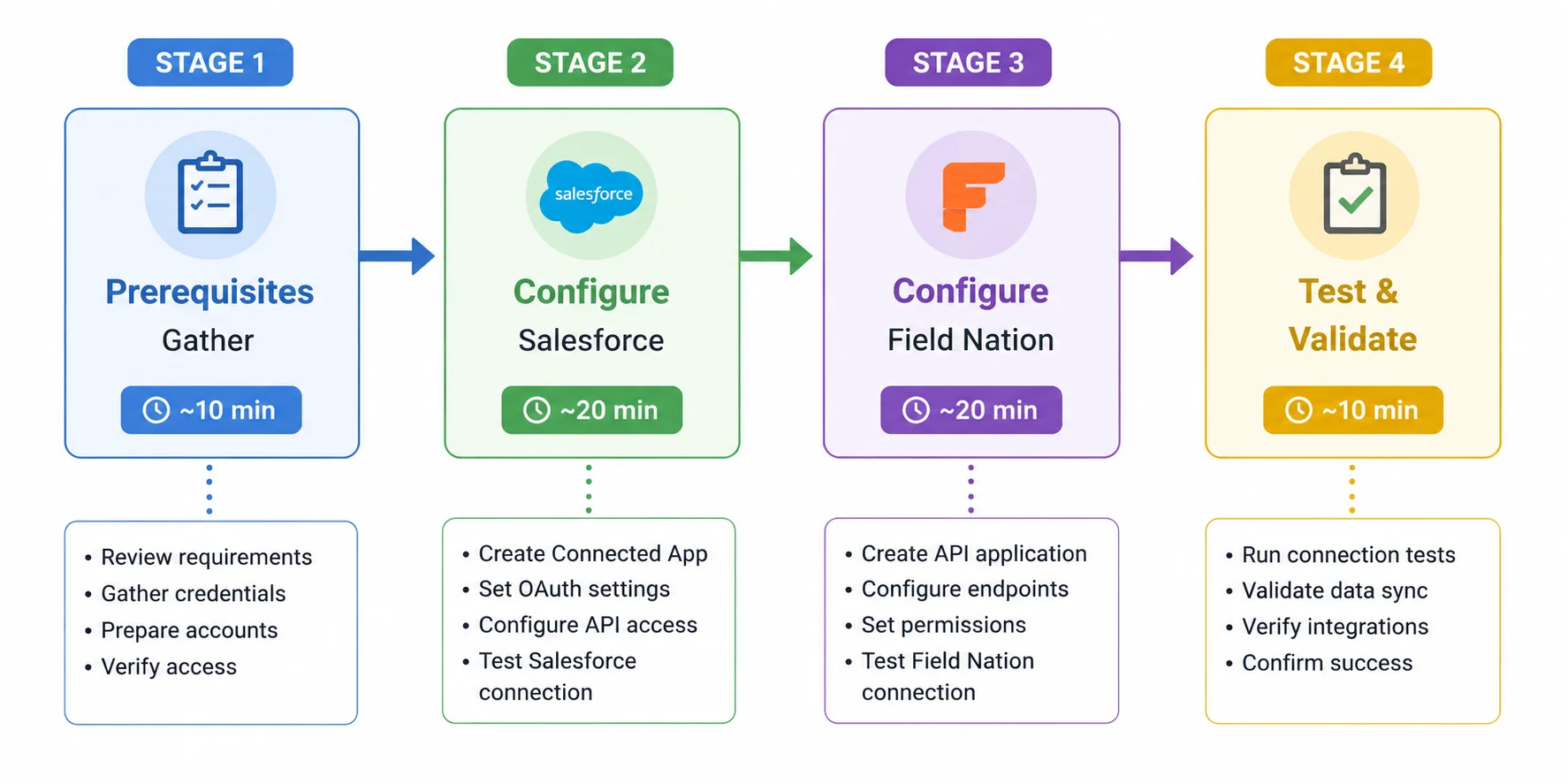
| Configuration | Provision the integration user in Salesforce, then install and configure the connector in Field Nation | Confirmed bidirectional sync |
| Workflow Setup | Create Salesforce Flows and Outbound Messages to trigger work order creation | Integration actively dispatching work orders |
Estimated total time: ~55 minutes for a first-time setup.
Configure Salesforce can be done asynchronously. If your Salesforce admin is a separate person, send them the Configuration page now. They can complete the Salesforce side independently and hand you back the credentials. You do not need to be present while they work.
Track every step across all three pages. Progress is saved in your browser and shared between Overview, Configuration, and Workflow Setup.
Progress is saved in your browser. Run this checklist once per environment (sandbox then production).
Estimated time: ~10 minutes. Collect the values you'll need during configuration — no configuration yet.
If you are not a Salesforce administrator, identify who is and share the Configuration page with them before you start.
Gather these values from your Salesforce org. Log in as a Salesforce administrator to find them.
Why you need this: The connector uses the instance name to build the Salesforce API endpoint. An incorrect value causes authentication to fail even with correct credentials.
Your instance name is the subdomain of your Salesforce URL.
https://myInstance.salesforce.com
          ^^^^^^^^^^
          This part is your instance name
For sandbox orgs the URL pattern is myInstance.sandbox.salesforce.com — the instance name is still the first part.
Can't find it? Log in to Salesforce and look at the URL in your browser address bar. The subdomain before .salesforce.com or .sandbox.salesforce.com is your instance name. If you see lightning.force.com, go to Setup → Company Settings → Company Information — the Instance field shows it.
Why you need this: production authenticates against login.salesforce.com and test against test.salesforce.com. Mixing them causes authentication failure even with correct credentials.
| Your org is... | Instance type to use |
|---|---|
| A live production org | production |
| A developer, partial copy, or full sandbox | test |
Always validate in a sandbox first. Set instance type to test for your initial setup, then repeat with production once the integration is confirmed working.
Why you need this: The connector watches this Salesforce object for new or updated records and creates a corresponding Field Nation work order. Using the wrong object name means no work orders are ever created.
The work order resource is the Salesforce object that triggers work order creation. In most deployments this is Case.
To confirm the API name if you are using a custom object:
__cCan't find it? Ask your Salesforce admin which object your team uses to track field service requests. If you use standard Salesforce Field Service, it is typically WorkOrder.
Why you need this: The messaging resource stores comments synced between Field Nation work orders and Salesforce. Without it, messages stay siloed in each system.
| Work order resource | Typical messaging resource | Body field name |
|---|---|---|
Case | CaseComment | CommentBody |
| Any other object | Note | Body |
Can't find it? If you are unsure which object your org uses for comments, ask your Salesforce admin. Custom messaging objects are not supported — the connector only works with standard Salesforce comment objects.
Why you need this: The connector uses different Salesforce API objects to read and write files depending on which storage model your org uses. Setting the wrong type means file sync silently does nothing.
| Type value | Salesforce object | When to choose |
|---|---|---|
attachments | Classic Attachment object | Older orgs still using legacy attachments |
files | ContentVersion + ContentDocument | Salesforce Files (recommended for API v37+) |
Can't find it? Go to Setup → Files Settings — if "Allow users to upload files to related records" is enabled, your org uses Salesforce Files (files). If you are still unsure, ask your Salesforce admin which object stores files attached to your work order resource records.
You will need a Salesforce account with permission to create users and profiles, create and assign permission sets, and read/write metadata.
Don't have this access? Identify your Salesforce System Administrator and share the Configuration page with them now. The Salesforce side can be completed independently — they hand you back the credentials when done.
You will need a Field Nation account with Company Admin permissions to navigate to Integrations → Marketplace, install, and configure the Salesforce connector.
| Environment | URL |
|---|---|
| Production | app.fieldnation.com |
| Sandbox | ui-sandbox.fndev.net |
If your Salesforce instance type is test, use the Field Nation sandbox environment. Mixing a Salesforce sandbox with Field Nation production is possible but not recommended for initial setup.
Fill this in as you work through each item above. Non-secret values are saved in your browser; the password and security token are masked and never saved — enter them directly into the connector. Use Copy all before clearing browser data or to hand off to a colleague.
Non-secret values are saved in your browser. Fields marked Not saved are held only until you reload — enter them directly into the connector form.
The connector maps between Field Nation and Salesforce. The Salesforce side varies by org. Fill in your values here — these terms appear throughout the Configuration and Workflow sections.
| Term in this guide | What it refers to | Common values | Your value |
|---|---|---|---|
| Work order resource | The Salesforce record type that triggers a work order in Field Nation when created or updated | Case (most orgs), Service_Appointment__c, or a custom object ending in __c | |
| Messaging resource | The Salesforce object that stores comments and notes synced with Field Nation work orders | CaseComment (for Case roots), Note (for all other root objects) | |
| Integration user | A dedicated Salesforce service account created solely for this connector — not a real person's account | — | Created in Configure Salesforce |
A security token is a system-generated string Salesforce appends to a user's password for API calls made from IP addresses outside the org's trusted range. It is separate from the password and changes every time the password is reset. You enter it as a standalone value in Configure Field Nation — the connector appends it to the password internally. It is not optional.
The integration user should only have access to the exact objects and fields the connector needs — nothing more. This limits the damage if the credentials are ever compromised. The Configuration page walks through applying this precisely.
Salesforce counts every API call against a daily limit:
| Edition | Daily API call limit |
|---|---|
| Enterprise | 1,000 minimum |
| Unlimited | 5,000 minimum |
Each work order sync consumes 2–3 API calls. Monitor usage under Salesforce Setup → Company Information if you have high work order volume.
If none of the above resolves your issue, contact Field Nation Support with a description of what you are trying to find and which step you are on.
If you run into an issue that the section-specific troubleshooting content does not resolve, contact Field Nation support. Include:
production or test) and Field Nation environmentLast updated on
