Field NationDeveloper Platform
Pre-built ConnectorsGetting Started

PSA Platforms

CRM & Support

Salesforce ConnectorConfigurationWorkflow Setup

ERP & Project Management

Universal

PlatformsSalesforce

Workflow Setup

Create Salesforce Flows and Outbound Messages to automatically send work order data to Field Nation.


Prerequisites

Before starting, ensure you have:

  • ☐ Completed Field Nation configuration
  • ☐ Field Nation trigger URL copied
  • ☐ Salesforce admin access (Setup permissions)
  • ☐ Permission to create Flows and Outbound Messages
  • ☐ Trigger field on your object (checkbox or status)

Architecture Overview

The Salesforce workflow consists of two components:

Loading diagram...

Flow: Monitors records and evaluates conditions Outbound Message: Sends record ID to Field Nation Field Nation: Fetches full record data and creates work order


Step 1: Create Outbound Message

Outbound Messages send record IDs to Field Nation's trigger URL.

Navigate to Setup

Salesforce Setup → Quick Find → "Outbound Messages"

Create New Message

Click "New Outbound Message"

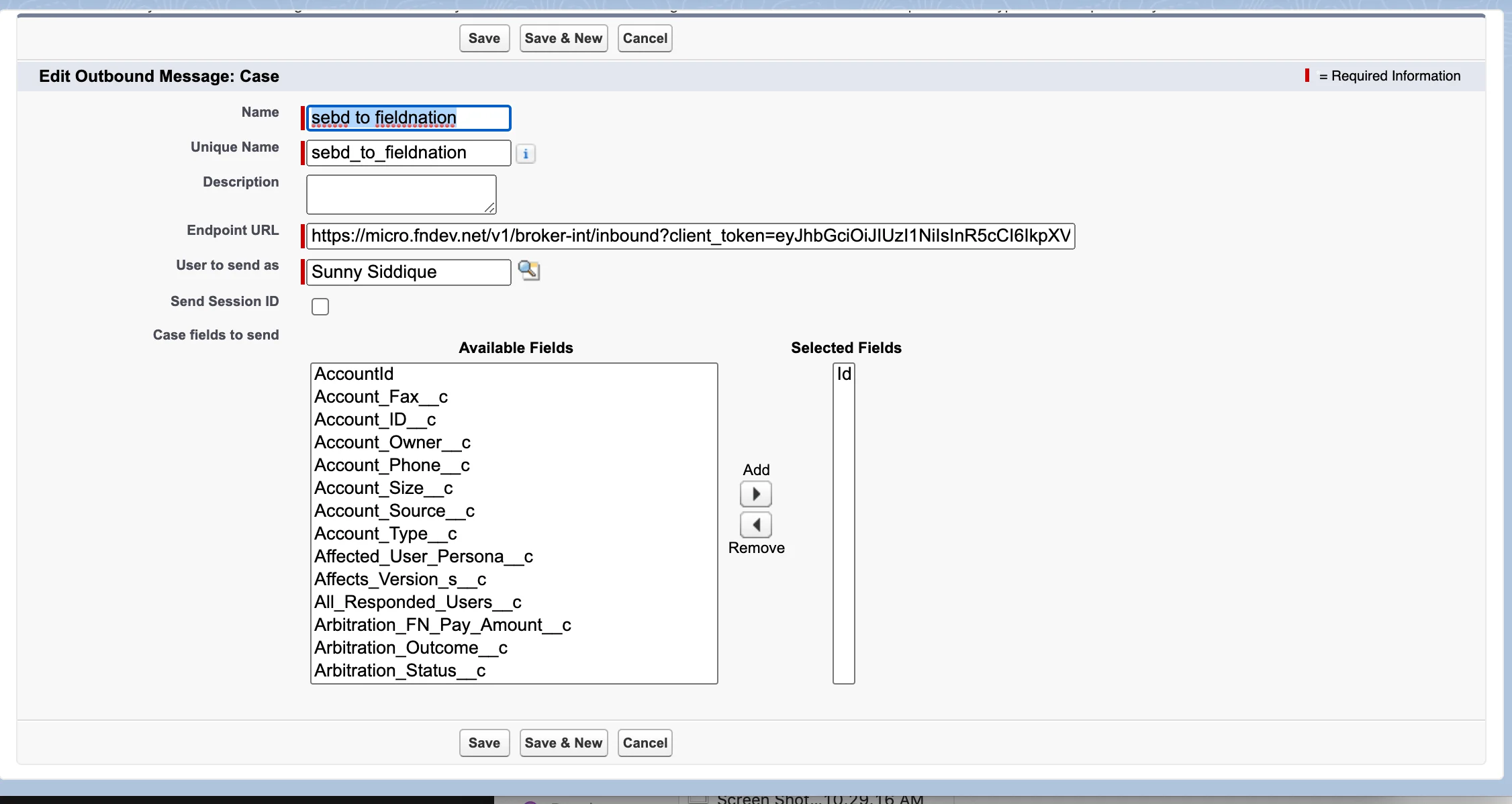
Outbound Message

Select Object

Choose the same object you configured in Field Nation (e.g., Case)

Configure Message

Name: Descriptive name (e.g., "Send to Field Nation") Unique Name: Auto-populated (can customize) Endpoint URL: Paste Field Nation trigger URL

https://api.fieldnation.com/integrations/trigger/{YOUR_CLIENT_TOKEN}

Select Fields

Important: Only select the ID field

Field Nation retrieves all other fields via API using the ID.

Why only ID?

  • Reduces message size
  • Ensures latest data (fetched at processing time)
  • Prevents stale data if record updates between trigger and processing

Additional Settings

  • ☐ Send Session ID: Leave unchecked (not needed)
  • ☐ Protected Component: Leave unchecked (unless in managed package)

Save Message

Click "Save" - Salesforce generates WSDL and endpoint configuration


Step 2: Prepare Trigger Field

Create or identify the field that will trigger work order creation.

Option A: Create Checkbox Field

Most common approach - gives users explicit control.

Navigate to Object Manager

Setup → Object Manager → Your Object (e.g., Case)

Fields & Relationships

Click "Fields & Relationships" → "New"

Select Checkbox

Field Type: Checkbox

Configure Field

Field Label: "Send to Field Nation" Field Name: Auto-populated (e.g., Send_to_Field_Nation__c) Default Value: Unchecked Description: "Check to create Field Nation work order"
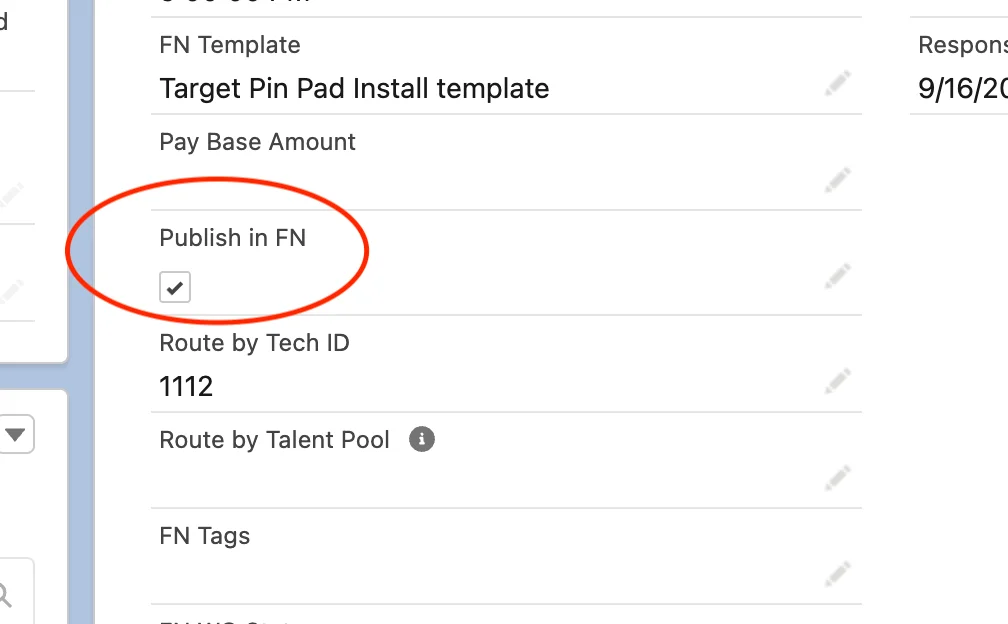
Trigger Field Example

Field-Level Security

Grant access to appropriate profiles

Page Layouts

Add field to relevant page layouts so users can see/modify it


Option B: Use Existing Status/Picklist

Alternative approach - trigger based on status change.

Example Configurations:

  • Case Status = "Dispatch Required"
  • Priority = "High" AND Status = "Approved"
  • Record Type = "Field Service" AND Stage = "Scheduled"

Best Practice: Checkbox provides better control and prevents accidental triggers. Status-based triggering requires careful condition design to prevent unwanted work order creation.


Step 3: Create Record-Triggered Flow

Flows provide the automation logic to trigger outbound messages.

Open Flow Builder

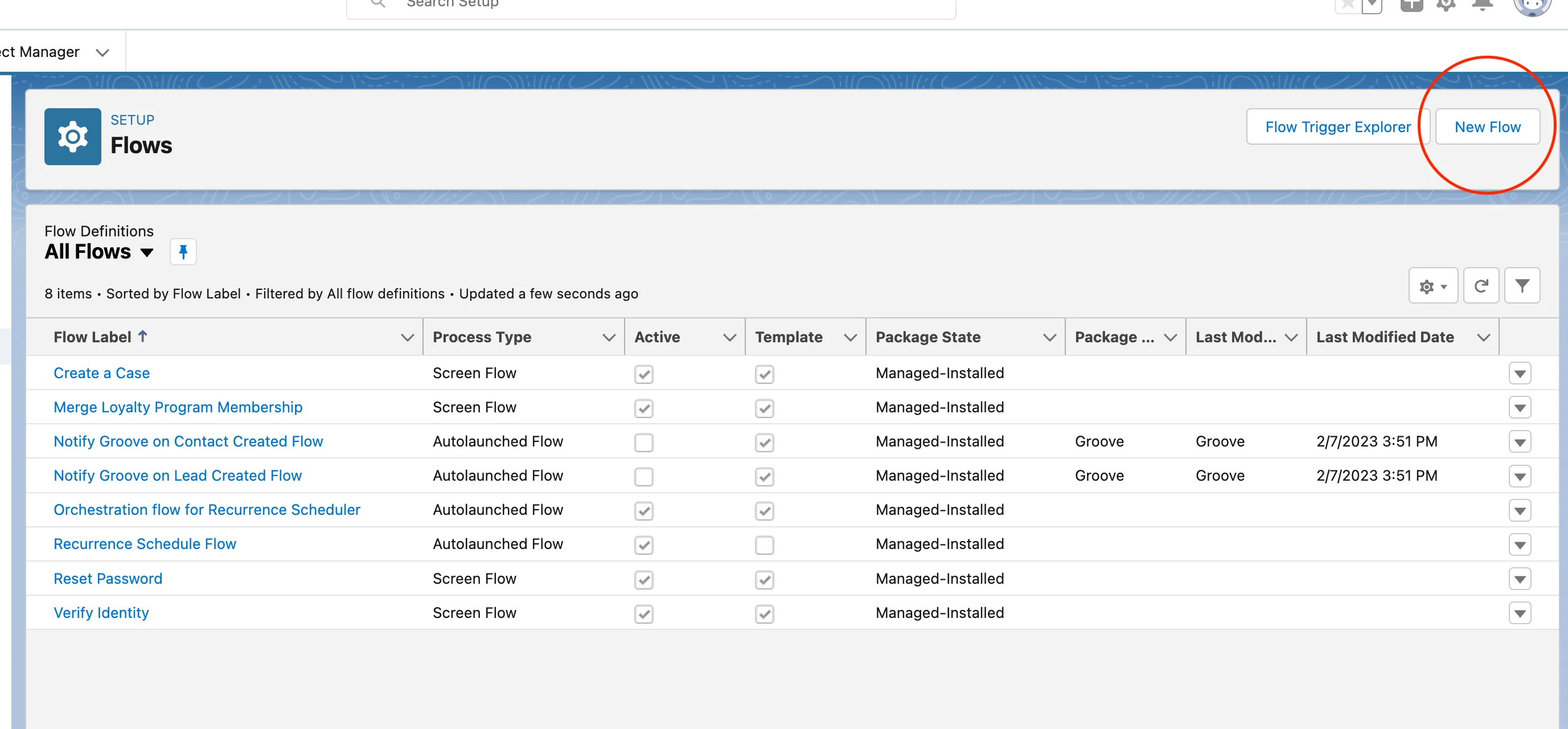
Setup → Quick Find → "Flows" → "New Flow"
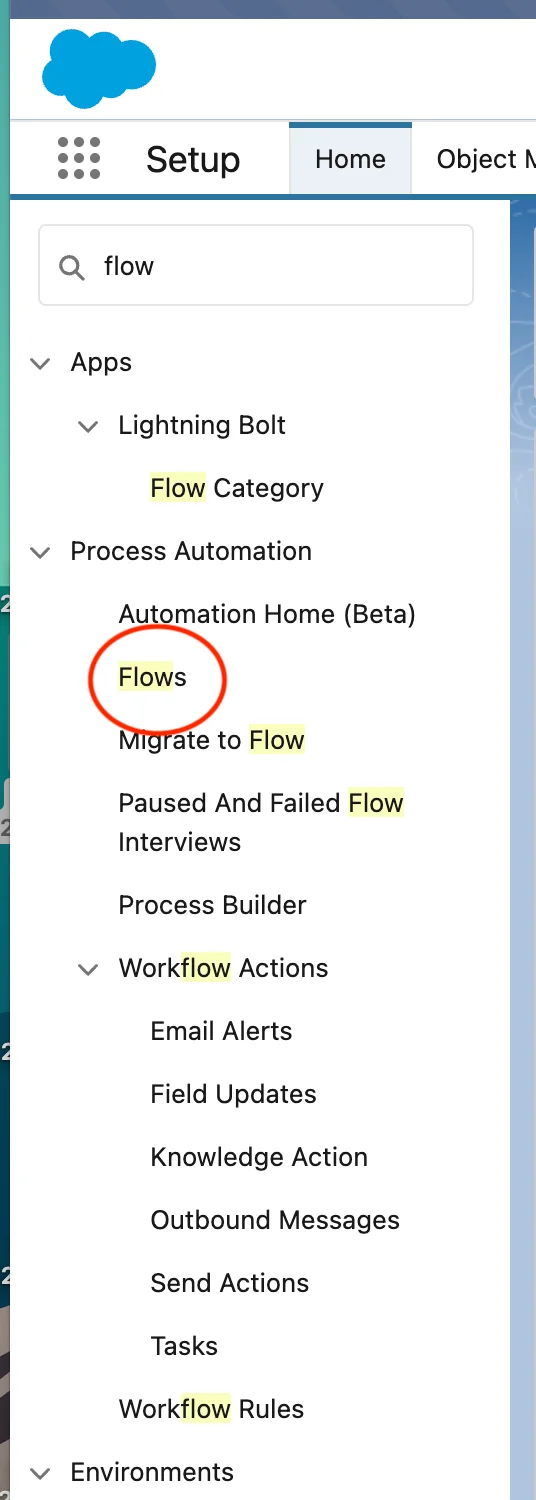
Flows Page

Select Flow Type

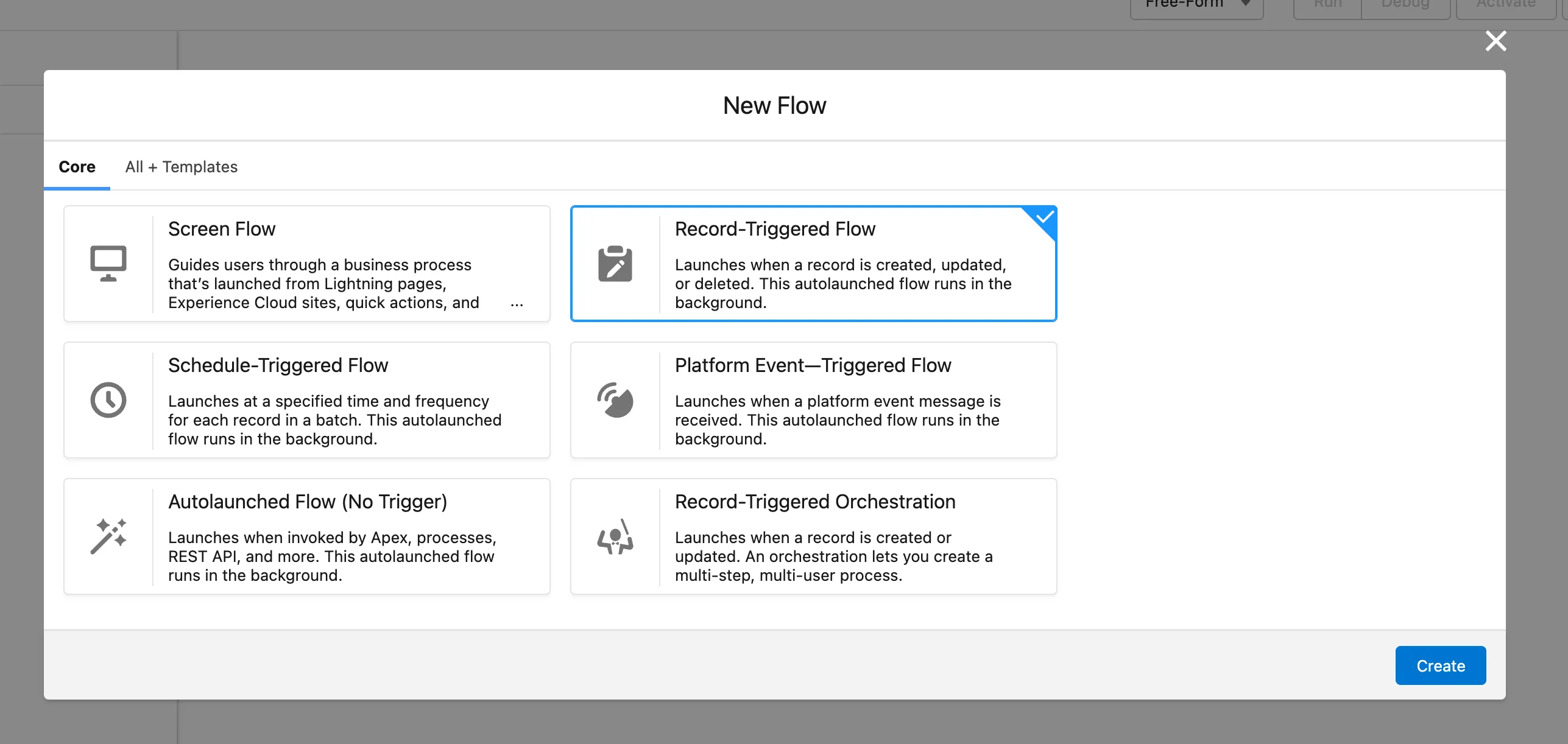
Choose "Record-Triggered Flow"

New Flow

Record-Triggered Flow


Configure Trigger Settings

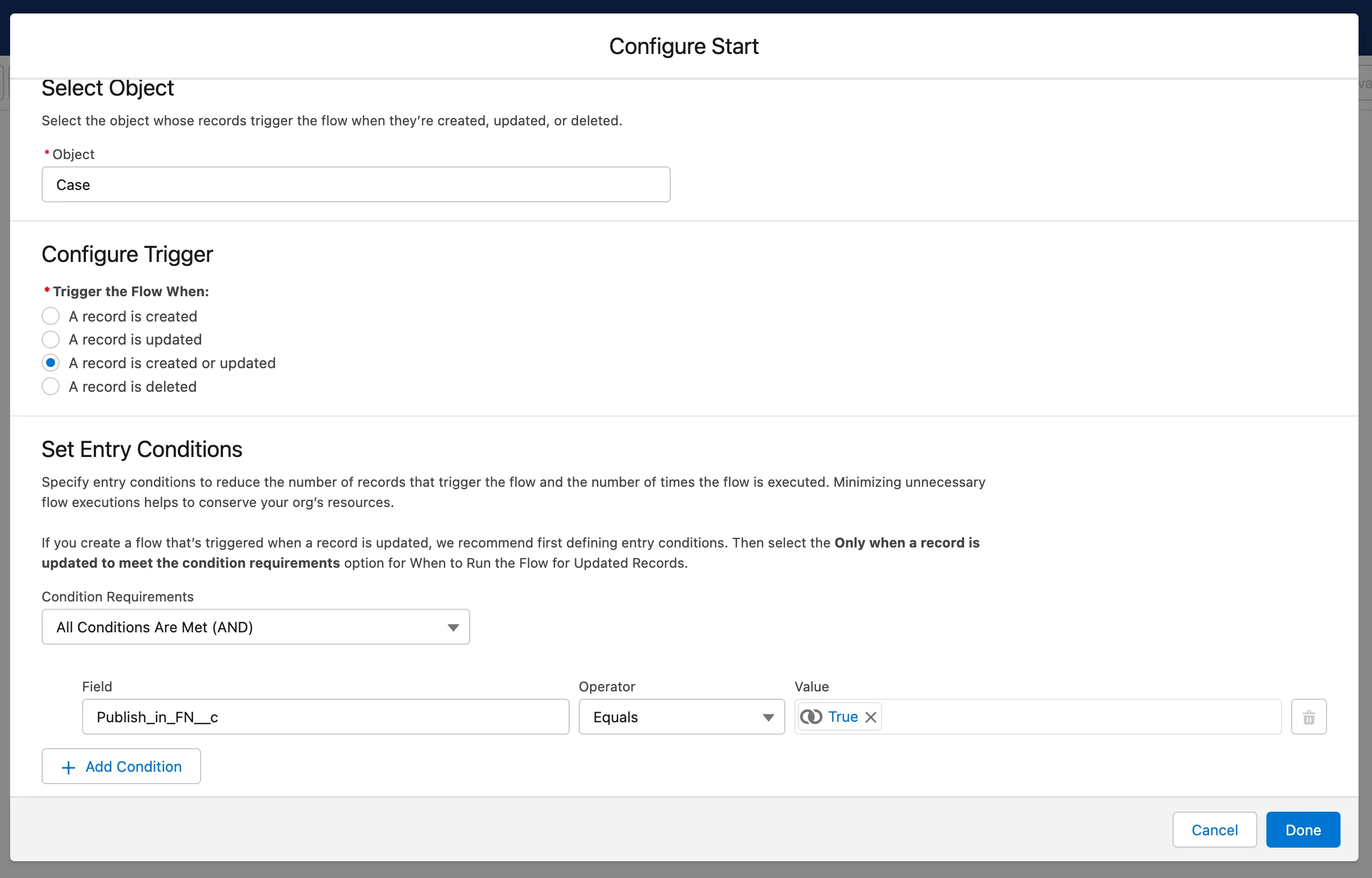
Flow Trigger Configuration

Object

Select the Salesforce object (must match Field Nation configuration and Outbound Message)

Example: Case


Trigger Event

Choose when the Flow should run:

A record is created or updated (Most common)

  • Creates work order for new records
  • Updates work order when record changes
  • Flexible for various scenarios

A record is created (Initial dispatch only)

  • Only triggers on new records
  • Subsequent updates don't trigger
  • Use when you want one-time creation

A record is updated (Updates only)

  • Only triggers on updates to existing records
  • Won't create work orders for new records

A record is deleted (Rare)

  • Triggers when record deleted
  • Use for cleanup scenarios

Entry Conditions

Define exactly when the Flow should run.

Option 1: Simple Condition (AND logic)

Select "All Conditions Are Met (AND)"

Add condition:

  • Field: Send to Field Nation (your trigger checkbox)
  • Operator: Equals
  • Value: True

Option 2: Complex Conditions (Custom logic)

Select "Custom Condition Logic (Advanced)"

Examples:

1. Send_to_Field_Nation__c = TRUE AND Status = "Approved"

2. (Status = "Dispatch Required" OR Priority = "High")
   AND RecordType.Name = "Field Service"

3. Send_to_Field_Nation__c = TRUE
   AND Account.Type = "Customer"
   AND NOT(ISBLANK(Description))

Additional Conditions (Optional)

Add filters to control when work orders are created:

By Status:

Status = "Approved"
Status != "Cancelled"
Status IN ("New", "Assigned", "In Progress")

By Record Type:

RecordType.Name = "Field Service"
RecordType.DeveloperName = "On_Site_Service"

By Owner/Assignment:

Owner.Department = "Field Operations"
Owner.UserRole.Name CONTAINS "Service"

By Field Validation:

NOT(ISBLANK(Account.Name))
NOT(ISBLANK(Priority))
Amount > 0

Optimize the Flow For

Select "Actions and Related Records"

This enables:

  • Calling Outbound Messages
  • Accessing related object data
  • Better performance for this use case

Click Done

Save the trigger configuration


Add Outbound Message Action

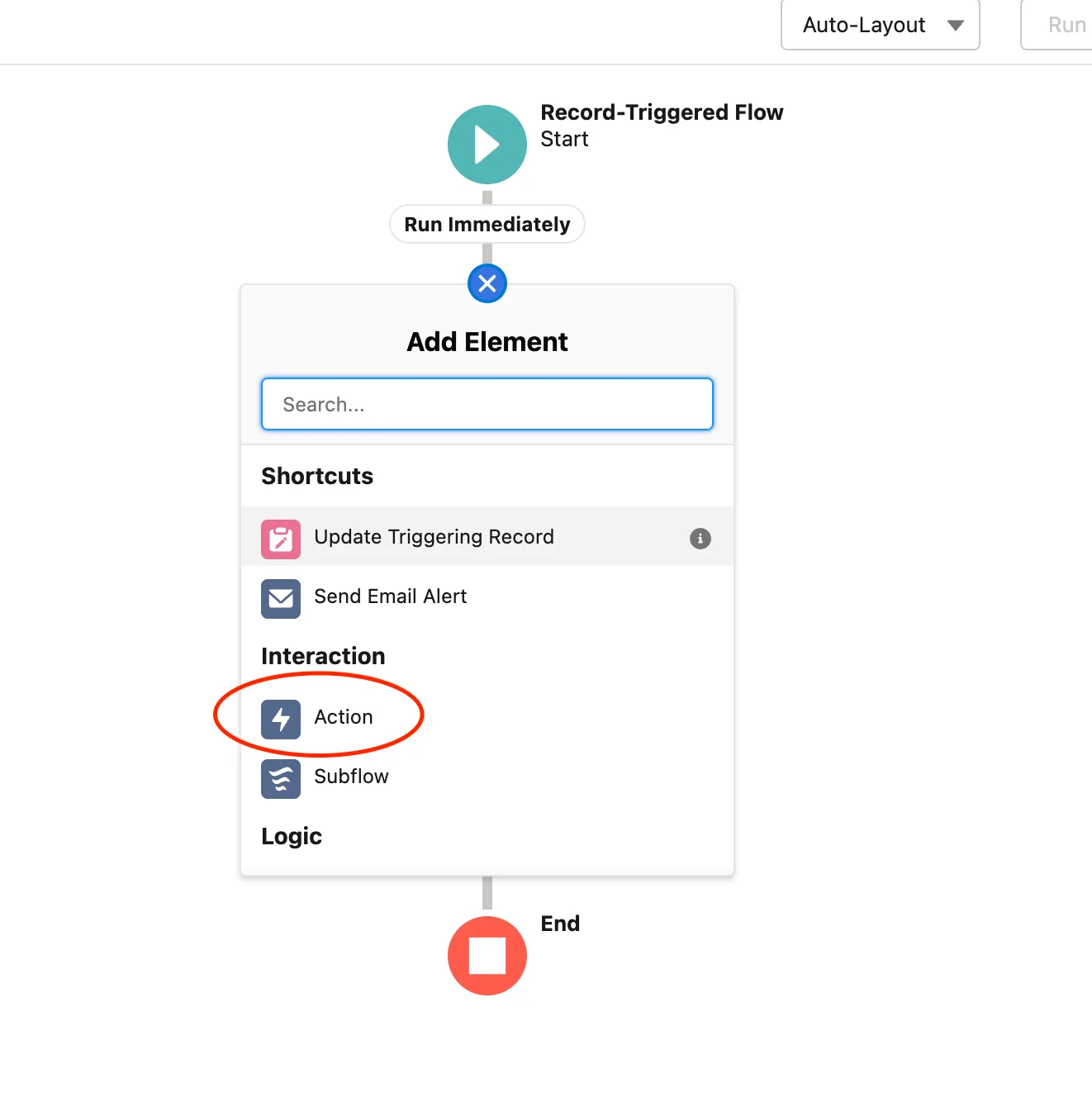
Add Action

Add Action Element

Click the + icon after the Start element → Select "Action"

Find Outbound Message

In the left panel, scroll to "Outbound Message" category → Expand it

Select Your Message

Choose the Outbound Message you created earlier
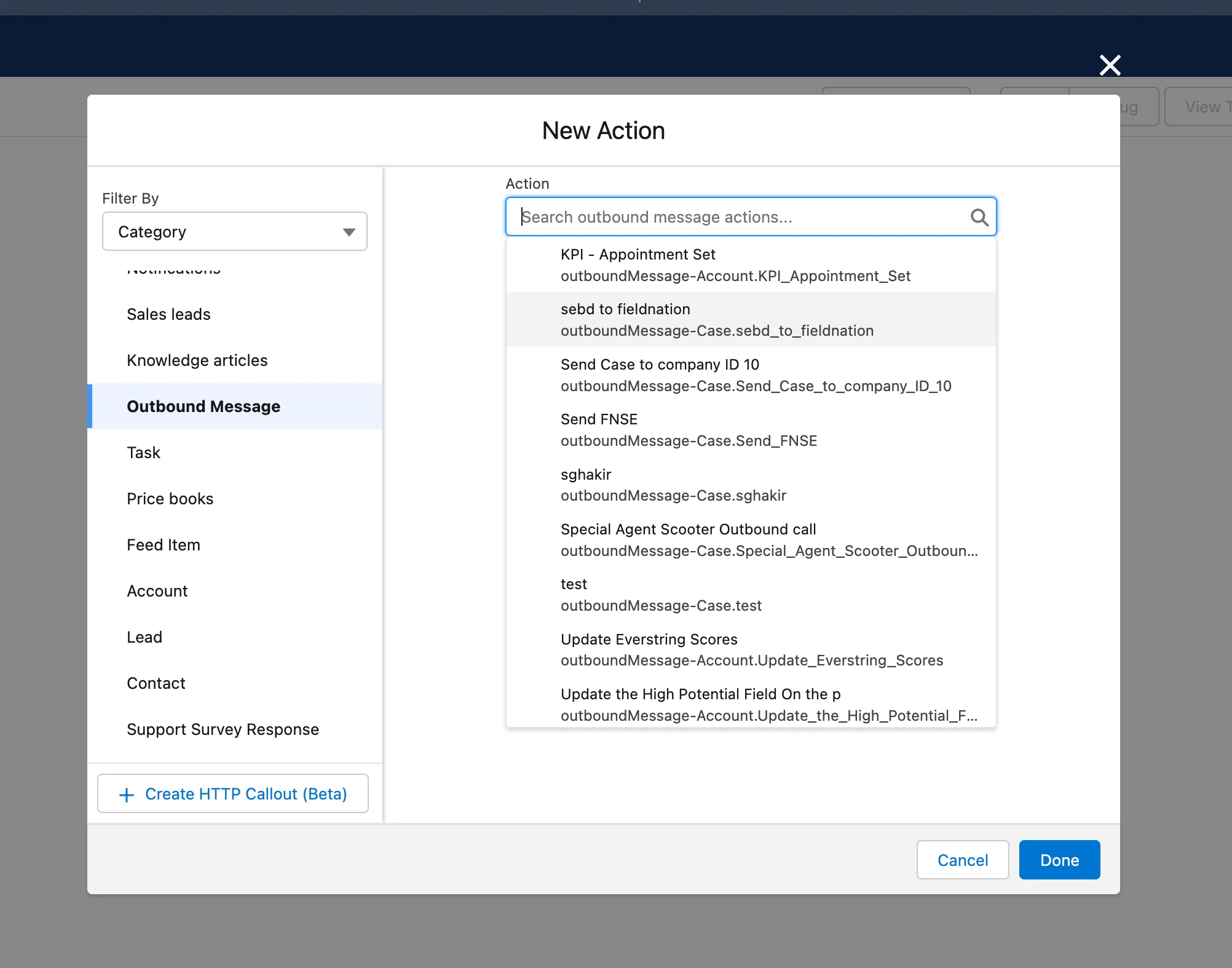
Select Outbound Message

Configure Action

Label: Descriptive name (e.g., "Send to Field Nation") API Name: Auto-populated Description: Optional description

Set Input Values

No configuration needed - Outbound Message automatically uses the triggering record

Click Done

The action is added to your Flow


Complete Flow

Your Flow should now look like this:
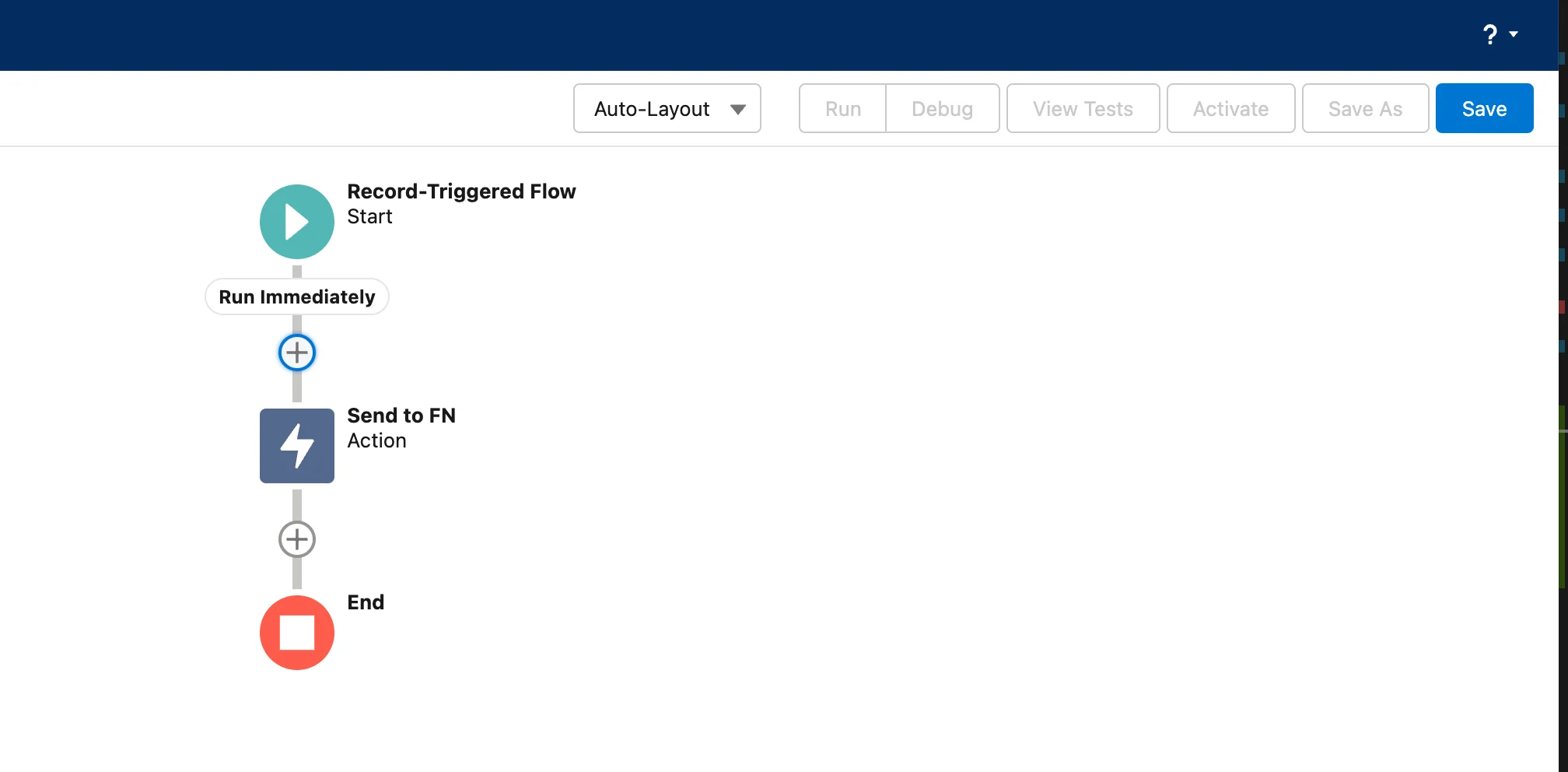
Complete Flow

  1. Start: Trigger conditions evaluated
  2. Action: Outbound Message sent
  3. End: Flow completes

Step 4: Save & Activate Flow

Save Flow

Click "Save" button in toolbar

Flow Label: Descriptive name (e.g., "Create Field Nation Work Order") Flow API Name: Auto-populated Description: Purpose of the Flow (e.g., "Sends Cases to Field Nation when Send to FN checkbox is checked")

Activate Flow

Click "Activate" button

Before Activation:

  • Flow exists but doesn't run
  • Good for testing configuration

After Activation:

  • Flow actively monitors records
  • Triggers when conditions met
  • Can be deactivated later if needed

Verify Status

Return to Flows page → Verify status shows "Active"
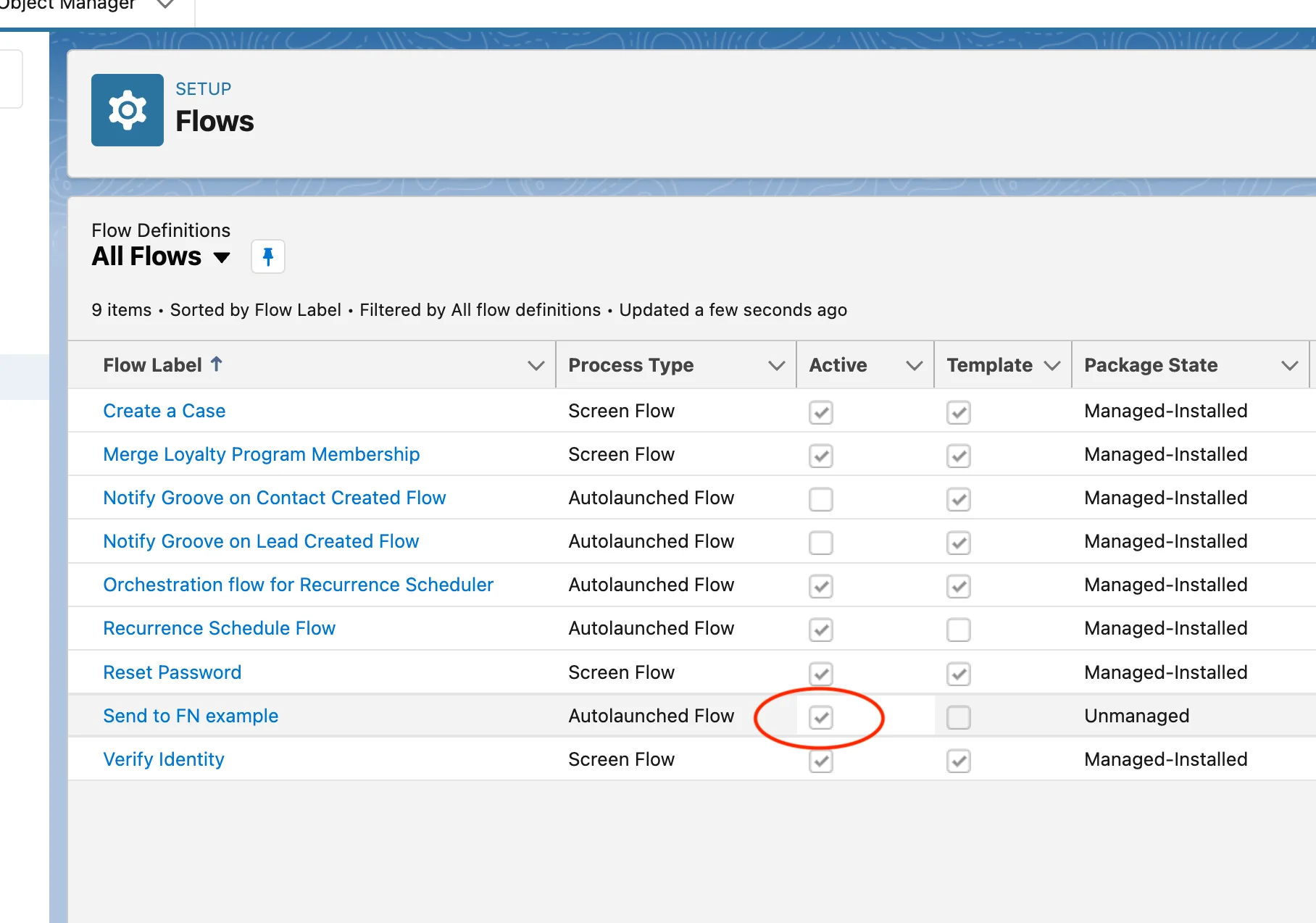
Active Flow

Important: Flow must be Active to process records. Saved but inactive Flows won't trigger.


Step 5: Test the Integration

Thoroughly test before production use.

Create Test Record

Navigate to Your Object

Go to Cases (or your configured object)

Create New Record

Click "New" → Fill in required fields

Test Data:

  • Subject/Title: "Test FN Integration"
  • Description: "Testing Salesforce to Field Nation sync"
  • Priority: Select appropriate value
  • Any other required/mapped fields

Check Trigger Field

✅ Check "Send to Field Nation" (or set status to trigger value)

Save Record

Click "Save"

Flow triggers immediately on save


Verify in Field Nation

Log into Field Nation

Access your Field Nation account (Sandbox or Production - match your configuration)

Navigate to Work Orders

Dashboard → Work Orders → All Work Orders

Find Test Work Order

Look for recently created work order with title from Salesforce

Verify Field Mappings

Check that data populated correctly:

  • Title matches Case Subject
  • Description matches Case Description
  • Location/Company from Salesforce Account
  • Custom fields populated
  • All required fields present

Check Correlation ID

Work order should have reference to Salesforce record ID (for bidirectional sync)


Troubleshooting

Work Order Not Created


Common Errors

"INVALID_SESSION_ID"

  • Field Nation credentials expired
  • Regenerate security token
  • Update Field Nation configuration

"INSUFFICIENT_ACCESS"

  • Salesforce API user lacks permissions
  • Grant "API Enabled" permission
  • Verify object and field permissions

"REQUIRED_FIELD_MISSING"

  • Missing required Field Nation work order fields
  • Add field mappings or default values
  • Check Field Nation logs for specific field name

Outbound Message Timeout

  • Field Nation processing too slow
  • Contact Field Nation Support
  • Usually resolves within seconds

Advanced Configurations

Multiple Outbound Messages

Create separate Flows for different scenarios:

Example:

  • Flow 1: Urgent Cases → Priority handling
  • Flow 2: Standard Cases → Normal processing
  • Flow 3: Updates Only → Sync status changes

Benefits:

  • Different field mappings per scenario
  • Conditional routing
  • Better monitoring/debugging

Prevent Duplicate Sends

Add logic to prevent re-triggering:

Add Decision Element

After Start → Add Decision element before Outbound Message

Check Sync Status

Decision Criteria:

  • Custom field FN_Sync_Status__c = null OR "Not Sent"

Route Logic

  • Met Criteria: Send Outbound Message
  • Not Met: End (don't send)

Update After Send

Add another action after Outbound Message:

  • Update Record: Set FN_Sync_Status__c = "Sent"

Schedule-Based Triggering

Use Scheduled Flow instead of Record-Triggered for batch processing:

When to Use:

  • High volume (avoid API limits)
  • Off-peak processing
  • Batch creation vs real-time

Configuration:

  • Flow Type: "Scheduled Flow"
  • Frequency: Daily, Weekly, etc.
  • Query: Get Records where Send_to_FN__c = TRUE AND FN_Sync_Status__c = null
  • Loop through records → Send Outbound Message for each

Production Deployment

Pre-Launch Checklist

  • ☐ Sandbox testing complete and successful
  • ☐ All field mappings validated
  • ☐ Error handling tested
  • ☐ User training completed
  • ☐ Monitoring/alerting configured
  • ☐ Rollback plan documented

Launch Steps

Deploy to Production

Use Change Sets or Salesforce DX to deploy:

  • Outbound Message
  • Custom fields (if created)
  • Flow (initially as Inactive)
  • Page layout changes

Update Field Nation Configuration

Switch Field Nation from Sandbox to Production:

  • Update credentials (production Salesforce user)
  • Update instance type to "production"
  • Test connection
  • Copy new trigger URL

Update Outbound Message

Update endpoint URL with production trigger URL

Activate Flow

After successful testing, activate the Flow in production

Monitor Closely

Watch first few syncs for any issues


Maintenance

Regular Tasks

Weekly:

  • Review Outbound Message queue for failures
  • Check Field Nation integration logs
  • Monitor API usage in Salesforce

Monthly:

  • Review and update field mappings
  • Test integration with sample records
  • Update documentation for any changes

Quarterly:

  • Rotate security token (update Field Nation)
  • Review and optimize Flow conditions
  • Audit integration usage and performance

Last updated on

Configuration

Configure the Salesforce connector in Field Nation's Integration Broker to establish API connection and field mappings.

ServiceNow Connector

Integrate ServiceNow ITSM with Field Nation for automated work order creation from Incidents, Cases, or custom tables.

On this page

Prerequisites
Architecture Overview
Step 1: Create Outbound Message
Navigate to Setup
Create New Message
Select Object
Configure Message
Select Fields
Additional Settings
Save Message
Step 2: Prepare Trigger Field
Option A: Create Checkbox Field
Navigate to Object Manager
Fields & Relationships
Select Checkbox
Configure Field
Field-Level Security
Page Layouts
Option B: Use Existing Status/Picklist
Step 3: Create Record-Triggered Flow
Open Flow Builder
Select Flow Type
Configure Trigger Settings
Object
Trigger Event
Entry Conditions
Additional Conditions (Optional)
Optimize the Flow For
Click Done
Add Outbound Message Action
Add Action Element
Find Outbound Message
Select Your Message
Configure Action
Set Input Values
Click Done
Complete Flow
Step 4: Save & Activate Flow
Save Flow
Activate Flow
Verify Status
Step 5: Test the Integration
Create Test Record
Navigate to Your Object
Create New Record
Check Trigger Field
Save Record
Verify in Field Nation
Log into Field Nation
Navigate to Work Orders
Find Test Work Order
Verify Field Mappings
Check Correlation ID
Troubleshooting
Work Order Not Created
Common Errors
Advanced Configurations
Multiple Outbound Messages
Prevent Duplicate Sends
Add Decision Element
Check Sync Status
Route Logic
Update After Send
Schedule-Based Triggering
Production Deployment
Pre-Launch Checklist
Launch Steps
Deploy to Production
Update Field Nation Configuration
Update Outbound Message
Activate Flow
Monitor Closely
Maintenance
Regular Tasks