Sync parts added to Field Nation work orders directly to a custom Parts object in Salesforce, keeping inventory and logistics data in one place.
This guide covers Salesforce-specific parts sync configuration. For general field mapping concepts and transformation types, see Field Mappings.
Sync parts data between Field Nation work orders and Salesforce — when a technician adds, updates, or receives parts on a work order, those records automatically appear on the associated Salesforce Case (or custom object). Inbound sync from Salesforce to Field Nation is also supported.
This integration eliminates manual data entry for:
Before proceeding, confirm:
Field Nation dynamically reads your Salesforce architecture. You must build the custom object and fields in Salesforce before mapping them in Field Nation.
In Salesforce Setup, create a dedicated object to hold parts data.
| Setting | Value |
|---|---|
| Label | Part |
| Plural Label | Parts |
| Object Name | Part (generates API name Part__c) |
| Record Name | Part |
| Data Type | Auto Number |
| Display Format | P-{000000} |
| Starting Number | 1 |
You can use a custom object name, but it must be mapped correctly in Phase 3. We recommend Part__c for consistency with this guide.
Create a Lookup Relationship so Parts appear as a Related List on your Case (or primary work order object).
Case → click NextDo not skip Field-Level Security. If the integration user cannot see this relationship field, parts will fail to sync and errors will appear in the event history log.
Create the following custom fields on the Parts object. For each field: select the Data Type, enter the Field Label, set the Length, and grant Read/Edit access to your integration user profile.
| Field Label | Data Type | Length / Notes |
|---|---|---|
| Part ID | Text | 255 — Stores the Field Nation part identifier |
| Part Description | Text Area | Standard |
| Part Number | Text | 255 |
| Usage Code | Text | 255 |
| Incoming Tracking ID | Text | 255 |
| Incoming Carrier | Text | 255 |
| Return Tracking ID | Text | 255 |
| Return Carrier | Text | 255 |
| Is Returnable | Picklist | Values: Yes, No |
| Return Instructions | Text Area | Standard |
| Return Issue | Text | 255 |
Use Save & New to move through the list quickly.
Your Salesforce integration user must have object-level permissions on the Parts object. To verify or update:
If you skip this step, the integration will authenticate successfully but fail to create Part records. Check the event history log if parts are not syncing.
After building the Salesforce object and fields, tell Field Nation to fetch your updated schema.
Log in to Field Nation and navigate to your Salesforce integration settings.
In the Integration Details section (left-hand navigation), click Refresh Fields.
Field Nation queries your Salesforce instance and pulls in the new Parts object and its fields, making them available for mapping.
Field refresh typically completes in under 30 seconds. If the new fields do not appear after refreshing, verify your integration user has the correct profile permissions.
All fields must be successfully received by Field Nation before they appear on the Mapping pages. After refreshing, confirm that every expected field is listed. If any are missing, review your Salesforce field-level security settings and re-run the refresh.
With Field Nation now aware of your Salesforce Parts fields, link them together in the mapping UI.
In the Salesforce Integration settings, look under Work Order Mappings in the left-hand menu and click Parts.
Using the visual mapping interface, link Field Nation fields (left) to your Salesforce fields (right). Configure the direction arrows exactly as shown in the screenshot below to ensure the data pushes correctly to Salesforce.
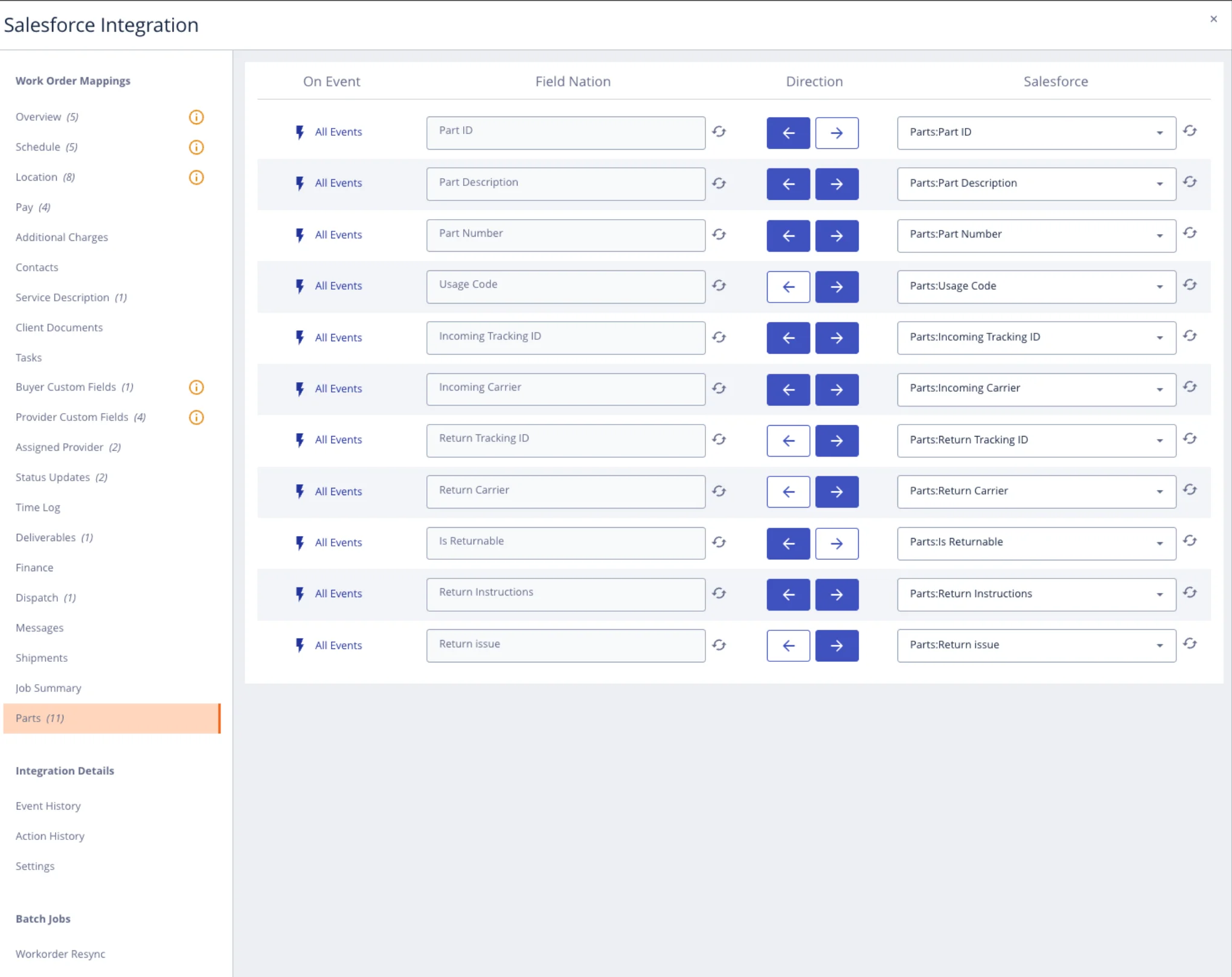
Part ID is required. This field is the unique identifier that prevents duplicate records. Without it, updating a part on Field Nation will create a new Salesforce record instead of updating the existing one.
Validate that parts sync correctly in both directions and that updates modify existing records rather than creating duplicates.
Open a test work order in Field Nation. Add a new part with these details:
Open the associated Case in Salesforce and check the Parts Related List. The new part should appear with all mapped fields populated.
Go back to Field Nation, update the tracking number on that same part, and verify the existing Salesforce record updates — it should not create a duplicate.
Navigate to your test Case and use the Parts Related List to create a new Part record directly in Salesforce.
Open the linked work order in Field Nation and confirm the new part appears in the Parts section with the correct field values.
Inbound sync requires a configured Salesforce Flow or trigger that notifies Field Nation when a Part record is created or updated. Without this, Salesforce-to-Field Nation sync will not fire automatically.
Once a part is synced, Field Nation keeps it current. The Part ID field is the key that links records across systems.
| Event | Result |
|---|---|
| Part added on Field Nation | New Part record created on the Salesforce Case |
| Part updated on Field Nation | Existing Salesforce Part record is updated (matched by Part ID) |
| Part added in Salesforce | New part appears on the Field Nation work order (if inbound sync configured) |
| Part updated in Salesforce | Existing Field Nation part is updated (if inbound sync configured) |
Last updated on
