Create and enable a Smartsheet webhook to trigger Field Nation work order creation, and configure outbound sync for status updates back to your sheet.
The Smartsheet connector supports two independent sync directions. Each is configured separately and can be enabled independently based on your team's workflow.
| Direction | How it works | Requires |
|---|---|---|
| Inbound (Smartsheet → FN) | Smartsheet webhook notifies Field Nation when a row changes. The connector fetches the row data and creates/updates a work order. | Webhook created via Smartsheet API |
| Outbound (FN → Smartsheet) | Field Nation events push data to the linked Smartsheet row automatically. | Connector configured + field mappings set |
<SHEET_ID>-<ROW_ID>) for all future sync.To prevent infinite loops (outbound updates triggering inbound sync, which triggers outbound again), create a dedicated column in your Smartsheet to act as the webhook trigger.
Recommended approach — "Send to FN" checkbox column:
Send to FNsubscope to filter which changes trigger the webhook.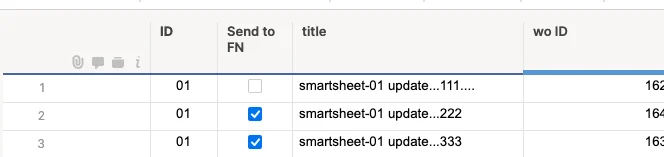
Without a subscope column, the webhook fires on every change to any column. This includes changes made by the outbound sync itself, creating an infinite loop. Always configure a subscope trigger column before enabling inbound sync.
You need the numeric Column ID for the webhook subscope. Retrieve it via the Smartsheet API:
curl -s "https://api.smartsheet.com/2.0/sheets/{YOUR_SHEET_ID}/columns" \
  -H "Authorization: Bearer {YOUR_ACCESS_TOKEN}" \
  | python3 -c "
import json, sys
columns = json.load(sys.stdin)['data']
for col in columns:
    if col['title'] == 'Send to FN':
        print(f\"Column ID: {col['id']}\")
        break
"
Or find it in the full JSON response — look for the column with "title": "Send to FN" and copy its "id" value.
Smartsheet webhooks cannot be created via the Smartsheet UI. You must use the REST API directly — via Postman, curl, or a script.
Send a POST request to create the webhook:
Endpoint:
POST https://api.smartsheet.com/2.0/webhooksHeaders:
Authorization: Bearer {YOUR_ACCESS_TOKEN}
Content-Type: application/json
{YOUR_CLIENT_TOKEN} is from your Field Nation Trigger URL (Configuration Step 8). The token is the client_token query parameter in that URL.
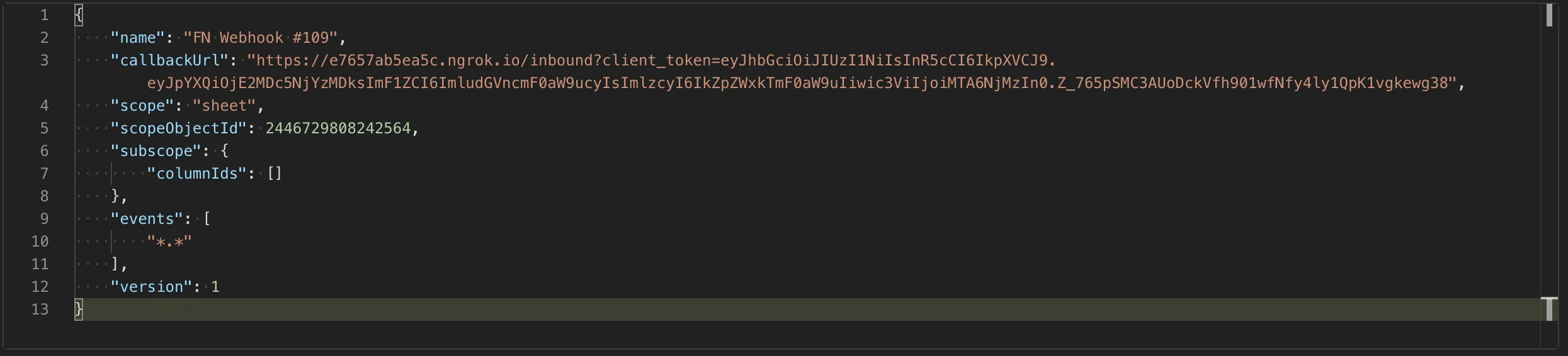
Body:
{
  "name": "FN Inbound Sync",
  "callbackUrl": "https://micro.fieldnation.com/v1/broker/inbound?client_token={YOUR_CLIENT_TOKEN}",
  "scope": "sheet",
  "scopeObjectId": {YOUR_SHEET_ID},
  "subscope": {
    "columnIds": [8734792838472934]
  },
  "events": ["*.*"],
  "version": 1
}
curl -X POST "https://api.smartsheet.com/2.0/webhooks" \
  -H "Authorization: Bearer YOUR_ACCESS_TOKEN" \
  -H "Content-Type: application/json" \
  -d '{
    "name": "FN Inbound Sync",
    "callbackUrl": "https://micro.fieldnation.com/v1/broker/inbound?client_token=YOUR_CLIENT_TOKEN",
    "scope": "sheet",
    "scopeObjectId": YOUR_SHEET_ID,
    "subscope": {
      "columnIds": [8734792838472934]
    },
    "events": ["*.*"],
    "version": 1
}'https://api.smartsheet.com/2.0/webhooksAuthorization: Bearer {token}, Content-Type: application/jsonSuccess response:
{
  "message": "SUCCESS",
  "resultCode": 0,
  "result": {
    "id": 1234567890123456,
    "name": "FN Inbound Sync",
    "scope": "sheet",
    "scopeObjectId": {YOUR_SHEET_ID},
    "subscope": {
      "columnIds": [8734792838472934]
    },
    "events": ["*.*"],
    "callbackUrl": "https://micro.fieldnation.com/v1/broker/inbound?client_token=...",
    "enabled": false,
    "status": "NEW_NOT_VERIFIED",
    "version": 1
  }
}
Save the id from the response — this is your Webhook ID (needed for the enable step).
About events: ["*.*"]: This catches all event types including row
changes, comment additions, and cell updates. The Field Nation connector
handles filtering internally — it processes row and comment events and ignores
others. If you want to restrict at the Smartsheet level, use ["row.added", "row.updated"] — note: comment and discussion events are only delivered
under *.* and cannot be filtered individually. Removing *.* means inbound
message sync will not work.
When a webhook is created, Smartsheet sends a verification request to your callback URL. Field Nation's inbound endpoint handles this automatically — it responds with the expected verification payload.
You do not need to do anything for this step. The verification completes within seconds of webhook creation.
If verification fails:
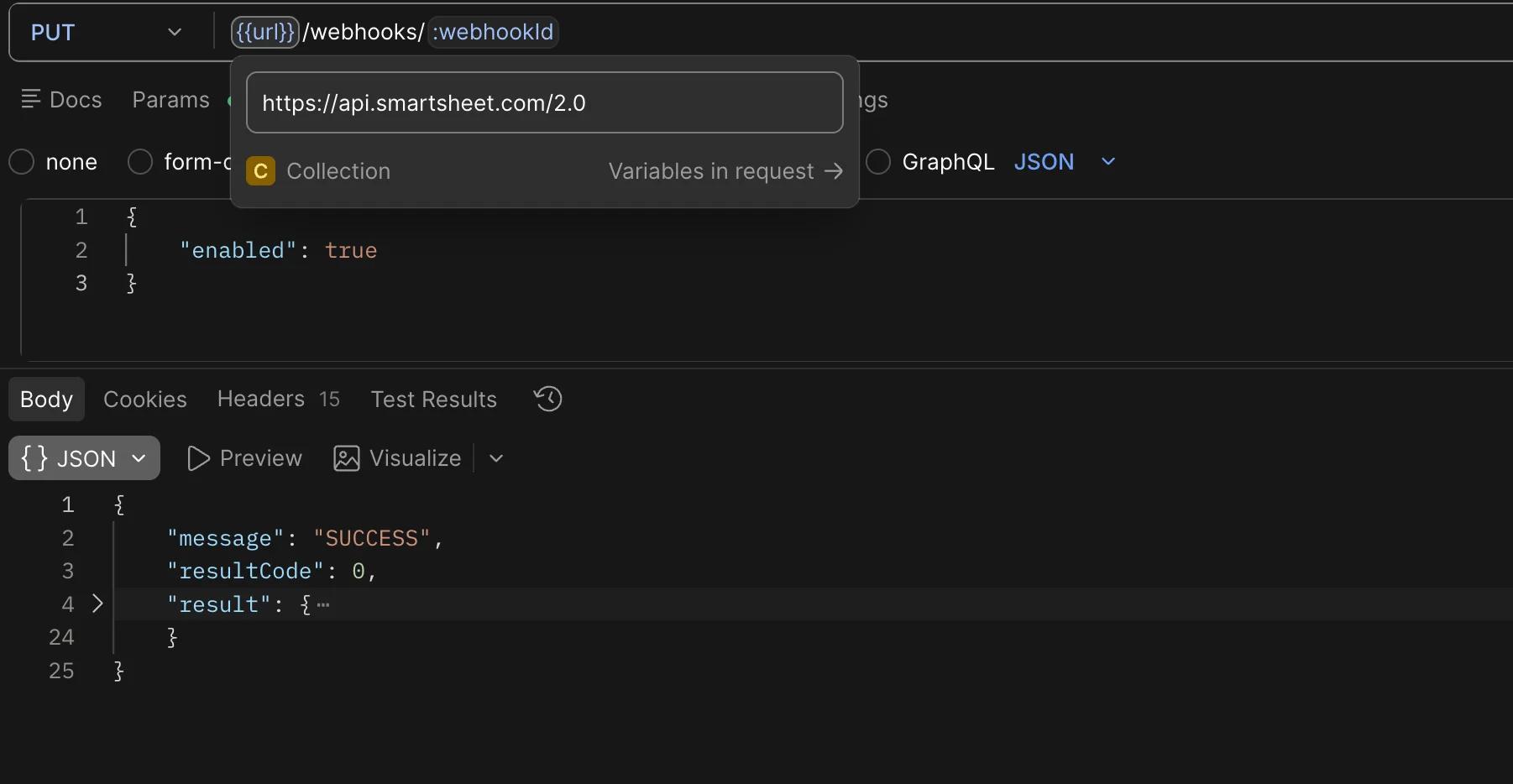
client_token parameterSmartsheet creates all webhooks in a disabled state. You must explicitly enable it:
curl -X PUT "https://api.smartsheet.com/2.0/webhooks/{WEBHOOK_ID}" \
  -H "Authorization: Bearer YOUR_ACCESS_TOKEN" \
  -H "Content-Type: application/json" \
  -d '{"enabled": true}'
Success response:
{
  "message": "SUCCESS",
  "resultCode": 0,
  "result": {
    "id": 1234567890123456,
    "enabled": true,
    "status": "ENABLED"
  }
}
Once status is ENABLED, your inbound flow is live. Any change to the subscope column will trigger the webhook.
List all webhooks to confirm yours is enabled:
curl "https://api.smartsheet.com/2.0/webhooks" \
  -H "Authorization: Bearer YOUR_ACCESS_TOKEN"
Look for your webhook with "enabled": true and "status": "ENABLED".
When Outbound Create is enabled and a new work order is created in Field Nation, the connector creates a new row at the bottom of your destination sheet.
Enable in: Integrations → Field Services → Smartsheet → Settings — enable the Outbound Create toggle.

Mandatory mapping: You must have a sheet.id mapping configured that
resolves to your destination Sheet ID. Without this, outbound create fails
silently — no row is created and no error is raised. See Required mappings
for Outbound
Create.
What happens on outbound create:
<SHEET_ID>-<ROW_ID>) is stored on the work order for future sync.When a linked work order is updated in Field Nation, the connector updates the corresponding Smartsheet row.
No additional configuration required — outbound updates happen automatically for any work order that has a linked external object ID.
Duplicate prevention: Before writing an update, the connector compares the outbound mapped values against the current row data. If all values already match, no API call is made. This prevents unnecessary writes and avoids triggering your inbound webhook.
Events that trigger outbound updates:
When enabled, messages flow between Field Nation work order messages and Smartsheet row discussions.
| Direction | Behavior |
|---|---|
| FN → Smartsheet | A new message posted on a work order creates a new Discussion on the linked row with the message text as the first comment |
| Smartsheet → FN | A new comment on a row discussion is synced to the work order as a message |
Message sync is controlled by the messages service flag. See the Message Sync guide for full configuration details.
When enabled, files flow between Field Nation work order attachments and Smartsheet row attachments.
| Direction | Behavior |
|---|---|
| FN → Smartsheet | Files attached to a work order are uploaded to the linked Smartsheet row |
| Smartsheet → FN | Row attachments are downloaded and attached to the work order |
| File size | Upload method |
|---|---|
| ≤ 29.9 MB | Direct file upload via Smartsheet API |
| > 29.9 MB | Attached as a URL link (reference link to the file) |
Attachment sync is controlled by two separate flags:
attachments_import — Smartsheet → Field Nationattachments_export — Field Nation → SmartsheetSee the Attachment Sync guide for full configuration details.
When the auto_dispatch service flag is enabled, work orders created via inbound sync are automatically dispatched (assigned to a provider) without manual intervention.
This is useful for teams that want fully automated end-to-end flow: row checked in Smartsheet → work order created → provider dispatched — all without human action in Field Nation.
Navigate to the sheet with the webhook configured.
Fill in the mapped columns (e.g., Task Name, Description, Due Date) and check the "Send to FN" checkbox.
Press Ctrl+S / Cmd+S to ensure changes are committed.
Navigate to your work orders. A new work order should appear within 30 seconds with the mapped data from your Smartsheet row. If nothing appears after 2 minutes, see Webhook not firing in the troubleshooting section below.
Fill in all fields that have outbound mappings configured (title, status, schedule, etc.).
The outbound create triggers when the work order is fully created.
Scroll to the bottom of your destination sheet. A new row should appear with the work order data and a linked <SHEET_ID>-<ROW_ID> relationship.
Open an existing work order that was created via Test 1 or Test 2. Edit a mapped field (e.g., change the title or status).
The outbound update triggers automatically.
The corresponding row should update within 30 seconds with the new values. If nothing updates after 2 minutes, see Outbound updates not reaching Smartsheet in the troubleshooting section below.
Smartsheet enforces API rate limits that affect the connector:
| Limit | Value |
|---|---|
| Requests per minute per access token | 300 |
| Concurrent requests per access token | 10 |
| Rows per addRows/updateRow call | 200 (connector sends 1 row per job) |
The connector includes automatic retry logic with exponential backoff for 429 Too Many Requests and 503 Service Unavailable responses. Under normal usage, rate limits are not a concern.
Progress is saved in your browser. Run this checklist once per environment (sandbox then production).
Last updated on
Configuration
Generate a Smartsheet API token, configure the Field Nation connector, and set up field mappings to sync sheet rows with work orders.
Message Sync
Enable bidirectional message sync between Field Nation work order messages and Smartsheet row discussions — keep your field team and project managers in sync.
