Generate a Smartsheet API token, configure the Field Nation connector, and set up field mappings to sync sheet rows with work orders.
Complete the steps below in order. Steps 1–3 are completed inside Smartsheet and take approximately 5 minutes. Once credentials are ready, complete Steps 4–8 inside Field Nation.
Estimated setup time: 15–25 minutes total.
Before starting, confirm you have Admin or Editor access to the Smartsheet sheet you want to integrate. See Before you begin on the Overview page.
The connector authenticates using a personal API Access Token. This token has the same permissions as the user who generated it.
Use an admin account or a dedicated service account. We recommend a shared service account (e.g., integrations@yourcompany.com) so the integration doesn't break if a personal account is deactivated.
Click your profile icon (bottom-left) → Apps & Integrations → API Access
Click Generate new access token.
Field Nation Integration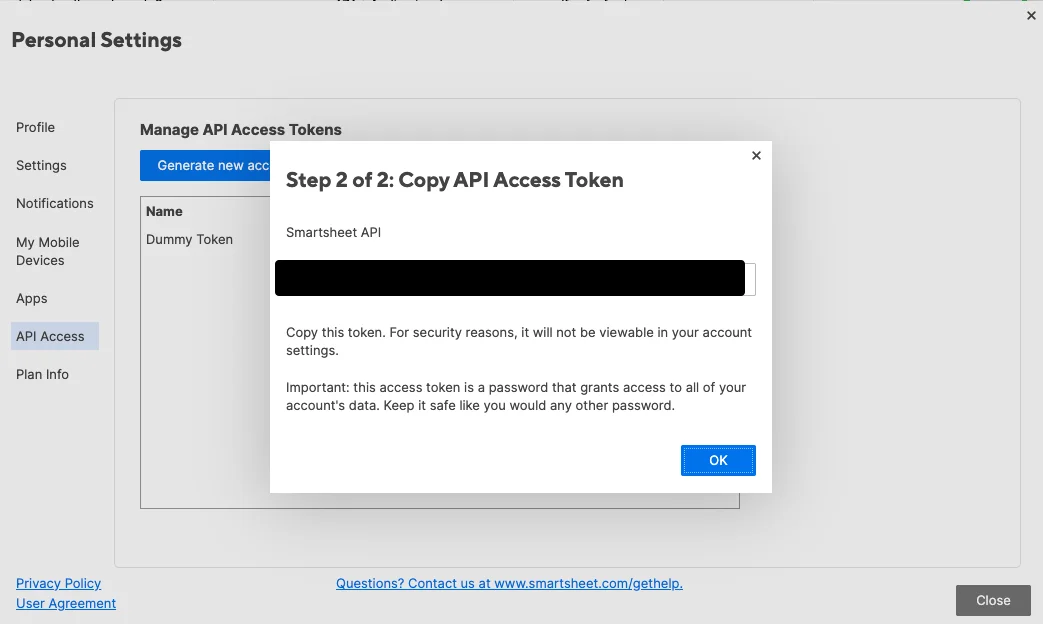
Store the token securely. If you lose it, you must revoke and regenerate. The integration will stop working until the new token is entered in Field Nation.
The Template Sheet ID tells the connector which sheet structure to use for column discovery (Refresh Fields). This should be the sheet containing all the columns you want to map.
Navigate to the sheet you plan to integrate with Field Nation.
Method 1 — Sheet Properties: File → Properties → copy the Sheet ID
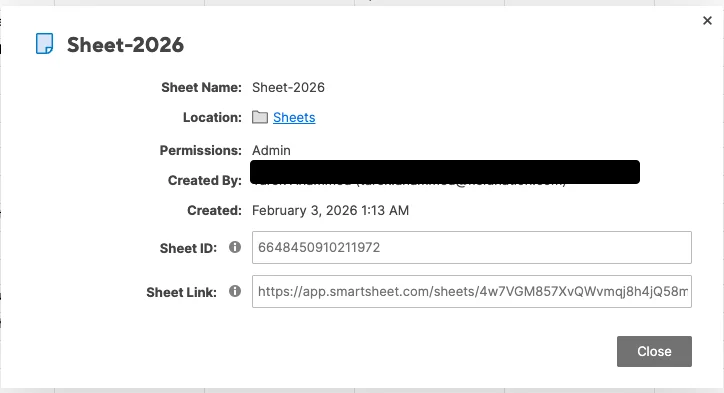
Method 2 — Browser URL:
https://app.smartsheet.com/sheets/4583173393803140The numeric segment in the URL is your Sheet ID.
Example Sheet ID: 4583173393803140
The Workspace ID is only required if you want the connector to create temporary sheets within a specific workspace during field refresh. Most customers can skip this step.
Click the Browse (folder) icon in the left sidebar → Workspaces
Right-click on your workspace → Properties → copy the Workspace ID
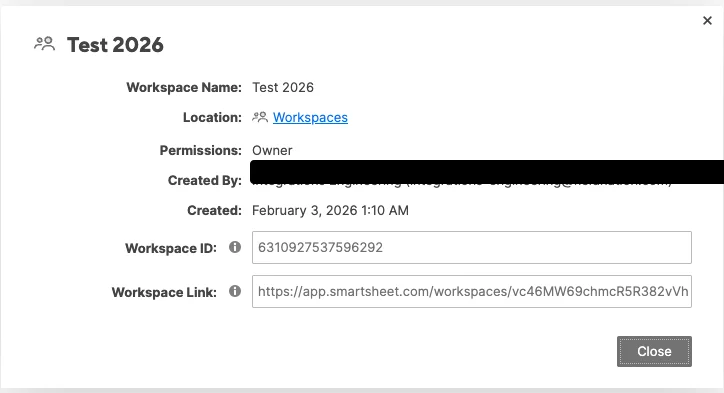
Example Workspace ID: 7523453512247172
If you leave Workspace ID blank, the connector creates temporary sheets at the account root level during field refresh. They are deleted immediately after — you may briefly see them in your Deleted Items folder.
Log in to Field Nation as a Company Admin and navigate to Integrations → Field Services → Smartsheet.
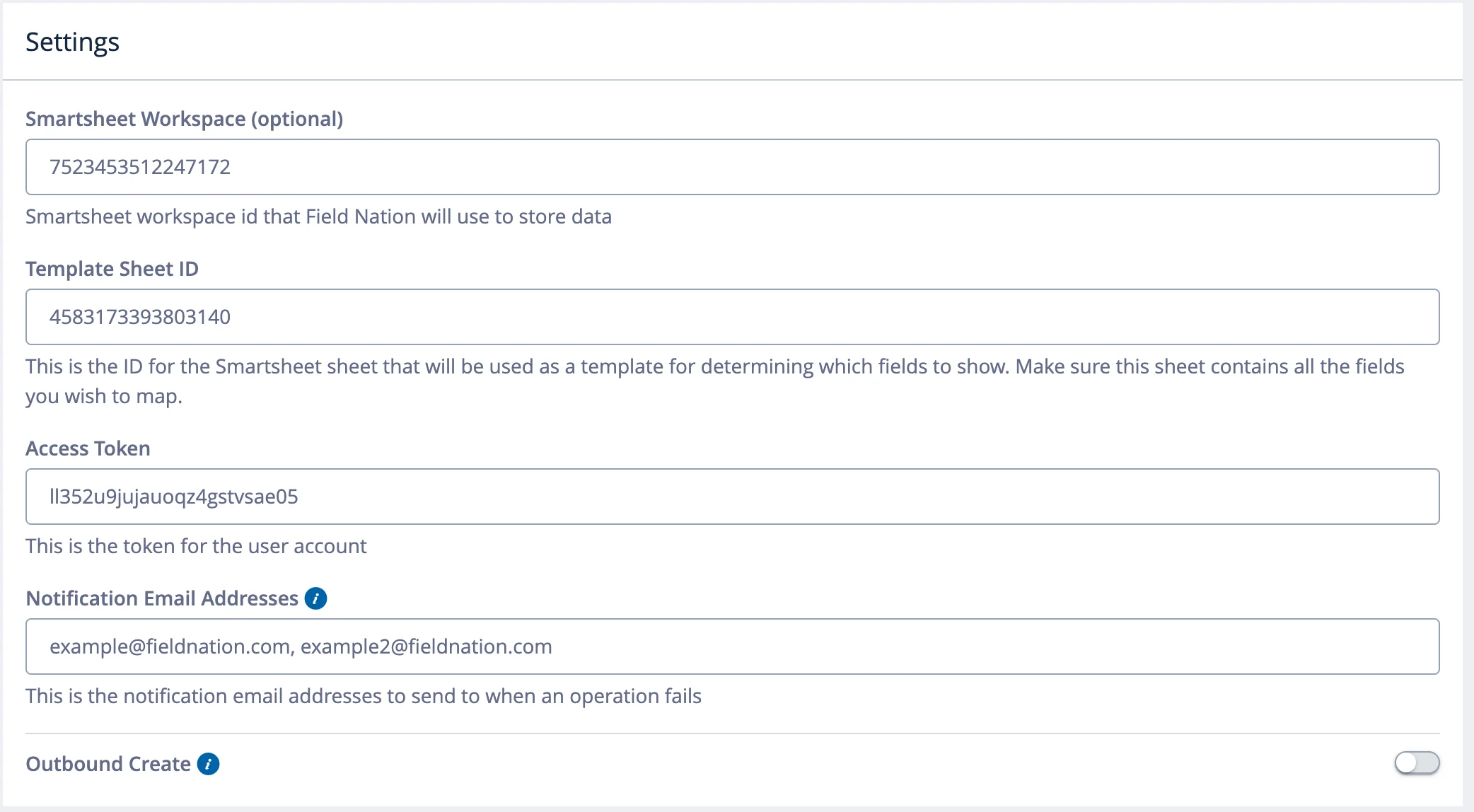
Enter the following values:
Access Token — Paste the API token from Step 1 directly into the Field Nation connector settings. Do not store it in this documentation.
| Setting | Behavior |
|---|---|
| OFF (default) | New work orders created in Field Nation will not create new Smartsheet rows. The connector only updates rows that are already linked via inbound sync. |
| ON | Every new Field Nation work order creates a new row in your destination sheet. |
Click Save. The connector validates your access token and sheet access automatically. If credentials are valid, the settings are persisted and the connector activates.
On save, the connector attempts to authenticate against the Smartsheet API and verify access to your Template Sheet.
Success: Settings saved, connector active.
Failure — troubleshooting:
Before configuring field mappings, click Refresh Fields to discover the available columns from your Template Sheet.
In Field Nation: Integrations → Field Services → Smartsheet → Manage → Refresh Fields

The connector performs the following behind the scenes:
Case sensitivity matters. Column names are case-sensitive in the mapping
UI. If your Smartsheet column is Task Name, you must select exactly Task Name — not task name or TASK NAME.
After changing your Template Sheet ID, you must click Refresh Fields again. If you see "ghost" fields from the old sheet, use the Toggle Dance workaround: change the mapped dropdown to a blank field → Save → change it back to the correct field → Save again.
In addition to your sheet columns, the connector automatically provides these system mapping fields:
| System field | Description |
|---|---|
sheet.id | The Smartsheet Sheet ID — required for Outbound Create |
sheet.name | The sheet name |
sheet.workspace.id | The workspace ID (if sheet is in a workspace) |
sheet.workspace.name | The workspace name |
sheet.row.id | The Row ID within the sheet |
Field mappings define how data translates between Smartsheet columns and Field Nation work order fields. From the Smartsheet settings page, click the Field Mappings tab (Integrations → Field Services → Smartsheet → Field Mappings).
Mappings are fully customizable — you map whichever Smartsheet columns exist in your sheet to the corresponding Field Nation work order fields. The connector does not prescribe specific columns; it discovers whatever columns your Template Sheet contains (via Refresh Fields) and lets you map them freely.
The only required mapping is sheet.id when Outbound Create is enabled.
All other mappings are optional and depend on your sheet structure.
When Outbound Create is enabled, the connector must know which sheet to create the new row in. This requires mapping the sheet.id system field.
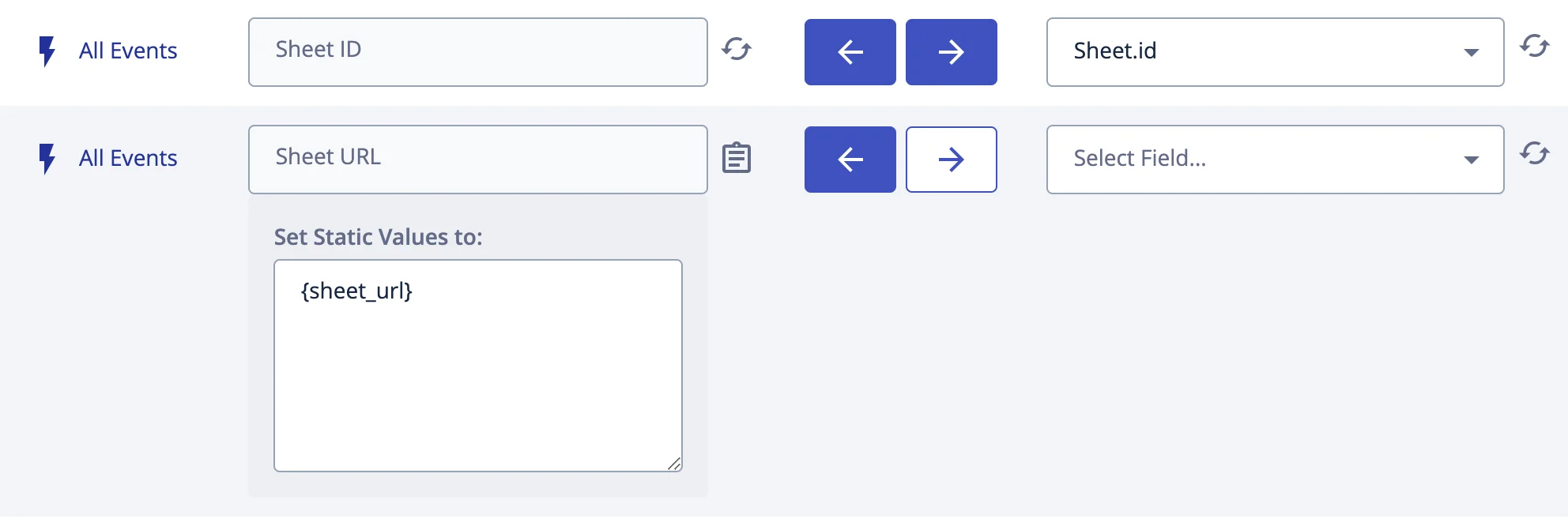
sheet.id mapping is mandatory when Outbound Create is enabled. Without
it, the connector cannot determine which sheet to create the row in and
outbound creates will fail silently.
How to configure:
sheet.id from the dropdown.For inbound mappings, select the Smartsheet source column from the left dropdown. For outbound mappings, select the Field Nation source field from the left dropdown.
Choose the corresponding field in the other system from the right dropdown.
| Action type | When to use |
|---|---|
| Sync Values | Values are identical or require no transformation |
| Array Map | Value needs translation (e.g., dropdown label → status ID) |
| Date Convert | Date format or timezone conversion |
| Concat Values | Combine multiple fields into one |
| Set Static Values | Always send the same value (e.g., fixed Sheet ID) |
| Custom Action | Complex transformation via Jsonnet |
Click Save Mapping. Repeat for all required fields.
The trigger URL is the endpoint Smartsheet webhooks will POST to when rows change. Field Nation provides this URL in the connector settings.
In Field Nation: Integrations → Field Services → Smartsheet → Trigger URL
The URL follows this pattern:
https://micro.fieldnation.com/v1/broker/inbound?client_token={your-client-token}Copy and store the full URL including the client token. This token authenticates all inbound webhook requests — treat it as a secret.

You need this URL before setting up the Smartsheet webhook. Complete this step, then proceed to Workflow Setup for webhook creation.
The values you collected above, in one place. The API access token is masked and never saved in your browser — enter it directly into the connector.
Non-secret values are saved in your browser. Fields marked Not saved are held only until you reload — enter them directly into the connector form.
Progress is saved in your browser. Run this checklist once per environment (sandbox then production).
Last updated on
Overview
Sync Smartsheet rows with Field Nation work orders bidirectionally — dispatch field work from your sheet and receive real-time updates without manual entry.
Workflow Setup
Create and enable a Smartsheet webhook to trigger Field Nation work order creation, and configure outbound sync for status updates back to your sheet.
