Sync files between Field Nation work orders and Smartsheet row attachments — deliverables, photos, and documents flow automatically.
Attachment sync moves files between Field Nation work orders and Smartsheet row attachments automatically. When a provider uploads a deliverable or photo to a work order, it appears on the linked Smartsheet row. When a project manager attaches a document to a row, it becomes available on the work order.
This guide covers Smartsheet-specific attachment sync. For general concepts on how events and sync work across connectors, see Events & Synchronization.
| Direction | Trigger | Behavior |
|---|---|---|
| Inbound (Smartsheet → FN) | Inbound create or update | All attachments on the Smartsheet row are downloaded and attached to the work order |
| Outbound (FN → Smartsheet) | Work order attachment event | The uploaded file is sent to the linked Smartsheet row as a row attachment |
Account enablement required. Attachment sync is disabled by default and cannot be self-enabled. Contact your Field Nation account team to enable it before continuing. Nothing in this guide will work until that is done.
Attachment sync is controlled by two independent service flags:
| Flag | Direction | Location |
|---|---|---|
attachments_import | Smartsheet → Field Nation | Integrations → Smartsheet → Manage → Attachment Import |
attachments_export | Field Nation → Smartsheet | Integrations → Smartsheet → Manage → Attachment Export |
You can enable one or both directions independently.
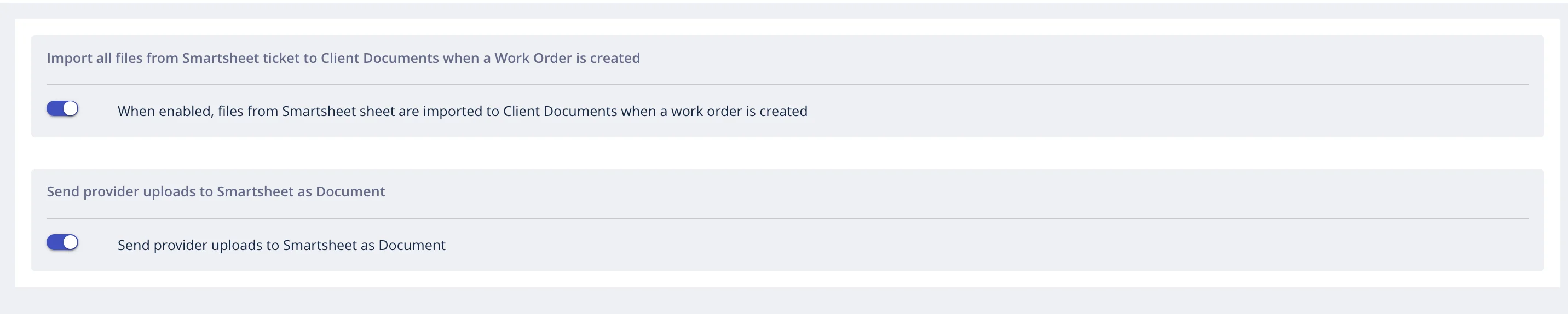
When an inbound create or update job runs and attachments_import is enabled:
All row attachments are synced — including files uploaded by any user, not just the one that triggered the sync.
Configure whether imported attachments are public (visible to assigned providers) or private (internal only):
| Setting | Behavior |
|---|---|
private (default) | Attachments are visible only to the buyer team |
public | Attachments are visible to assigned providers |
This is controlled by the attachments_public service flag.
When a file is attached to a linked work order and attachments_export is enabled:
| Condition | Method | Result in Smartsheet |
|---|---|---|
| File ≤ 29.9 MB | Direct file upload | Embedded file attachment on the row |
| File > 29.9 MB | URL link attachment | Reference link to the Field Nation file |
file_uid) for duplicate prevention.The connector tracks which files have been synced using the file's unique upload ID. If a file has already been exported to Smartsheet (matching upload_unique_id), it will not be sent again — even if the outbound update event fires multiple times.
Exported files are renamed with a unique suffix to prevent collisions:
original_filename_{unique_id}.extensionExample: site_photo_abc123def.jpg
| Limitation | Details |
|---|---|
| File size cap for direct upload | 29.9 MB — larger files become URL links |
| Outbound create attachments | Currently disabled — attachments only sync on outbound update events |
| File type restrictions | No restrictions from the connector side — Smartsheet may reject certain types |
| Attachment count | All row attachments are synced (no filtering by type or count) |
Outbound create limitation: When a work order is first created and Outbound Create adds a row, attachments that were added during creation are not automatically exported. Attachments are only exported on subsequent update events (e.g., when a new file is uploaded after the work order is linked). This is by design to prevent large initial sync payloads.
| Configuration | Inbound (Smartsheet → FN) | Outbound (FN → Smartsheet) |
|---|---|---|
attachments_import OFF | No sync | — |
attachments_import ON | All row attachments imported to work order | — |
attachments_export OFF | — | No sync |
attachments_export ON, file ≤ 29.9 MB | — | File uploaded directly to Smartsheet row |
attachments_export ON, file > 29.9 MB | — | URL reference link attached to row |
attachments_public OFF (default) | Imported files visible to buyer team only | — |
attachments_public ON | Imported files visible to assigned providers | — |
Last updated on
