Sync Field Nation work order expenses to Autotask ticket Charges by selecting your sync target and configuring field mappings on the Additional Charges page.
This guide covers Autotask-specific charge sync configuration. For general field mapping concepts and transformation types, see Field Mappings.
Configure your Autotask integration to sync Field Nation work order expenses directly to Autotask ticket Charges — giving you structured charge records on each ticket.
On the Additional Charges page, select your sync target from the Sync additional charges to dropdown. When Charges is selected, a second dropdown — Additional Charge ID Storage Field — lets you choose which field on the Autotask Charge object stores the Field Nation charge ID used to track and sync future updates.
Selecting Expense from the dropdown syncs expenses to Autotask Expenses instead. A dedicated guide covering Expense sync field mappings is coming soon.
Switching from Expenses to Charges does not retroactively affect existing Autotask Expense records. Only expenses synced after the change will create Charge records. Existing Autotask Expenses remain untouched.
Charge sync only works when your Autotask integration object type is set to
ticket. If your object type is set to anything else, expenses will fail to
sync and errors will appear in the event history log.
Before proceeding, confirm:
ticket in your Autotask connector settingsIn your Autotask integration settings, navigate to the Additional Charges page on the left sidebar.
From the Sync additional charges to dropdown, select Charges.
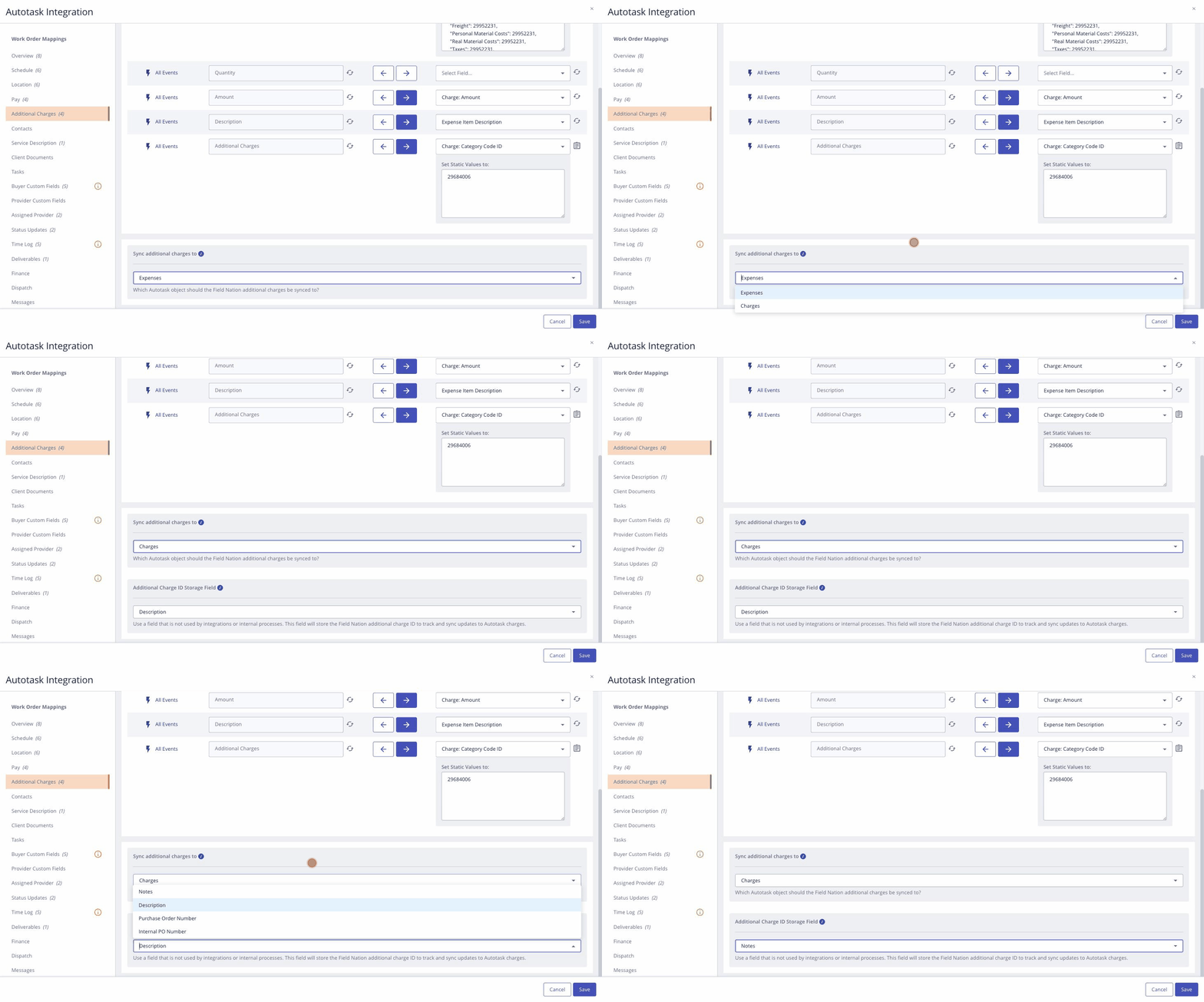
| Option | Behavior |
|---|---|
| Expense | Expenses sync to Autotask Expenses on the ticket (default) |
| Charges | Expenses sync to Autotask Charges on the ticket |
Once Charges is selected, a second dropdown appears below: Additional Charge ID Storage Field.
| Option | Description |
|---|---|
| Notes | Stores the Field Nation charge ID in the Charge's Notes field |
| Description | Stores the Field Nation charge ID in the Description field |
| Purchase Order Number | Stores the Field Nation charge ID in the Purchase Order Number |
| Internal PO Number | Stores the Field Nation charge ID in the Internal PO Number |
Choosing a storage field: Select a field that is not already used by other integrations or internal processes. Avoid Description if you plan to map Expense Item Description in Step 2 — they write to the same field and will overwrite each other. The Field Nation charge ID stored here is used to track and sync future updates — such as edits, deletions, and disapprovals — back to the correct Autotask Charge record.
Do not change this field after charges have synced. The connector uses the stored ID to match existing Autotask Charge records. Changing the storage field after charges have been created will cause the connector to lose track of those records and may create duplicates on re-sync.
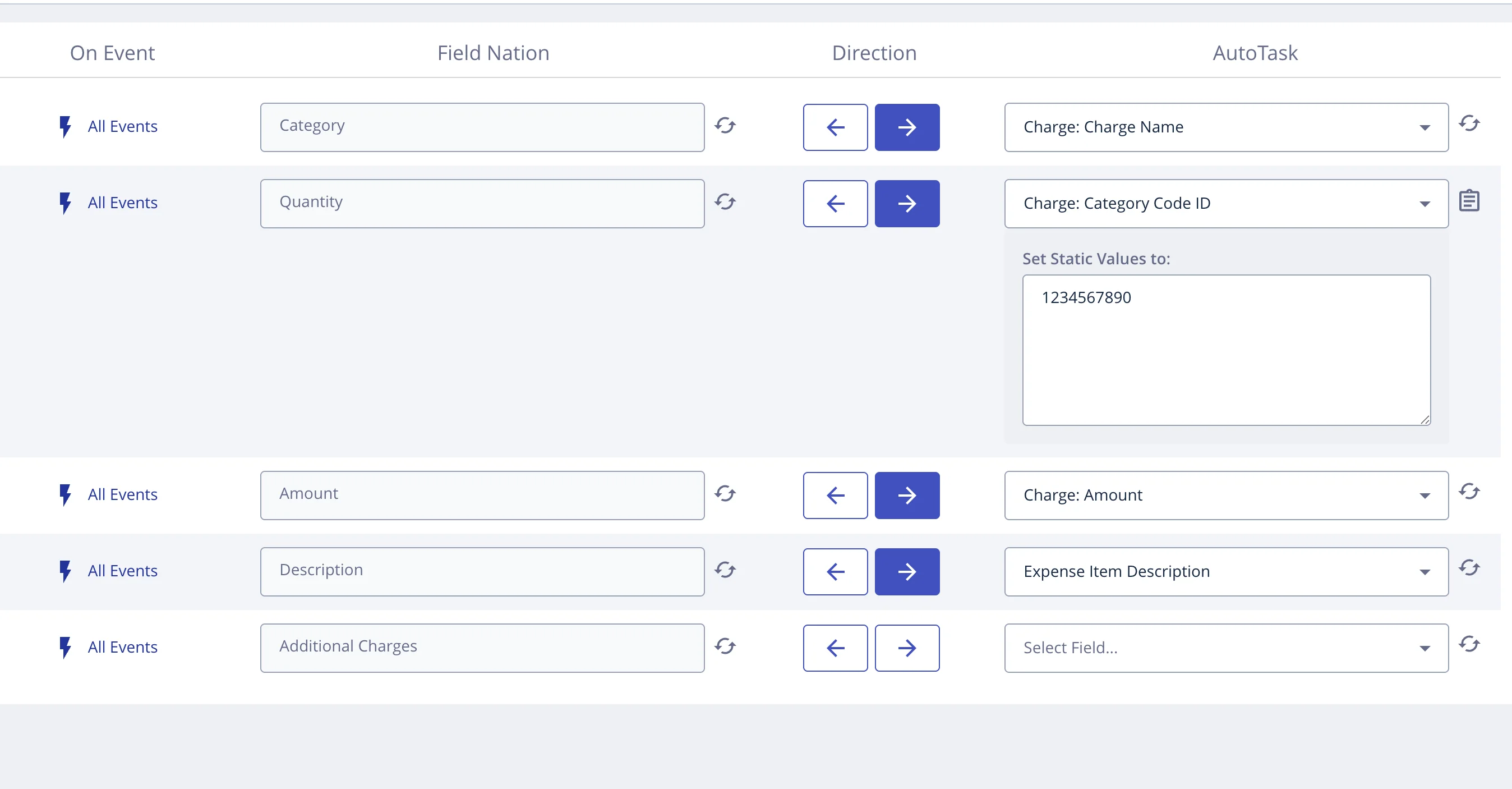
Still on the Additional Charges page, configure the following field mappings. Charge Name, Category Code ID, and Amount are required — without them, expenses will not sync.
| Mapping Field | Required | Maps To in Autotask |
|---|---|---|
| Charge: Charge Name | Yes | The display name of the charge on the Autotask ticket. |
| Charge: Category Code ID | Yes | The Material Code ID on the Autotask Charge object — typically set as a static value |
| Charge: Amount | Yes | The unit cost on the Autotask Charge object |
| Expense Item Description | No | An optional description on the Autotask Charge |
Finding your Category Code ID: This value is not visible in the standard Autotask UI. You can retrieve it from the Autotask API or your Autotask admin settings.
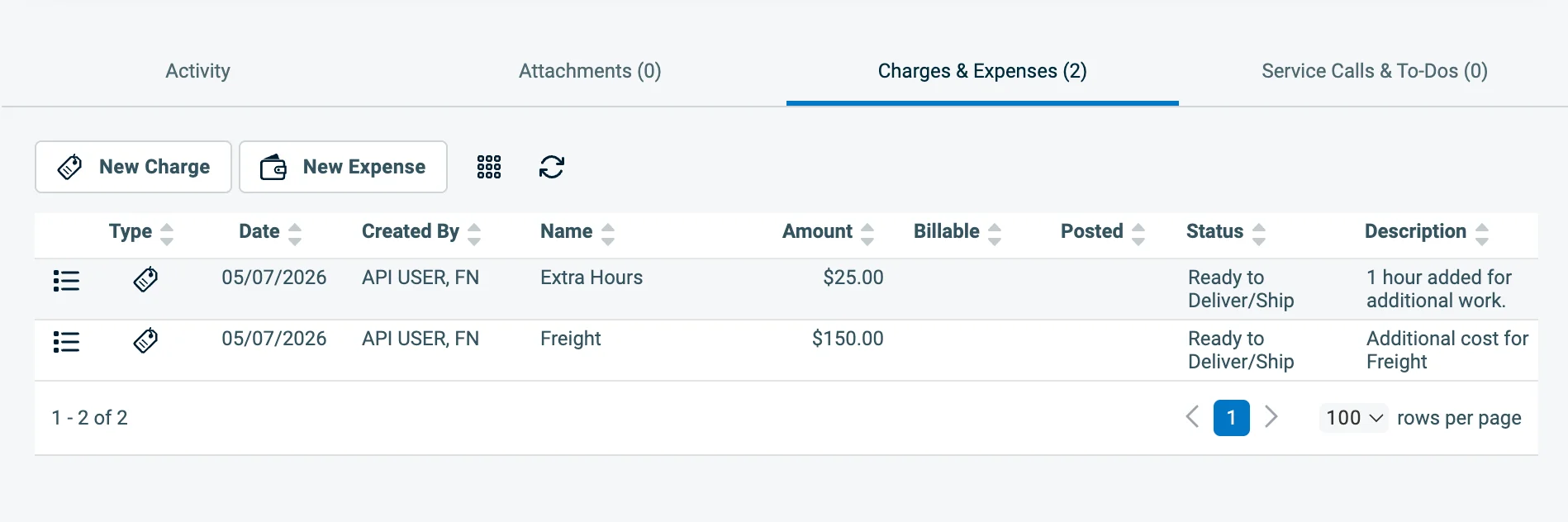
Create a test expense on a Field Nation work order, then verify the result in Autotask:
Once a charge is synced to Autotask, Field Nation continues to keep it current. Changes to an expense on Field Nation are reflected on the corresponding Autotask Charge automatically.
| Event on Field Nation | What happens in Autotask |
|---|---|
| Expense created | A new Charge is created on the Autotask ticket |
| Expense deleted | The Charge is updated — cost and price are set to 0.00, and the description is updated to indicate the expense was deleted on Field Nation |
| Expense disapproved | The Charge is updated — cost and price are set to 0.00, and the description is updated to indicate the expense was disapproved on Field Nation |
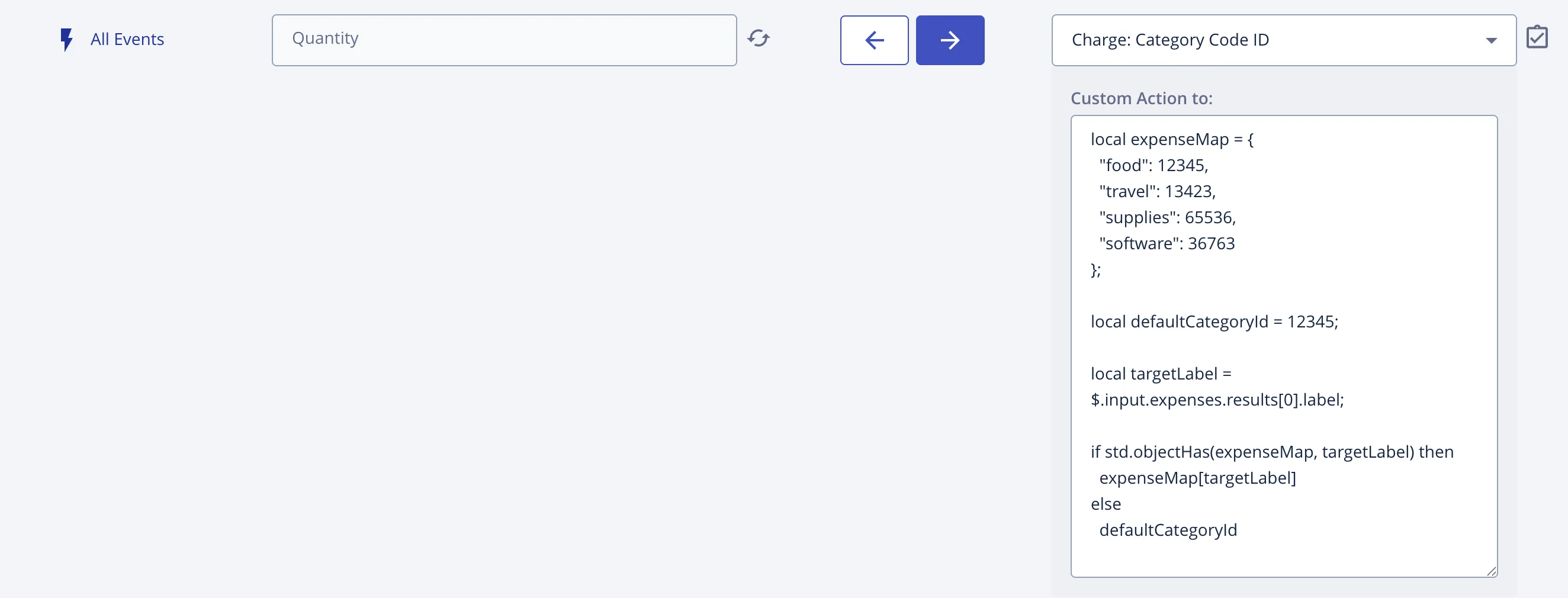
It is possible to map different types of expenses to different autotask Charge Categories dynamically based on the expense label. This can be done through a custom action on the outbound Charge: Category Code ID mapping.
// 1. Define a map of Expense label -> Autotask Category Code ID
local expenseMap = {
  "Freight": 123456789,
  "Trip Charge": 134235124,
  "Taxes": 655365214,
};

// Also define a default category ID.
// Category labels not defined in the expenseMap will be put in this autotask charge category by default.
// if there is no default category and we can't find a label match in the expenseMap, the charge sync will fail.

local defaultCategoryId = 12345;

 // 2. Extract the target label from the expense results payload
 local targetLabel = $.input.pay.expense.results[0].label;

// 3. Use the category ID dynamically
if std.objectHas(expenseMap, targetLabel) then
  expenseMap[targetLabel]
else
defaultCategoryIdYou can use any available field to map the custom action to Autotask's Category Code ID
Last updated on
