Connect Autotask PSA to Field Nation to sync work orders, time entries, expenses/charges, notes, and attachments bidirectionally — no manual hand-off required.
The Field Nation Autotask connector links your Autotask PSA instance to Field Nation, keeping work orders, time entries, expenses/charges, notes, and attachments synchronized between both platforms. When work happens in Field Nation, it flows into Autotask automatically. When you need to dispatch against an existing Autotask ticket, import it directly into Field Nation — no re-entry required.
Bidirectional sync
Field Nation events push data to Autotask in near real time. Autotask tickets import into Field Nation on demand.
What syncs
Work orders, time entries, expenses/charges, notes, and attachments — including User-Defined Fields
Autotask edition required
API access is available on Autotask Pro and Enterprise editions. Essentials does not include API access.
No mandatory webhook setup
Outbound sync requires no webhook configuration. Autotask webhooks can optionally automate inbound imports.
The connector sits between Field Nation and Autotask PSA. Field Nation is always the initiating side — it either fires an outbound event (provider logs time, submits an expense) or an admin triggers an inbound import by providing an Autotask ticket ID. Outbound sync requires no webhook configuration; Autotask webhooks are optional and only used to automate inbound imports (see Workflow Setup).
Outbound (Field Nation → Autotask): When a provider logs time, submits an expense, adds a note, or uploads a file in Field Nation, the connector writes that data to the linked Autotask ticket automatically.
Inbound (Autotask → Field Nation): A Field Nation admin provides an Autotask ticket ID. The connector fetches the ticket — including standard fields, account and contact data, and any User-Defined Fields — and creates or updates the Field Nation work order.
Scenario: Your team manages all customer work in Autotask. When a ticket requires a field technician, you want to dispatch through Field Nation without re-entering ticket details.
Scenario: Providers complete work orders in Field Nation. You need all labor hours, expenses/charges, and receipts to appear in Autotask for billing and reporting — without manual entry.
Scenario: Your operations team wants end-to-end automation — tickets created in Autotask dispatch field work automatically, and all field activity syncs back without any manual steps.
Enable Outbound Create in the connector settings. With this on:
This mode is best suited for teams where Field Nation is the primary dispatch tool and Autotask is the system of record.
Confirm your Autotask subscription includes API access (Pro or Enterprise). Check that API User appears as a Resource Type under Admin → Resources (Users). If it does not, contact your Autotask administrator.
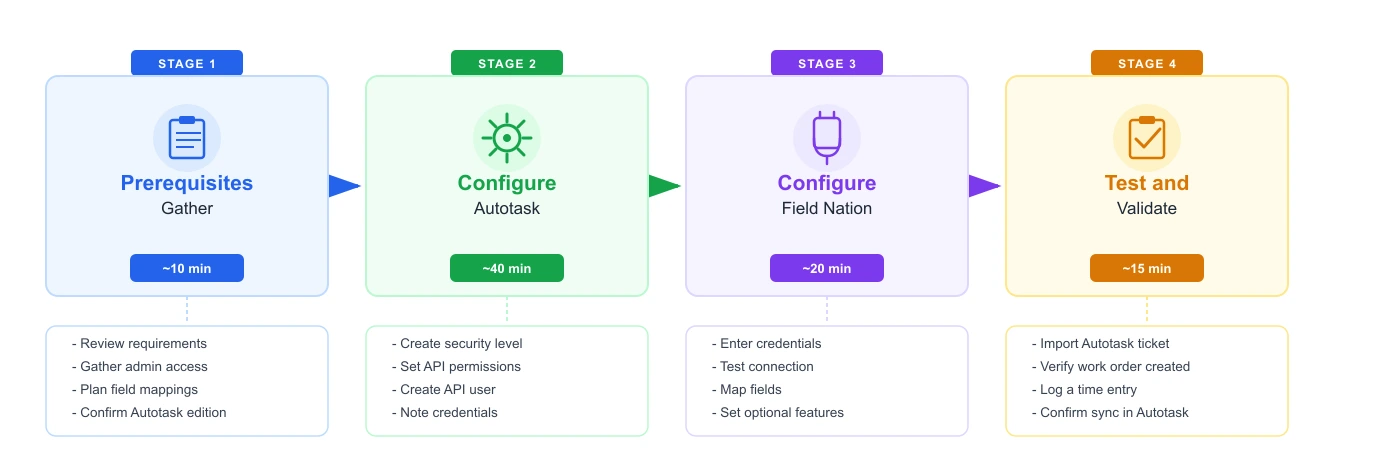
In Autotask Admin, create a new Security Level with API User as the license type and grant the minimum required permissions for tickets, time entries, and any optional features (expenses, attachments). Then create an API user assigned to that security level. Use a service account email, not a personal one.
Log in to Field Nation as a Company Admin and navigate to Integrations → Field Services → Autotask. Enter the API username, password, and integration code (leave blank for the Field Nation default). The connector discovers your Autotask zone automatically from the credentials.
Save the connector configuration — Field Nation automatically tests the connection on save. If credentials are valid, the connector shows as active. Then enable optional features as needed: Outbound Create, expense routing destination, and attachment sync. See the Configuration guide for the full step-by-step details.
| Data type | Create | Read | Update | Delete |
|---|---|---|---|---|
| Ticket | ✓ | ✓ | ✓ | |
| Time Entry | ✓ | ✓ | ✓ | ✓ |
| Ticket Note | ✓ | |||
| Ticket Cost (charge) | ✓ | ✓ | ||
| Expense Report / Item | ✓ | |||
| Attachment | ✓ | ✓ | ✓ | |
| Account | ✓ | |||
| Account Location | ✓ | |||
| Resource | ✓ |
Ticket Delete is not supported by the Autotask REST API. Expense edits route through ExpenseReport — individual ExpenseItem updates are not exposed via the connector.
Complete the checks below before starting the Configuration steps. The Autotask side (Steps 1–5 of Configuration) must be completed by an Autotask administrator and can be handed off to them independently.
Use the checklist below to track progress across both environments.
Progress is saved in your browser. Run this checklist once per environment (sandbox then production).
API access is available on Autotask Pro and Enterprise editions. Essentials-tier subscriptions do not include API access — contact your Autotask administrator to confirm your entitlement.
Use one of these methods to confirm:
| Method | Where to look | What to confirm |
|---|---|---|
| Check for API User license | Admin → Resources (Users) → API User | API User appears as a Resource Type |
| Check Security Levels | Admin → Security Levels → New Security Level | API User is selectable as the license type |
| Subscription confirmation | Admin → Features & Settings | Edition is listed as Pro or Enterprise |
If you cannot locate these options, ask your Autotask administrator: "Does our Autotask instance include API User licenses?"
Autotask routes API calls to a regional zone (for example, webservices2.autotask.net or webservices4.autotask.net). The connector auto-discovers the correct zone from your credentials — no manual entry is required.
If your network restricts outbound HTTPS traffic, allow *.autotask.net on port 443. To confirm your zone is reachable before setup:
curl -s "https://webservices.autotask.net/atservicesrest/v1.0/zoneInformation?user=YOUR_AUTOTASK_USERNAME"Expected result: a JSON response with zoneName, url, webUrl, and ci fields.
| Symptom | Likely cause | Resolution |
|---|---|---|
| 404 or empty response | Username doesn't exist in Autotask | Use a valid Autotask login username |
| 401 or authorization error | API access disabled or username incorrect | Confirm API entitlement with your Autotask administrator |
| Timeout or connection error | Network egress restriction | Allow outbound HTTPS to webservices.autotask.net and your zone base URL |
Field Nation provides a registered partner integration code by default. No action is required for most customers — leave the Integration Code field blank during configuration and the Field Nation default is used automatically.
You only need to act if your organization requires a customer-specific integration code: obtain it from Autotask Support, then enter it during Step 4 of Configuration.
| Requirement | Details |
|---|---|
| Company Admin access | Required to navigate to Integrations → Marketplace and save connector settings |
| Target environment identified | Configure sandbox (ui-sandbox.fndev.net) before production (app.fieldnation.com) |
| API credentials ready | Autotask API username, password, and integration code (if applicable) from Steps 1–4 |
| Field Nation event | Autotask entity written |
|---|---|
| Work order created (Outbound Create enabled) | New Ticket |
| Work order updated | Ticket fields updated |
| Time entry logged | TimeEntry created or updated |
| Time entry deleted | TimeEntry deleted |
| Expense/charge submitted | ExpenseReport + ExpenseItem or TicketCost — one destination, configurable in connector settings |
| Note added to work order | TicketNote |
| File attached | Attachment (embedded file or URL link depending on size) |
| Signature captured | Attachment (embedded file, always public visibility) |
| Data imported from Autotask | Notes |
|---|---|
| Ticket fields | Title, description, status, priority, due date |
| Account and contact | Company name, location, contact information |
| User-Defined Fields | Mapped based on your inbound field configuration |
| Attachments | Only if attachment import is enabled for your account |
The primary sync entity is the Autotask Ticket. Service Calls and Projects are also supported as the Service Object Name — confirm with your Field Nation account team which entity type is appropriate for your workflow.
Your Autotask administrator should work through the Configuration guide to create the required security level and API user, then connect the Field Nation connector. Once configured, see Workflow Setup to enable and tune sync behaviors for your team.
Last updated on
