Connect ConnectWise Manage to Field Nation to sync service tickets and work orders bidirectionally — dispatch technicians without re-entry.
The Field Nation ConnectWise connector links your ConnectWise Manage instance to Field Nation, keeping service tickets and work orders synchronized between both platforms. When a ConnectWise ticket transitions into your configured trigger status, it dispatches a Field Nation work order automatically. When work happens in Field Nation — status changes, notes, attachments — it flows back to the ConnectWise ticket without manual effort.
New to these terms? Start here.
Bidirectional sync
ConnectWise callbacks send a ticket ID to Field Nation. Work order events update ConnectWise tickets in near real time.
What syncs
Service tickets, ticket notes, attachments, schedule entries, company, contact, and site data — including custom fields
API key authentication
Uses ConnectWise REST API with a dedicated API member and public/private key pair — no OAuth, no shared admin credentials
Callback-driven inbound
ConnectWise sends the ticket ID to Field Nation the moment trigger conditions are met — no polling required
The connector sits between Field Nation and ConnectWise Manage. ConnectWise initiates inbound events by posting a ticket ID to Field Nation's inbound endpoint when a callback fires. Field Nation initiates outbound events when work order activity occurs — status changes, notes, attachments — and writes those back to the ConnectWise ticket.
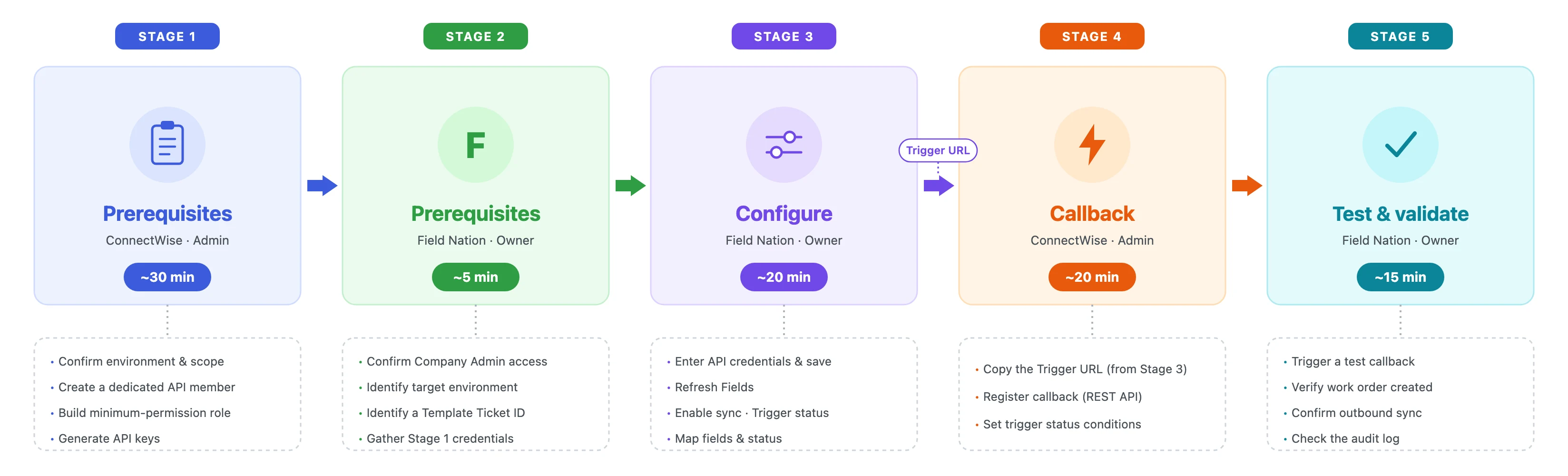
Setup is shared between two owners. The ConnectWise administrator prepares the ConnectWise side — API member, security role, keys, and the callback — and the Field Nation Integration Owner connects Field Nation, maps fields, enables optional features, and validates end-to-end. The diagram below shows the high-level journey; the Before you begin checklist breaks it into detailed stages, each labeled with its owner.
Once configured, the connector runs in two independent directions:
Inbound (ConnectWise → Field Nation): When a ConnectWise ticket transitions into your configured trigger status, ConnectWise posts the ticket ID to Field Nation. (If you want board- or custom-field-based triggering, use a ConnectWise Workflow Rule to set that trigger status when the condition is met.) The connector fetches the full ticket, applies your field mappings, and creates or updates the corresponding Field Nation work order.
Outbound (Field Nation → ConnectWise): When work order events fire in Field Nation — status updates, notes posted, attachments uploaded — the connector writes those changes back to the linked ConnectWise service ticket via the REST API.
Scenario: Your team manages all buyer work in ConnectWise. When a ticket requires an on-site field technician, you want to dispatch through Field Nation without re-entering ticket details.
Scenario: Providers complete work in Field Nation. You need status changes and technician notes to appear in ConnectWise for your service team — without manual copy-paste.
Scenario: Your operations team wants end-to-end automation — ConnectWise is the system of record, Field Nation handles dispatch and execution, and both stay in sync throughout the lifecycle.
Enable Outbound Create in the connector settings. With this on:
This mode works best when ConnectWise is the buyer-facing system of record and Field Nation drives technician dispatch and execution.
Before creating accounts or generating keys, decide which ConnectWise instance you'll use (sandbox to test, production to go live) and which service boards and ticket types should sync. You can decide these yourself — loop in your Field Nation Solutions Engineer only if unsure.
In ConnectWise, create a new API member (non-human service account) and a security role named Field Nation Integration with the minimum required permissions. Do not use a personal admin account or reuse an existing role.
From the API member record in ConnectWise, generate a Public/Private key pair. Copy the Private Key immediately — it is only shown once. Store both keys and the Company Name in a password manager.
Log in to Field Nation as a Company Admin and navigate to Integrations → Field Services → ConnectWise → Manage. Enter your API credentials and click Save — the connector validates authentication. Once authenticated, click Refresh Fields to pull your ConnectWise boards and fields, then enable sync and configure your work order field mappings.
Register a callback in ConnectWise pointing to your Field Nation Trigger URL via the REST API — see the Callback Setup guide.
Create a test ticket in ConnectWise that meets your callback conditions. Confirm the work order is created in Field Nation. Update the work order and confirm the ConnectWise ticket reflects the change.
Your ConnectWise environment is unique. Several values in this guide differ by instance and must come from your own ConnectWise admin — don't copy the examples:
api-na.myconnectwise.net)Dispatch to FN), not a numeric ID. Status names are board-specific — use Refresh Fields to confirm the available values for your boardsConfirm these before you start.
Complete the checks below before starting the Configuration steps. Stage 1 (ConnectWise prerequisites) can be completed by a ConnectWise administrator independently — it does not require Field Nation access. Stage 4 (callback setup) requires the Trigger URL from Field Nation settings — coordinate with the Field Nation Integration Owner before starting it. Stages 2, 3, and 5 require Company Admin access in Field Nation.
Progress is saved in your browser. Run this checklist once per environment (sandbox then production).
The integration requires a ConnectWise Manage license with API access and the ability to create API-type members.
| Requirement | Where to confirm |
|---|---|
| API member type available | System → Members → API Members tab → New Member — "API Member" |
| Ability to create Security Roles | System → Security Roles |
| Ability to configure Callbacks | Via REST API — POST /v4_6_release/apis/3.0/system/callbacks |
Create a security role named Field Nation Integration and assign it to your API member. The full permissions table — including module paths, per-feature breakdowns, and what to explicitly exclude — is in Configuration Step 3.
| Requirement | Details |
|---|---|
| Company Admin access | Required to access Integrations and save connector settings |
| Target environment identified | Configure sandbox before production |
| Template Ticket ID | An active ConnectWise ticket accessible by your API member, used to discover available mapping fields. Choose one with all intended field types populated (board, type, subtype, priority, custom fields) — a sparse ticket limits available mappings. |
| Data from ConnectWise | Notes |
|---|---|
| Service ticket summary and description | Title, initial description, initial internal analysis |
| Status | Mapped to Field Nation work order status via status mapping |
| Contact | Associated contact on the ticket |
| Site | Maps to Field Nation work location |
| Custom fields | Any custom fields on the ticket, discovered via Template Ticket ID |
| Ticket notes | Synced as messages when message sync is enabled (requires the Messages entitlement) |
| Attachments | Synced when the Client Documents → Import toggle is enabled (requires the Client Documents contract feature). Imported at work-order creation only — files added to the ConnectWise ticket after the callback fires are not pulled retroactively. |
| Schedule entries | Start/end dates, when schedule.dateStart/schedule.dateEnd are mapped |
| Field Nation event | ConnectWise entity written |
|---|---|
| Work order status changes | Service ticket status updated |
| Message posted on work order | Ticket Note created (internal or external, configurable) |
| Work order created (Outbound Create enabled) | New Service Ticket |
| File attached to work order | Document uploaded when the Client Documents → Export toggle is enabled (requires Client Documents); always created as private in ConnectWise (hardcoded, not configurable) |
| Schedule updated | Schedule Entry updated (when schedule.dateStart/schedule.dateEnd are mapped) |
| Sync transaction fails | Failure notification sent to configured email addresses — optional, requires Notification Email Addresses set in connector settings |
Your ConnectWise administrator should work through the Configuration guide to create the API member, security role, and API keys, then connect the Field Nation connector. Once configured, see Workflow Setup to configure callbacks in ConnectWise and activate sync. For programmatic or multi-board callback registration, see the Callback Setup guide.
Last updated on
Additional Charge Sync
Sync Field Nation work order expenses to Autotask ticket Charges by selecting your sync target and configuring field mappings on the Additional Charges page.
Configuration
Create a dedicated ConnectWise API member with the correct permissions, generate API keys, and connect the Field Nation connector end-to-end.
