Create a REST Message and Business Rule in ServiceNow to automatically trigger work order creation in Field Nation.
Complete these before starting. Each card links to where you get or confirm the requirement.
Field Nation configured
The connector is authenticated, fields are discovered, and configuration is saved.
Trigger URL in hand
Copied from Configuration Step 5 and stored in your reference sheet.
ServiceNow admin access
Admin or developer access needed to create REST Messages and Business Rules.
Two components in ServiceNow that work together:
wm_task table and fires the REST Message when a task reaches Pending DispatchYou need the Trigger URL from the Configuration page before starting. If you haven't completed configuration, do that first.
This defines the HTTP request ServiceNow will send to Field Nation.
Go to System Web Services → Outbound → REST Message and click New.
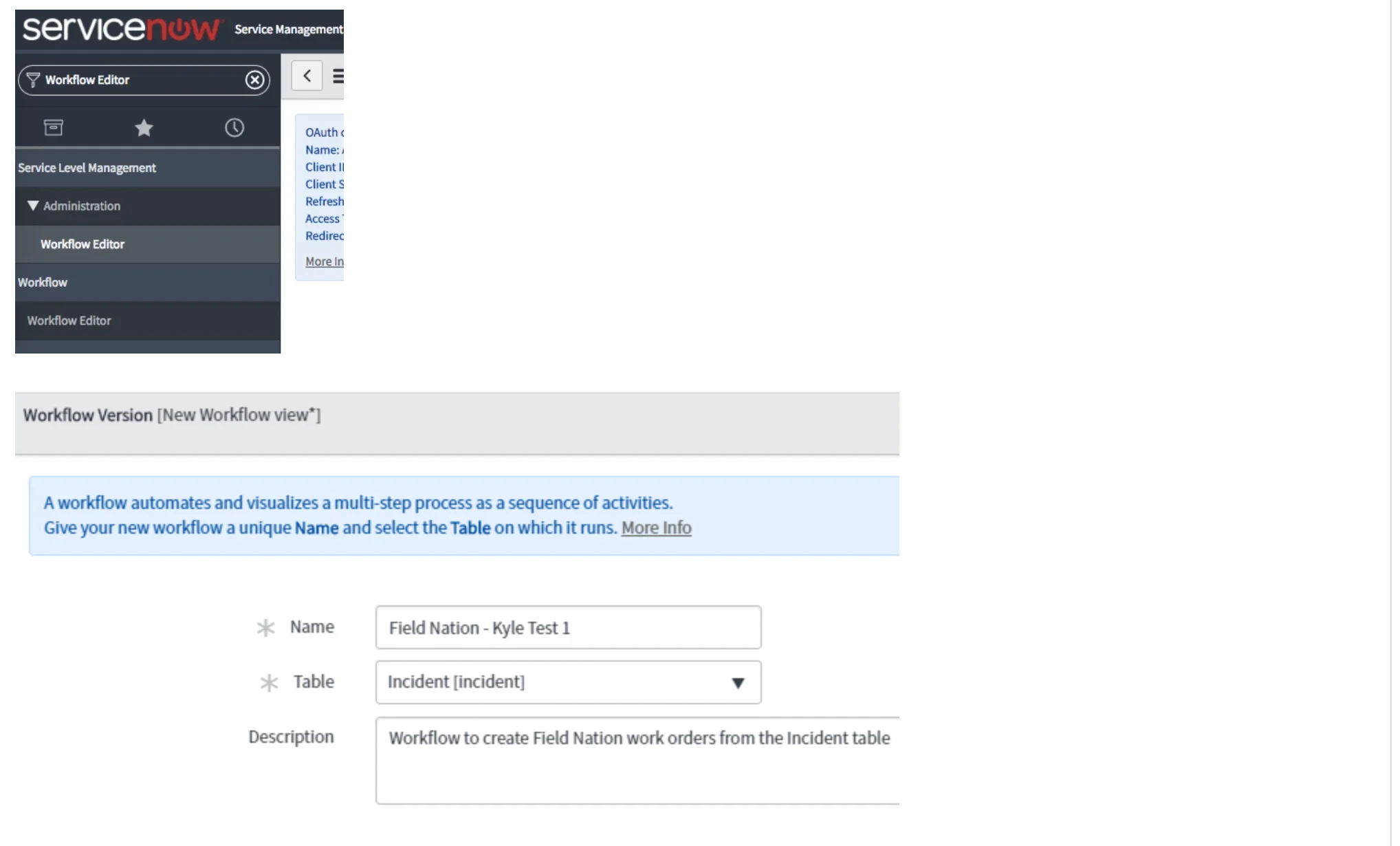
Name: Field Nation Webhook
Endpoint: Paste only the base URL of your Trigger URL — everything before the ?. For example:
https://micro.fieldnation.com/v1/broker/inboundCopy the base URL from your Trigger URL in the Integration Broker. Do not type
it manually — the path differs between production and sandbox environments. The
full Trigger URL contains a client_token — treat it as sensitive. Your
reference sheet keeps it in your browser, so it's available here from
Configuration.
Right-click the top header and click Save.
Scroll down to the HTTP Methods tab and click Default POST.
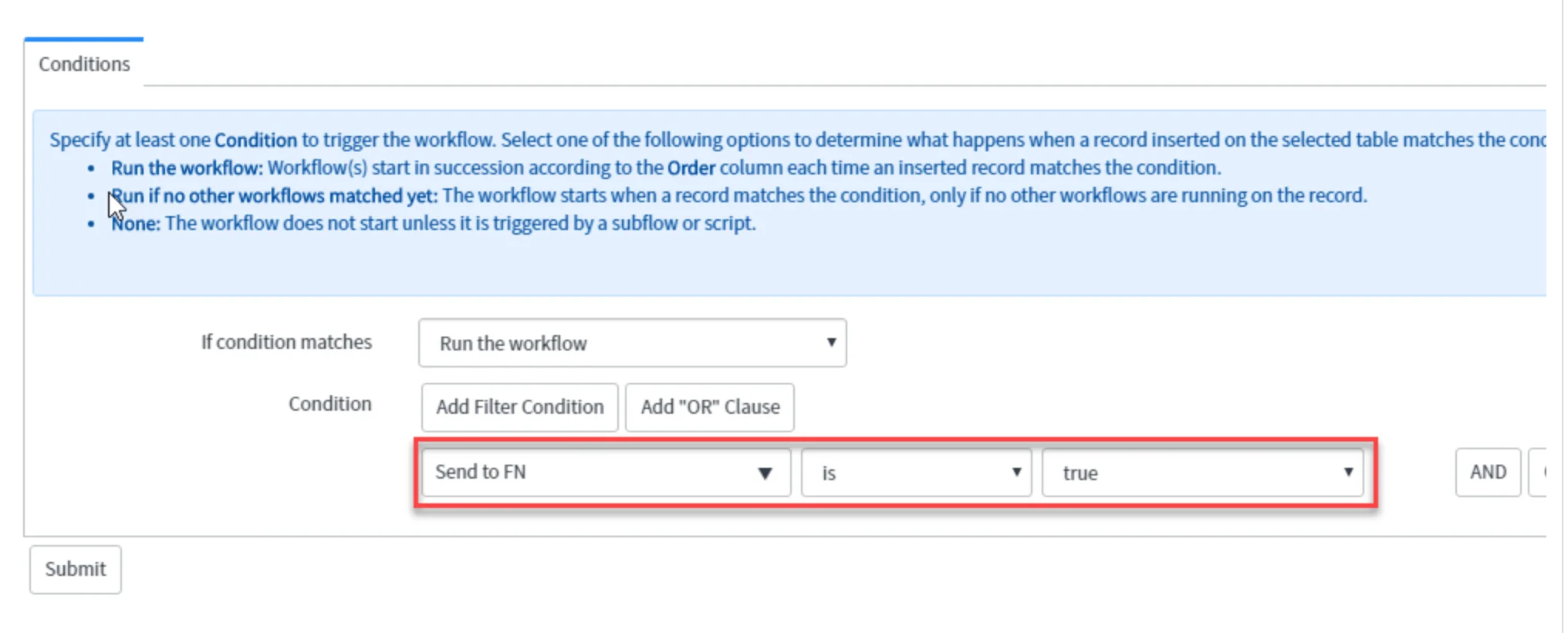
Scroll to the HTTP Query Parameters section. Add two rows:
| Name | Value |
|---|---|
client_token | (Paste your token from Field Nation) |
external_id | ${sys_id} |
Do not hardcode client_token into the Endpoint URL field. ServiceNow may
strip query strings pasted directly into URL fields. Add it as a query
parameter instead.
Use the exact variable format ${sys_id} for external_id. ServiceNow
dynamically injects the triggering record's unique ID at runtime.
The external_id query parameter name and client_token are defined by the
Integration Broker's inbound endpoint. The Integration Broker UI may display a
note saying "We will look in the POST body for the id" — the broker accepts
both approaches. Using external_id as a query parameter (as shown above) is
the recommended method for ServiceNow Business Rule triggers.
Scroll to the HTTP Headers section and add:
| Name | Value |
|---|---|
Content-Type | application/json |
Click the HTTP Request tab. In the Content box, paste:
{ "sys_id": "${sys_id}", "table": "${table}", "timestamp": "${timestamp}" }Click Update to save the HTTP method.
Before creating the Business Rule, verify the REST Message works:
In the HTTP Methods tab, click Default POST.
In the Variable Substitutions section, enter:
| Variable | Test Value |
|---|---|
sys_id | test_12345 |
table | wm_task |
timestamp | 1714300000000 |
Scroll to the bottom and click Test.
Success: HTTP 200 response. The trigger was received by Field Nation (no work order is created from a test sys_id).
Failure: Check the endpoint URL and client_token value.
This script monitors the wm_task table and triggers the REST Message when your conditions are met.
Go to System Definition → Business Rules and click New.
| Field | Value |
|---|---|
| Name | Push to Field Nation |
| Table | wm_task |
| Active | Checked |
| Advanced | Checked (reveals the script editor) |
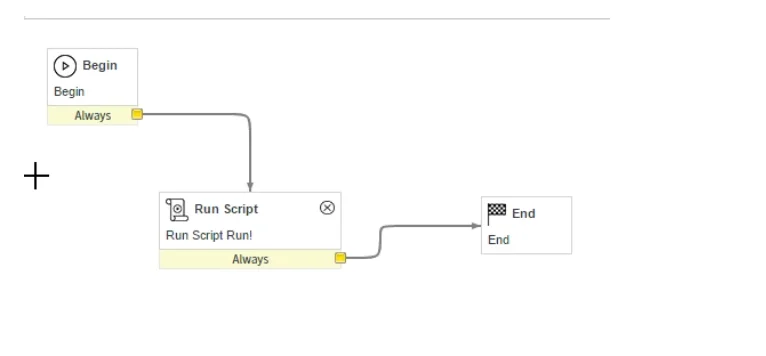
Click the When to run tab:
| Setting | Value |
|---|---|
| When | after |
| Insert | Checked |
| Update | Checked |
Configure the condition using three dropdowns:
| Dropdown | Value |
|---|---|
| Field | State |
| Operator | changes to |
| Value | Pending Dispatch |
Use changes to, not is. The changes to operator fires only on the
state transition. Using is causes duplicate API calls every time the record
is saved while already in that state.
Click the Advanced tab. Paste the following into the Script field:
(function executeRule(current, previous /*null when async*/) {
  try {
    var r = new sn_ws.RESTMessageV2("Field Nation Webhook", "Default POST");

    r.setStringParameterNoEscape("sys_id", current.sys_id.toString());
    r.setStringParameterNoEscape("table", current.getTableName());
    r.setStringParameterNoEscape(
      "timestamp",
      new GlideDateTime().getNumericValue(),
    );

    r.executeAsync();
    gs.info(
      "Field Nation Trigger queued for " +
        current.getTableName() +
        ":" +
        current.sys_id,
    );
  } catch (ex) {
    gs.error("Field Nation Trigger Error: " + ex.message);
  }
})(current, previous);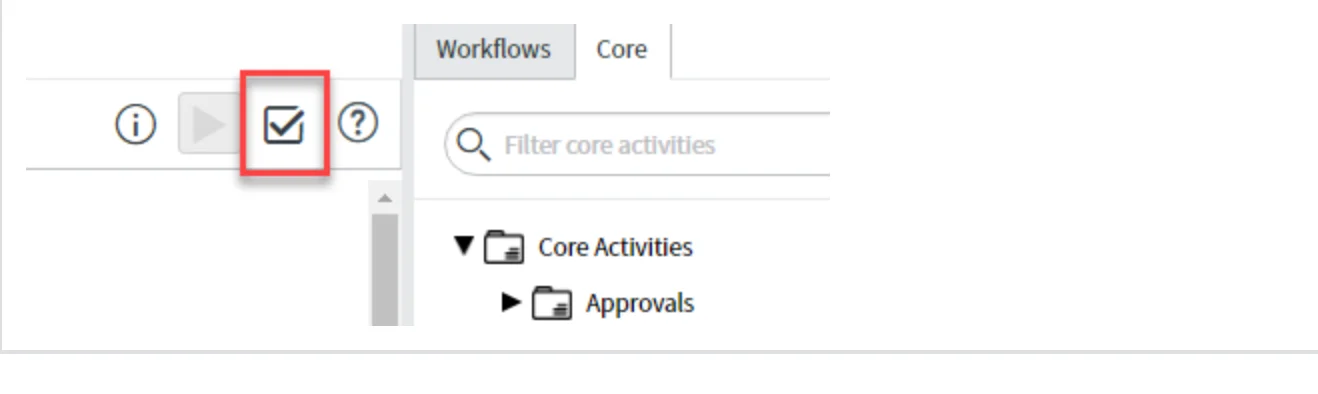
Click Submit.
With the REST Message and Business Rule in place, trigger the integration by creating a task that meets your filter conditions.
In the left navigation bar, go to Work Order → Tasks (or type wm_task.list in the filter navigator and press Enter).
Click New and fill in the required fields:
If you configured Template Bypass, populate the same fields that exist on your template record.
Change the State dropdown to Pending Dispatch.
Right-click the top header and click Save (or click Update). The Business Rule fires, the REST Message sends the sys_id to Field Nation, and a work order is created.
sys_id, confirming the link is established for bidirectional syncAdd a second condition to the Business Rule filter to limit dispatch to tasks assigned to a specific group:
| Dropdown | Value |
|---|---|
| Field | Assignment Group |
| Operator | is |
| Value | (your target group name) |
Use AND logic between conditions. The Business Rule fires only when both conditions are met.
The filter condition does not need to be Pending Dispatch. You can use any wm_task state value — or a custom field — as the trigger. Update the filter condition dropdown values and adjust your inbound field mappings accordingly.
If you have cloned your ServiceNow instance for development or testing, set the Business Rule to Inactive in non-production clones to prevent test data from reaching the Field Nation production environment. Use the sandbox Trigger URL for non-production instances.
Non-secret values are saved in your browser. Fields marked Not saved are held only until you reload — enter them directly into the connector form.
Progress is saved in your browser. Run this checklist once per environment (sandbox then production).
Last updated on
Configuration
Connect Field Nation to your ServiceNow instance, authenticate with OAuth 2.0, discover fields, and configure mappings.
Australia Release Migration
Keep your Field Nation integration syncing when you migrate your ServiceNow instance to the Australia release — prevent and fix the domain-related sync failure.
