Connect Field Nation to your ServiceNow instance, authenticate with OAuth 2.0, discover fields, and configure mappings.
Complete the prerequisites on the Overview page first. You should have:
wm_task)Open the Integration Broker:
Select ServiceNow from the list of available connectors.
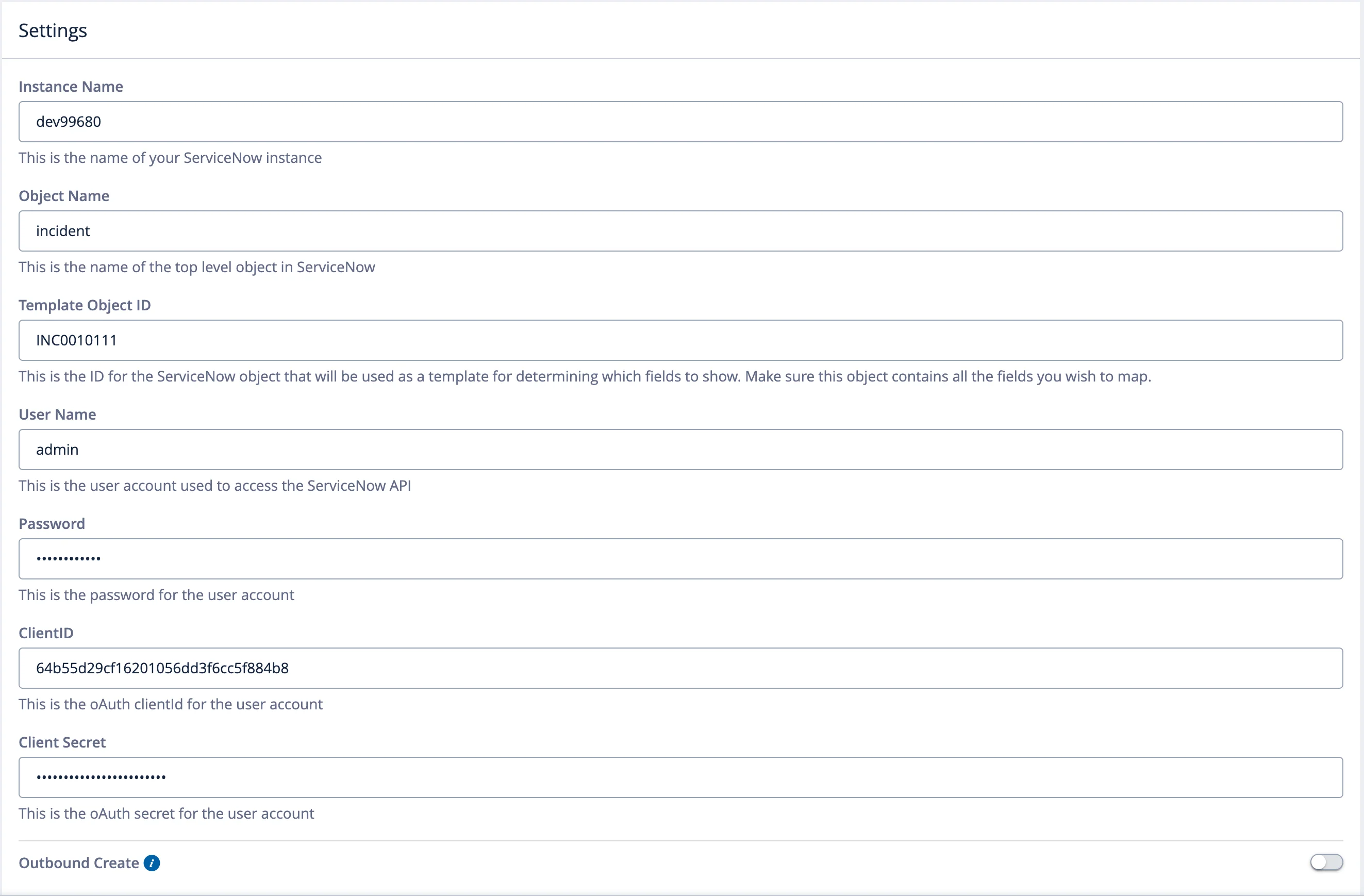
Your ServiceNow instance name — the subdomain portion of your instance URL. For example, if your instance is https://dev12345.service-now.com, enter:
dev12345Enter only the instance name (e.g., dev12345), not the full URL. The
connector constructs the full URL automatically. Entering a full URL like
https://dev12345.service-now.com will cause a connection failure.
The ServiceNow table API name. For this guide:
wm_taskThe connector defaults to incident. To use wm_task (Work Order Task),
change the Object Name field and ensure the Field Service Management plugin is
active. Use the table API name (wm_task), not the display label.
The connector uses OAuth 2.0 with the Resource Owner Password Credentials (ROPC) grant type. This requires the service account and OAuth application you created during prerequisites.
In Integration Broker, select OAuth 2.0 and enter:
| Field | Value |
|---|---|
| Client ID | From ServiceNow Application Registry |
| Client Secret | From ServiceNow Application Registry |
| Username | Service account (e.g., integration.fieldnation) |
| Password | Service account password |
The connector automatically constructs the token URL from your instance name and always uses the OAuth 2.0 password grant. There is no separate Token URL or Grant Type field — these are handled internally. OAuth 2.0 is the only supported authentication method.
Click Test Connection. The Integration Broker will:
Success: Green confirmation — connection established, table accessible.
Failure: Review the error and check the troubleshooting section below.
Once the connection test passes, Field Nation generates your unique Trigger URL. It appears in the Trigger Information section of the settings page.
Always copy the Trigger URL directly from the Integration Broker UI. Do not manually construct it — the base path varies by environment (production vs. sandbox).
Copy this URL. You will need it when configuring the REST Message in ServiceNow (covered in the Workflow Setup page).
The client token authenticates incoming requests from ServiceNow. Treat it like a secret — do not share it or commit it to source control. Your reference sheet keeps it in your browser so it carries over to the Workflow page.
Click Refresh Fields to discover available ServiceNow fields for mapping. The broker queries your instance's metadata and populates the mapping dropdowns with:
short_description, description, state, priority)u_custom_field)assignment_group.name, location.city)By default, the connector reads the sys_db_object and sys_dictionary tables to discover available fields. If your organization's security policies restrict ACL access to these tables, standard field discovery will fail.
Configure Template Bypass to discover fields from a sample record instead. This is also useful for mapping deeply nested reference lookups that the dictionary method may not resolve.
Find an existing Work Order Task (wm_task) that has a Subproject and Project Manager already assigned.
Open the record and confirm the fields you want to map are not blank. ServiceNow excludes empty fields from API responses — if a field is blank on the template, it will be invisible to Field Nation.
Copy either the Record Number (e.g., WOT0010014) or the 32-character Sys ID.
Navigate to the Integration Settings tab. Set the Restrict SYS Dictionary ACL switch to ON.
Paste the Record Number or Sys ID into the Template Object ID field.
Click Save, then click Refresh Fields. Inherited fields will now appear in the mapping dropdowns.
Drawback: New custom fields added to your ServiceNow table later will not auto-discover. You must manually populate the field on the template record and click "Refresh Fields" again. If the template record is deleted, field discovery breaks.
Map data between ServiceNow and Field Nation.
These control how ServiceNow data populates your Field Nation work order:
| ServiceNow Field | Field Nation Field | Action |
|---|---|---|
short_description | Title | Sync |
description | Description | Sync |
location.name | Location Company Name | Sync |
priority | Priority | Array Map |
state | Status | Array Map |
caller_id.email | Contact Email | Sync |
work_start | Schedule Start | Date Convert |
These control how Field Nation updates flow back to ServiceNow:
| Field Nation Field | ServiceNow Field | Action |
|---|---|---|
| Status | state | Array Map |
| Assignee Name | assigned_to.name | Sync |
| Completion Notes | work_notes | Sync |
| Completion Date | resolved_at | Date Convert |
Sync, Array Map, or Date Convert)Array Map, click Edit Values and add one row per value pairMap ServiceNow numeric state values to Field Nation status IDs:
{
  "source": "state",
  "target": "status_id",
  "action": "array_map",
  "mappings": [
    { "compare": "1", "value": "1" },  // Open → Draft
    { "compare": "3", "value": "1" },  // Pending Dispatch → Draft
    { "compare": "2", "value": "2" },  // In Progress → Assigned
    { "compare": "4", "value": "3" },  // Closed Complete → Work Done
    { "compare": "5", "value": "3" }   // Closed Incomplete → Work Done
  ],
  "default": "1"
}
ServiceNow wm_task state values:
| Value | State |
|---|---|
| 1 | Open |
| 2 | In Progress |
| 3 | Pending Dispatch |
| 4 | Closed Complete |
| 5 | Closed Incomplete |
| 7 | Cancelled |
Complete field mapping guide →
Verify: instance URL, table name, authentication, field mappings (inbound and outbound).
Persist your configuration.
You will use this in the next step — configuring the ServiceNow REST Message.
The following features are disabled by default. Enable them in the Integration Settings tab after saving your base configuration.
| Feature | What it does | ServiceNow role required |
|---|---|---|
| Outbound Create | Allows Field Nation to create new wm_task records directly via the REST Table API | wm_admin (replaces wm_dispatcher) |
| Attachment sync | Syncs file attachments between Field Nation work orders and ServiceNow records | itil |
| Message and notes sync | Syncs Field Nation notes to work_notes and ServiceNow work_notes back to Field Nation | No additional role required |
Each feature requires the corresponding ServiceNow role on your service account. Re-run Test Connection after enabling a feature to verify the service account has the necessary permissions.
After saving, confirm the connector is working end-to-end before proceeding to workflow setup.
| Event status | Meaning | Action |
|---|---|---|
received | Trigger URL was called — broker received the sys_id | Normal — processing |
fetched | Broker successfully read the full record from ServiceNow | Normal — creating work order |
created | Work order created in Field Nation | Success |
mapping_error | A field mapping failed — value incompatible with target field | Review inbound mappings |
auth_error | ServiceNow rejected the broker's read request | Verify service account credentials |
not_found | sys_id sent in trigger does not match a readable record | Check service account table ACLs |
Non-secret values are saved in your browser. Fields marked Not saved are held only until you reload — enter them directly into the connector form.
Progress is saved in your browser. Run this checklist once per environment (sandbox then production).
Next: Workflow Setup →
Last updated on
