Create a dedicated ConnectWise API member with the correct permissions, generate API keys, and connect the Field Nation connector end-to-end.
Setup has two owners. The ConnectWise administrator completes the ConnectWise-side work (Steps 1–4) and can do it independently. Once they hand off the credentials, the Field Nation Integration Owner completes the Field Nation-side work (Steps 5–8). Complete the steps in order.
Estimated setup time: 30–60 minutes for a ConnectWise administrator familiar with roles and API keys.
Before starting, confirm your ConnectWise license includes API member support and that you have identified a Template Ticket ID — an active, accessible service ticket used for field discovery. See Before you begin on the Overview page.
Who: ConnectWise Admin
Before creating any accounts or keys, make these four decisions. You can answer all of them yourself — no call required.
api-na.myconnectwise.net.Why this step matters: Confirming scope before provisioning prevents over-granting access and avoids accidental changes to boards or ticket types that are not part of the integration.
If unsure about any choice, your Field Nation Solutions Engineer can help — but it's not required to proceed.
Who: ConnectWise Admin
Navigation: System → Members → API Members (tab) → New Member
Create a new member specifically for the Field Nation integration. Do not reuse an existing employee account or admin member.
| Field | Value |
|---|---|
| Member Type | API Member |
| Member ID | svc-fieldnation (or a similar service account name) |
| First Name / Last Name | Field Nation / Integration |
A monitored alias — e.g. integrations@yourdomain.com | |
| Default Territory | Your primary territory |
| Security Role | Field Nation Integration (created in Step 3) |
| Status | Active |
Why a dedicated member: A dedicated account keeps sync actions attributed to the integration rather than a person, allows API key rotation without disrupting anyone's access, and limits the blast radius if keys are compromised.
Who: ConnectWise Admin
Navigation: System → Security Roles → New Role
Role name: Field Nation Integration
Do not assign the Administrator role or any role with billing, invoicing, or user management permissions. Grant only what is listed below. Leave all other permissions at their defaults (no access).
Grant only what is listed below. Leave every other permission at its default (no access). The Module / Area names below match ConnectWise's actual security-role structure — they are not generic placeholders.
| Module / Area | Permission | Required | Notes |
|---|---|---|---|
| Service Desk → Service Tickets | Inquire, Add, Edit (set to All) | Always | Core sync — read existing tickets, create from Field Nation, update status. Also covers Ticket Notes sync — there is no separate Ticket Notes permission to grant. Without this permission, the connector cannot read tickets, create work orders from ConnectWise, update ticket status, or sync ticket notes. |
| System → Table Setup | Inquire, Add (set to All) | Always | Required for Custom Fields and Note Types. Click the (customize) link next to Table Setup and move General / Custom Fields and Service / Note Type into the Allow column. |
| Companies → Company Maintenance | Inquire All; add Add / Edit if an outbound company mapping is configured | Always (Add/Edit conditional) | Map work orders to the correct ConnectWise company and associate contacts. An outbound company mapping writes back to ConnectWise — creating or updating the company — which requires Add/Edit. |
| Companies → Configurations | Inquire All | Always | Map work location / site for work orders. |
| Companies → Manage Attachments | Inquire All (always); add Add: All for attachment export | Always (Inquire) | Required for every fetch — missing Inquire causes a 403 on save, before any sync runs. Add Add: All only to enable attachment export. |
| Project → Project Tickets | Inquire All | Project tickets only | Link service tickets to projects. |
| Service Desk (or Time & Expense) → Resource Scheduling | Inquire, Add, Edit (set to All) | If schedule fields are mapped | Required when you map schedule.dateStart / schedule.dateEnd. |
Ticket Notes and Custom Fields are not separate top-level permissions in ConnectWise. Ticket Note sync rides on the Service Tickets permission, and Custom Fields / Note Types are exposed through System → Table Setup using the (customize) link. Granting Table Setup without customizing it will leave custom fields undiscoverable during Refresh Fields.
ConnectWise caches role permissions per session. After changing a security role, log out and back in (and, for API members, the change may take a minute to apply) before re-testing — otherwise the old permissions persist and you'll chase a phantom error.
| Module / Area | Grant access? |
|---|---|
| Finance (Billing / Invoicing) | No |
| System → User Management | No |
| System Administration / Admin-level access | No |
| HR / Payroll | No |
| Procurement / Purchasing | No |
If your organization uses a base security role that includes any excluded modules, create a new role from scratch rather than modifying an existing one.
Who: ConnectWise Admin
Navigation: System → Members → [select the API member from Step 2] → API Keys tab → Add (+)
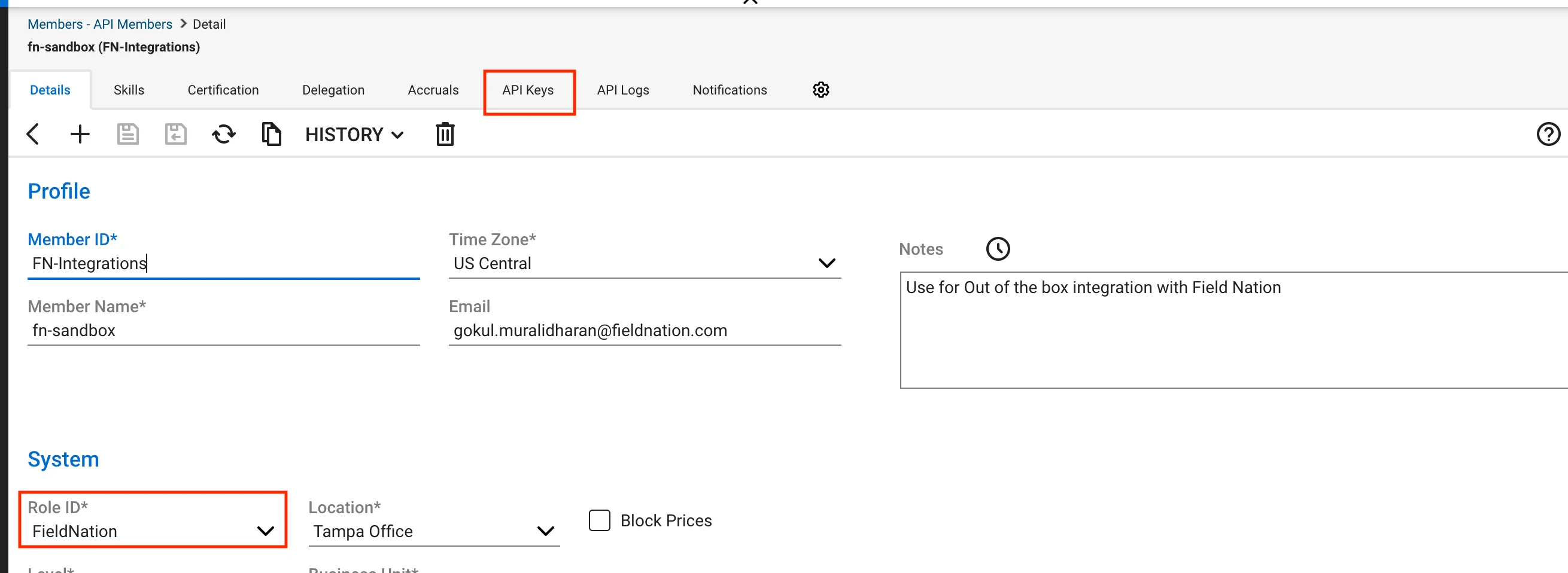
Follow these steps in order. Do not close the dialog until both keys are saved.
Field Nation IntegrationCompany is your login identifier — the value in the Company field on your ConnectWise sign-in screen. Three ways to confirm it:
companyName=<identifier>./ in the URL.A 401 Invalid Token with otherwise correct keys almost always means Company is wrong.
User Name and Password are not used for authentication or any other function. Only Company, Public Key, and Private Key are read by the connector. You can leave both fields blank or enter any value — they have no effect.
Gather all values below before proceeding to Step 5.
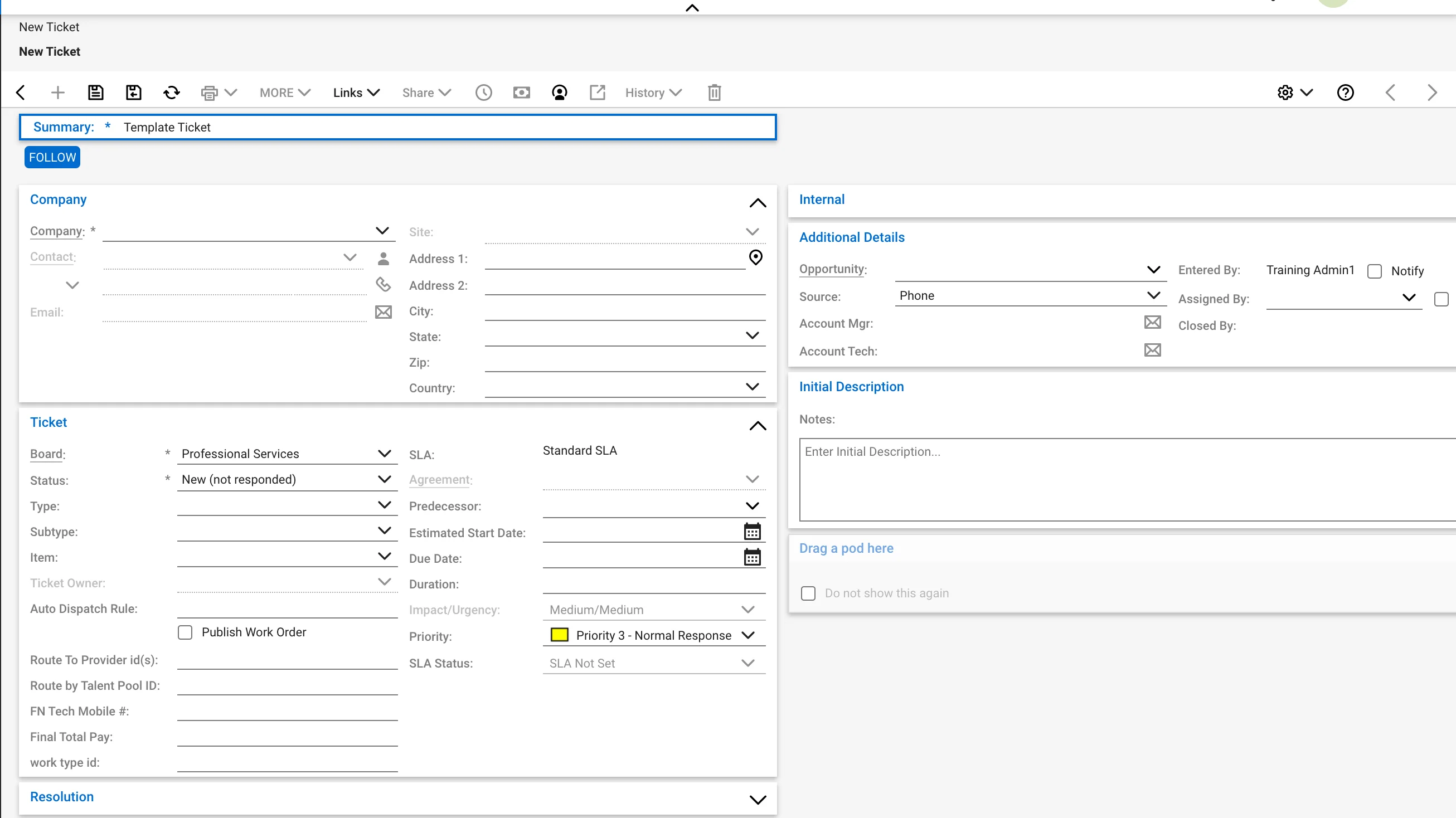
Private Key — Enter directly in the Field Nation connector settings. Do not store it here.
Password — Leave blank. The connector form renders a Password field, but key-pair authentication does not use it.
Who: Field Nation Integration Owner
Navigation: Field Nation → Integrations → Field Services → ConnectWise → Manage → Settings
Enter the values collected in Step 4. Use the hostname only — no https:// prefix and no trailing slash.
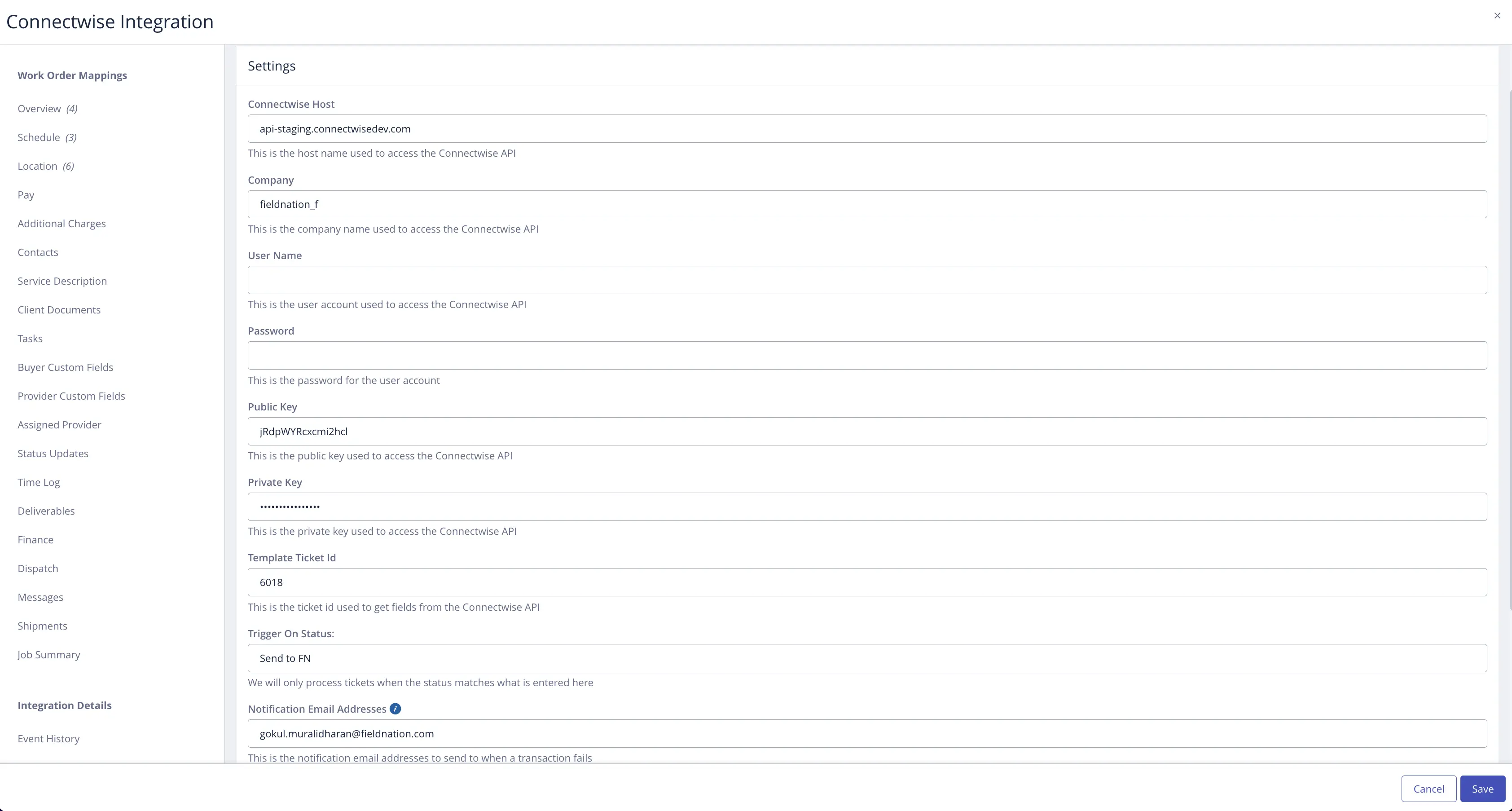
The labels below match exactly what the connector form shows. User Name and Password appear in the form but are not used — leave them blank.
| Field (UI label) | Value |
|---|---|
| ConnectWise Host | Hostname only — e.g. api-na.myconnectwise.net |
| Company | Your login company identifier (e.g. acme_corp) — see the Company tip in Step 4 for three ways to confirm the correct value |
| User Name | Not used. The connector does not read this field. Leave blank or enter any value. |
| Password | Not used. Leave blank. |
| Public Key | From Step 4 |
| Private Key | From Step 4 — entered directly |
| Template Ticket ID | Numeric ID of an active ticket for field discovery (cannot have any trailing spaces) |
| Trigger On Status | The exact ConnectWise ticket status text that must be present for the connector to create a work order (e.g. Dispatch to FN). Case-sensitive. Tickets whose current status does not match are silently skipped — no error is surfaced. Set this before enabling sync. |
| Notification Email Addresses | Comma-separated email addresses to receive alerts when a sync transaction fails. Optional. |
| Outbound Create | Toggle — create a ConnectWise ticket for every new Field Nation work order (see Step 7) |
| Fetch All Notes | Toggle — retrieve all ConnectWise note types, not just ticket notes (see Step 7) |
After saving, click Refresh Fields. The connector authenticates to ConnectWise using the Template Ticket ID and retrieves standard fields, related entity fields (company, contact, site), and any custom fields on that ticket type.
If you add new custom fields to ConnectWise after the connector is configured, click Refresh Fields again to make them available for mapping. Fields are discovered at connection time only.
Who: Field Nation Integration Owner
Navigation: Field Nation → Integrations → Field Services → ConnectWise → Field Mappings
Configure mappings for both directions based on the scope decisions from Step 1.
Runs when a ConnectWise callback fires and a ticket is imported into Field Nation.
| ConnectWise field | Field Nation field | Notes |
|---|---|---|
summary | title | Direct copy |
initialDescription | description | Initial description text |
status.name | status.name | Use Status Mapping |
site.addressLine1 | location.address1 | Site address |
site.city | location.city | Site city |
customFields[{id}] | Custom field | Discovered via Refresh Fields |
Each mapping row has two direction toggles between the Field Nation and ConnectWise columns: ← (inbound, CW → FN) and → (outbound, FN → CW). A row can be inbound-only, outbound-only, or both. This direction control is the key to a clean outbound sync — see Outbound workflows.
Runs when a Field Nation work order event fires.
| Field Nation field | ConnectWise field | Notes |
|---|---|---|
| Work order title | summary | Required to create a ticket |
| Buyer | company (name) | Required to create a ticket — the connector looks up the company by name. The value must match an existing ConnectWise company name exactly. |
| (static) | board (id) | Required to create a ticket — the board new tickets land on |
| Work order status | status.name | Via Status Mapping |
Refresh Fields also exposes additional inbound-mappable fields from the ConnectWise ticket — including Initial Internal Analysis (internal notes field) and Initial Resolution (resolution notes field) — which you can map to Field Nation fields that fit your workflow.
Status mapping translates ConnectWise status values to Field Nation status IDs. Configure under Field Mappings → Status. The status values in the dropdown are populated after Refresh Fields runs.
Status values are unique to your ConnectWise instance. Never copy mappings from another organization's configuration. Always use the values discovered by Refresh Fields from your own instance.
Enable to have every new Field Nation work order automatically create a ConnectWise service ticket. By default the connector only syncs to tickets already linked via a callback.
Field Nation → Integrations → Field Services → ConnectWise → Manage → Settings → Outbound Create (toggle)
Requires Service Tickets — Add permission on the security role.
When enabled, work orders the connector creates from ConnectWise tickets are dispatched to providers automatically rather than held as drafts. Auto-dispatch is gated by the auto-dispatch contract entitlement — contact Field Nation Support to enable it, then turn on the auto-dispatch setting in the connector configuration.
Syncs messages and notes between Field Nation work orders and ConnectWise Ticket Notes. Message sync depends on the Messages contract entitlement — a platform-level feature, not a switch in the connector form. If it's unavailable, contact Field Nation Support to confirm the entitlement. Notes are written to the ConnectWise Internal Analysis field (internal — visible only to your team) or the Detail Description field (external — visible to the ticket's contacts) depending on message type.
Syncs files between Field Nation work orders and ConnectWise Documents. The two toggles live in the Client Documents mapping section (labels exactly as the form shows them):
Attachment sync also requires the Client Documents contract feature; if the toggles don't appear, contact Field Nation Support to enable that entitlement.
Requires Companies → Manage Attachments on the security role — Inquire for inbound import and Add for outbound export. The connector de-duplicates outbound uploads by a fingerprint hash, so re-uploading the same file is skipped.
Attaching a file to a ticket in the ConnectWise UI (e.g. to test inbound import): the ticket must be saved first — the Attachments area only appears on an existing ticket, behind a paperclip icon, not a left-nav section. And it's gated by the logged-in user's role (Manage Attachments) — if you don't see it, that user's role lacks the permission, or you need to log out/in after granting it.
When enabled, retrieves all note types from ConnectWise — standard ticket notes, time entry notes, and meeting notes — rather than ticket notes only.
Enter one or more comma-separated email addresses in Settings → Notification Email Addresses. The connector sends an alert to these addresses when a sync transaction fails — for example, when a callback fires but the work order cannot be created due to a missing required field or an API error. This is the primary way to detect silent sync failures. Optional, but recommended for production deployments.
Schedule entries sync automatically whenever you map schedule.dateStart / schedule.dateEnd (Step 6) — there is no separate enable toggle. Entries are always fetched inbound and written outbound based purely on those mappings.
Test in a sandbox first — here's the self-check.
schedule.dateStart → work order time window start, and schedule.dateEnd → end.Who: Field Nation Integration Owner
Before testing, confirm sync is active: Field Nation → Integrations → Field Services → ConnectWise → Manage → Settings → Enable Sync (toggle on). The connector will not process any inbound or outbound events until this is enabled.
Complete each validation step before declaring the integration active.
| Module / Area | Inquire | Add | Edit | Delete | Required |
|---|---|---|---|---|---|
| Service Desk → Service Tickets | ✓ | ✓ | ✓ | Always (also covers Ticket Notes) | |
| System → Table Setup | ✓ | ✓ | Always (Custom Fields + Note Types) | ||
| Companies → Company Maintenance | ✓ | ✓¹ | ✓¹ | Always (¹Add/Edit if an outbound company mapping is configured) | |
| Companies → Configurations | ✓ | Always | |||
| Companies → Manage Attachments | ✓ | ✓¹ | Always (Inquire — connection reads ticket documents); ¹Add for attachment export | ||
| Project → Project Tickets | ✓ | Project tickets only | |||
| Service Desk (or Time & Expense) → Resource Scheduling | ✓ | ✓ | ✓ | If schedule fields are mapped | |
| Finance / Billing / Invoicing | Never | ||||
| System → User Management | Never | ||||
| System Administration | Never |
Non-secret values are saved in your browser. Fields marked Not saved are held only until you reload — enter them directly into the connector form.
Last updated on
Overview
Connect ConnectWise Manage to Field Nation to sync service tickets and work orders bidirectionally — dispatch technicians without re-entry.
Workflow Setup
Configure ConnectWise callbacks to trigger Field Nation work orders, and tune bidirectional sync workflows for status, notes, and attachments.
